Scheduled Events
Scheduled Events can be used to trigger actions at a specific time, either once or on a recurring basis. For example, you may wish to start playout at a specific time, change the playout mode to Automation ON when PlayIt Live starts, or automatically merge adverts every hour.
To get started, go to Manage > Scheduled Events and click Add New.
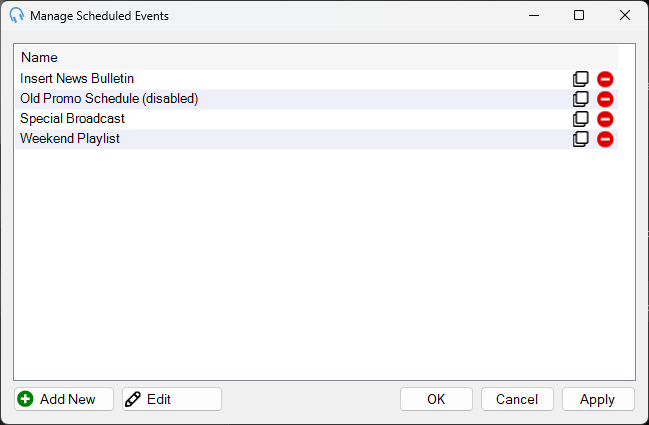
Event List
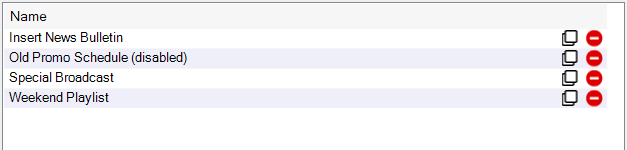
The list of configured scheduled events. Each event shows its name. Disabled events appear greyed out.
Add New
Click Add New to create a new scheduled event.
OK / Cancel / Apply

Click Apply to save your changes without closing the window. Click OK to save and close. Click Cancel to discard any unsaved changes.
Creating and Editing Events
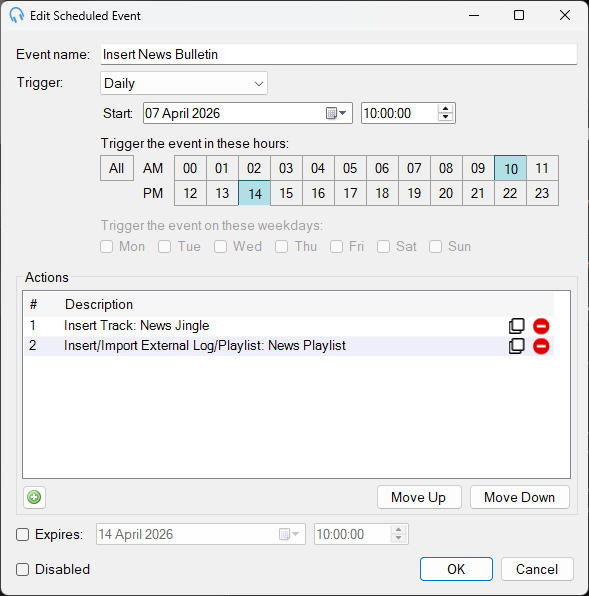
Double-click an event in the list, or click Add New, to open the event editor.
Name

Enter a descriptive name for the event.
Trigger

Choose when the event fires:
- Once: fires at a single specific date and time.
- Daily: fires every day at the selected time, with optional additional hours.
- Weekly: fires on selected days of the week at the selected time.
- On startup: fires each time PlayIt Live starts.
Start Time

The time at which the event triggers. For Daily and Weekly events, this sets the base time; extra hours or days can be added below.
Additional Hours (Daily)

When using the Daily trigger, tick additional hours to fire the event at multiple times throughout the day. Ticking every hour causes the event to run hourly.
Additional Days (Weekly)

When using the Weekly trigger, tick additional days of the week. Ticking every day causes the event to run at the same time every day.
Actions
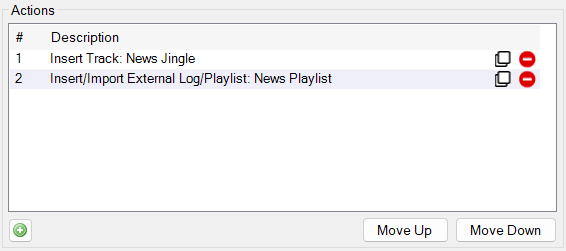
The list of actions that will run when the event fires. Click the [+] button to add an action. Use Move Up and Move Down to reorder actions. Actions run sequentially in the order listed.
Expires

Tick Expires and set a date to automatically stop the event triggering after that date.
Disabled

Tick Disabled to prevent the event from triggering without deleting it.
OK / Cancel

Click OK to save the event and return to the Scheduled Events list. Click Cancel to discard changes.
Actions
Every event has a list of actions that run sequentially when the event fires. Click the [+] button in the event editor to add an action.
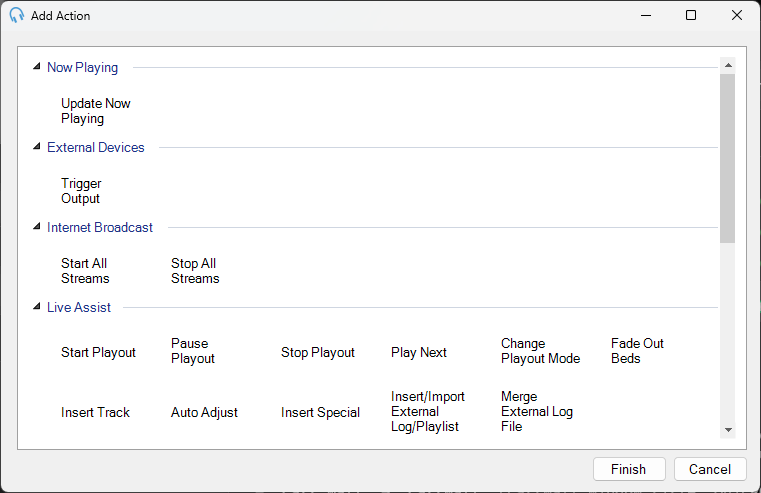
Action Types
Select the type of action to add. Double-click an action, or select it and click Next, to proceed. Some actions require additional parameters which you will be prompted for after selecting the action type.
Next/Finish and Cancel

Click Next to continue configuring the selected action. If no additional parameters are required, click Finish to add the action. Click Cancel to close without adding an action.
Actions are grouped by area. Some actions run immediately with no further configuration; others prompt you for parameters after you select them. The actions with the most detailed parameters have their own pages, linked below.
Available actions
Live Assist
- Start Playout - start live-assist playout.
- Pause Playout - pause playout.
- Stop Playout - stop playout.
- Play Next - play the next item in the playout log.
- Fade Out Beds - fade out any currently playing beds.
- Auto Adjust - run Auto Adjust to re-time the playout log.
- Change Playout Mode - switch the playout mode (for example Automation On or Off).
- Insert Track - insert a track, track group, or file into the log at a chosen position.
- Insert Special - insert a fixed time marker, break note, URL, or aux input.
- Insert/Import External Log/Playlist - insert or import an external log or playlist file.
- Merge External Log File - merge items from a dated external log file for the rest of the hour or day.
Decks Mode (apply when PlayIt Live is in Decks Mode)
- Play / Pause / Fade Out / Stop / Eject Deck - control the chosen deck.
- Load Track - load a track, track group, or file into the chosen deck.
QuickCarts
- Play / Pause / Fade Out / Stop / Eject QuickCart - control the cart at a chosen page, row, and column.
- Load QuickCart - load a track, track group, or file into a chosen cart slot.
Priority Streams
- Change Open State - set a priority stream (or all streams) to Closed, Pre-Open, or Open.
Internet Broadcast
- Start All Streams - start all configured encoder streams.
- Stop All Streams - stop all encoder streams.
Now Playing
- Update Now Playing - publish a now-playing update with a given "Artist - Title" text.
External Devices
- Trigger Output - trigger a named external device output, such as a GPIO line.
Scripting
- Run PowerShell Script - run a PowerShell script, optionally waiting for it to finish.
- Send HTTP Request - send an HTTP request (method, URL, headers, and body) to an endpoint.
- Send TCP/UDP Request - send a TCP or UDP packet to an address and port.
- Run Utility Command - run the built-in PlayIt CLI to copy files or download audio from an FTP server.
Helpers
- Wait For Time - pause the action sequence for a set number of seconds before the next action runs.
After an action is configured, it appears in the actions list. Use the Clone button on either the Events list or the Actions list to quickly duplicate an existing event or action.
When the specific time is reached, or PlayIt Live is started, the scheduled events will be triggered.
Events are triggered sequentially. If two events are set to fire at the same time, all actions in the first event run before any actions in the second event begin.