Remote Voice Tracking Setup
Purchasing the Voice Tracking module unlocks full remote voice tracking functionality. Whenever the module is not active, an audio notice plays on air before each voice track, including remote voice tracks recorded while it was active. See Without an active Voice Tracking module. Remote voice trackers can send voice tracks to PlayIt Live without needing the module themselves. The number of users who can connect concurrently is determined by the number of users selected when purchasing. With the Premium Module Bundle, an unlimited number of remote voice tracking users can connect at the same time.
PlayIt Live can be configured to allow users to connect from another computer at home or another studio and record voice tracks in your playout log. They can also edit the segues and add additional tracks from your library.
You will need to do the following to allow remote users to connect:
- Enable remote connections by starting the built-in remote server.
- Set up users, including username, password, and the hours they are allowed to edit in the playout log.
- Add voice track placeholders to the playout log where users can record voice tracks.
- Give the remote URL from step 1 and a username and password from step 2 to the user.
1. Enable remote connections
From the main interface, go to File > Enable remote connections...
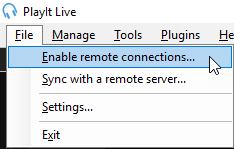
The File menu with the 'Enable remote connections...' option highlighted.
Expand the Advanced section, ensure that Use HTTPS is checked. The default server port of 25433 should be fine. Click Start Server.
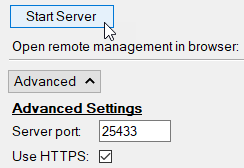
The Advanced Settings section showing the Start Server button, the Server port field set to 25433, and the Use HTTPS checkbox ticked.
This will enable remote connections to PlayIt Live. Depending on your configuration, you may be required to configure your Windows Firewall and network port forwarding to allow connections from outside your network. You can use the Help me set up external access button to assist you with this.

The 'Help me set up external access' button.
Under external access is a remote URL that will be used by the remote user to connect. Take note of this.

A green tick confirms that PlayIt Live is set up for external access. The remote URL is displayed below.
2. Set up users
From the main interface, go to Manage > Users...
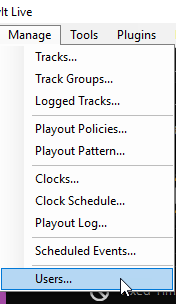
The Manage menu with the 'Users...' option highlighted at the bottom.
On the Manage Users window, click Add New. Enter a display name, username and password for the user. Use the Remote Voice Tracking grid to select the hours the user is allowed to remote voice track into.
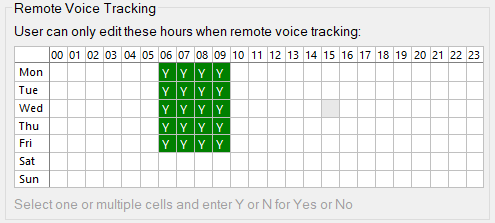
The Remote Voice Tracking permissions grid. Days of the week are listed on the left and hours 00-23 across the top. Green 'Y' cells mark the hours the user is allowed to voice track.
Add more users as necessary.
Click OK on the Manage Users window to apply the changes.
3. Add voice track placeholders
Voice track placeholders are gaps in the playout log where users can record their voice tracks. You can add voice track placeholders to the playout log by dragging the Voice Track button from the Special Items panel onto the playout log.
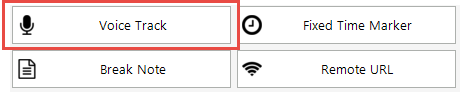
The Special Items panel showing the Voice Track button highlighted with a red border, alongside Fixed Time Marker, Break Note, and Remote URL buttons.
You can use the Go To Time button  to go straight to an hour to drop voice tracks for a future hour.
Alternatively you can add voice track placeholders directly via Manage > Playout Log or via a clock via Manage > Clocks. If a user starts a remote voice tracking session for an hour which has not yet been scheduled in the playout log, PlayIt Live will automatically schedule this hour.
4. Connect a user
Once you have set up the above, contact your remote voice trackers sending them the remote URL and their username and password. Remote voice trackers can remote voice track in two ways:
- Recommended: Voice tracking via a web browser (any operating system). Please refer to Remote Voice Tracking (Usage).
- Via PlayIt VoiceTrack (Windows only). Please refer to the PlayIt VoiceTrack documentation.