Live-Assist Mode
The Live-Assist Mode tab contains settings for the number of players, audio device assignments, segue behaviour, scheduling, and user interface options when using Live-Assist mode.
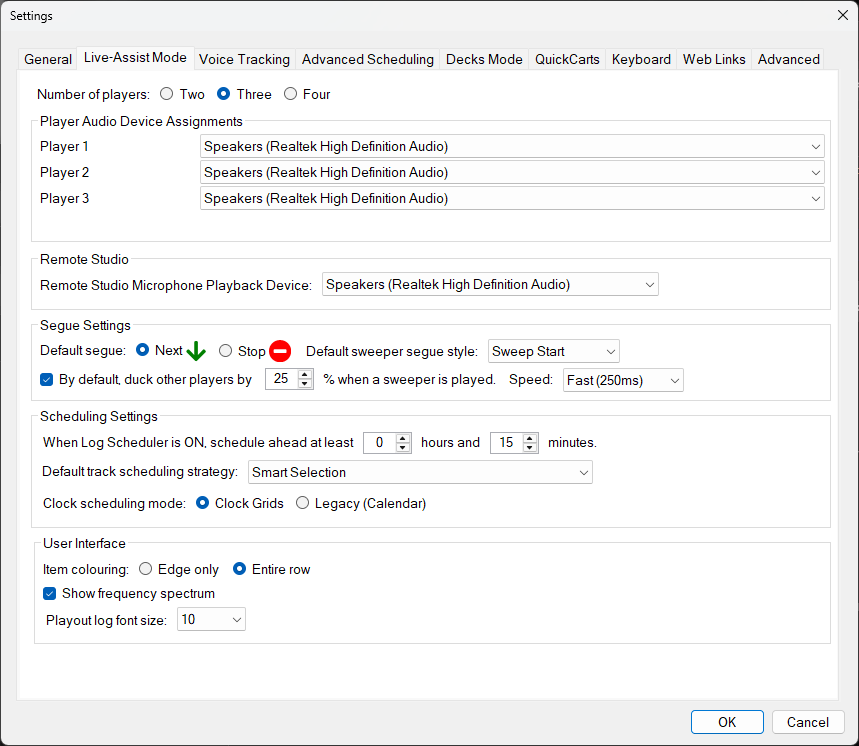
The Live-Assist Mode tab of the Settings window.
Number of Players

Select the number of players to display in Live-Assist mode. You can choose between two, three, or four players. More players allow you to have more tracks loaded and ready to play simultaneously.
Player Audio Device Assignments

Assign an audio output device to each player. By default, all players use the same device, but you can assign different devices to different players for multi-output setups.
Remote Studio Mic Device

Select the audio device used for Remote Studio microphone playback in Live-Assist mode.
Default Segue

Choose the default segue behaviour when one track finishes:
- Next - Automatically start the next track in the playout log.
- Stop - Stop playback and wait for the presenter to start the next track.
Sweeper Segue and Duck Settings

Configure the default sweeper segue style and ducking behaviour. Sweepers can overlap with the previous track, and ducking reduces the volume of the playing track while the sweeper plays.
Scheduling Settings

Configure the built-in log scheduler and schedule-ahead settings. When the built-in log scheduler is enabled, PlayIt Live will automatically schedule tracks ahead by the specified number of hours and minutes.
Schedule ahead
By default, PlayIt Live will schedule at least 15 minutes ahead when the Log Scheduler is ON. Use this setting to increase the amount that is scheduled ahead, up to 24 hours. PlayIt Live schedules in full hours, so scheduling ahead by at least 15 minutes will trigger the next hour to schedule at xx:45 past the hour (15 minutes before the end of the hour).
Default Track Scheduling Strategy
PlayIt Live uses a scheduling strategy when deciding what tracks to select for Track Group clock items or track groups in the Playout Pattern. The options are:
- Smart Selection - Selects a track using a weighted random algorithm. A track played longer ago is given a larger weight, increasing its chance of being selected.
- Random - Selects a track entirely at random from the track group.
- Most Rested - Selects the track from the track group that was played longest ago.
Clock scheduling mode
Choose how PlayIt Live decides which clock applies to each hour:
- Clock Grids - Use the Clock Grids window, where you build reusable weekly templates with layers, recurrence, and date ranges. This is the preferred mode for new schedules.
- Legacy (Calendar) - Use the older calendar-based clock schedule.
Only one mode drives clock selection at a time. Switching modes does not delete anything: the data for the mode you switch away from becomes inactive but remains stored, so you can switch back at any time.
Item Colouring

Choose how track group colours are displayed in the playout log:
- Edge only - Show a coloured strip on the left edge of each item.
- Entire row - Colour the entire row background.
Show Frequency Spectrum

When enabled, a real-time frequency spectrum analyser is displayed alongside the players.
Playout Log Font Size

Set the font size used for the live playout log on the main interface. A larger font makes the upcoming items easier to read at a glance, which is useful for presenters reading the running order from across the studio or on a larger studio monitor. A smaller font fits more items on screen at once.
You can choose from the sizes 8, 10, 12, 14 and 16. The default is 10. The playout log headings, warnings, and other text scale in proportion to the size you choose, so the whole log stays balanced.
To change the size, select a different value from the dropdown and click OK. The change is applied to the live playout log immediately, with no need to restart PlayIt Live.