Advanced Scheduling
The Advanced Scheduling tab contains settings for priority streams, fitting to time, and other advanced scheduling features.
Advanced Scheduling requires the Advanced Scheduling module. Start a free two-week trial from within PlayIt Live via Help > Licensing Information.
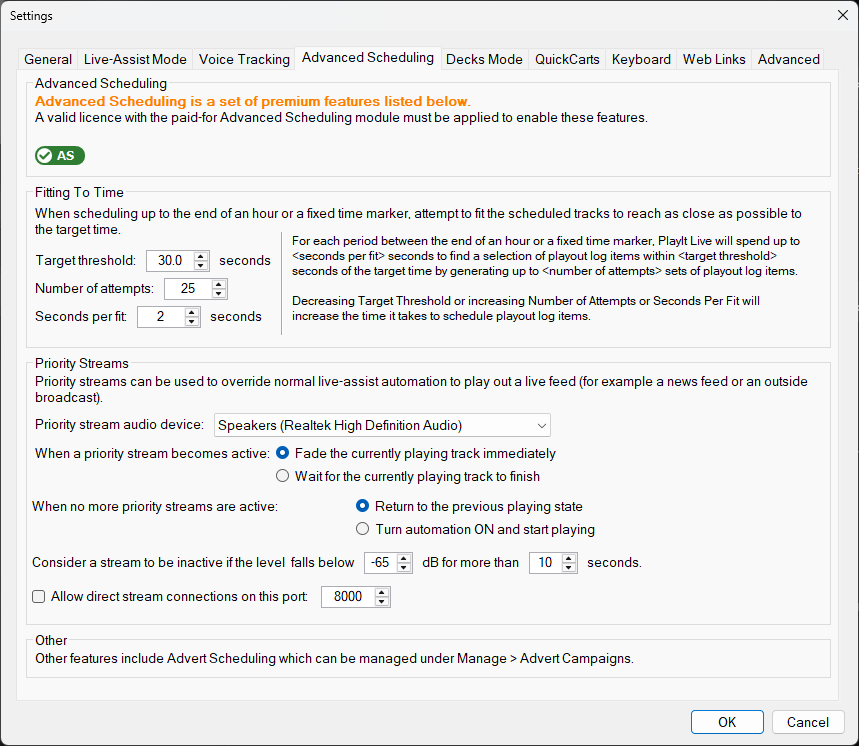
The Advanced Scheduling tab of the Settings window.
Licence Status

Shows the current licence status for the Advanced Scheduling premium module. If Advanced Scheduling is not included in your licence, this will display a message explaining how to activate it.
Fitting To Time
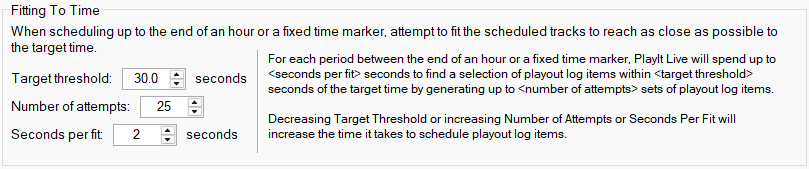
Configure how PlayIt Live fits scheduled content to time markers. Adjust the target threshold (how close to the target time the scheduler should aim), the number of attempts, and the time allowed per fit calculation. These settings control the precision and performance of the fitting algorithm.
By default, Target threshold is set to 30 seconds, Number of attempts to 25 and Seconds per fit to 2 seconds. This means that PlayIt Live will generate up to 25 combinations of playout log items and pick the first (or best) one that fits within the target threshold.
Decreasing Target threshold or increasing Number of attempts or Seconds per fit will increase the time it takes to schedule playout log items.
Priority stream audio device

Select the audio device used for monitoring priority streams. Priority streams allow external audio sources to take priority over scheduled playout.
When a priority stream becomes active

Choose what happens to the currently playing track when a priority stream becomes active:
- Fade the currently playing track immediately - The current track fades out smoothly.
- Wait for the currently playing track to finish - The priority stream waits until the current track finishes.
When no more priority streams are active

Choose what happens when there are no more active priority streams:
- Return to the previous playing state - PlayIt Live returns to whatever it was doing before the priority stream started.
- Turn automation ON and start playing - Automation is enabled and playout continues from the schedule.
Silence Detection

Configure when a priority stream is considered inactive based on silence. Set the volume threshold (in dB) and the duration (in seconds) that the stream must be below this level before it is considered inactive.
Direct Stream Connections

When enabled, PlayIt Live listens for direct stream connections on the specified port. This allows external applications to send audio directly to PlayIt Live as a priority stream.
Remote users can connect using any Icecast-compatible encoder such as the Internet Broadcast plugin, BUTT, or Rocket Broadcaster. To set up a user to connect, create a user under Manage > Users. The following details can be used by the remote user to connect:
| Setting | Value |
|---|---|
| Server Type | Icecast |
| Server Address | Your external IP address |
| Server Port | The port specified here in settings (remember to tick the checkbox to allow connections) |
| Username | PlayIt Live user specified under Manage Users |
| Password | PlayIt Live user password specified under Manage Users |
| Mount | / |
Other Advanced Scheduling features include Auto Adjust, Advert Scheduling, Track Dayparting, Daypart Separation and Hook Sequences.