Edit Remote URL Settings Window
The Edit Remote URL Settings window is used to configure a remote URL clock item. Remote URL items can play audio from the internet or your internal network. This window is launched from the Edit Clock window.
It is possible to choose either a File or Live Stream:
-
A File URL typically refers to a static file located on a server which is downloaded by PlayIt Live when it is loaded into a player. Remote files are intended to be a fixed length duration and this must be provided to PlayIt Live in order to ensure the item is scheduled with the correct length (as this is not known until load time).
-
A Live Stream URL typically refers to an audio stream provided by a streaming media server such as Icecast or Shoutcast and could be an internet radio station or a remote DJ stream. PlayIt Live assumes the live stream will run forever so will attempt to restart the stream if the connection is dropped. PlayIt Live will play the live stream until the specified duration has elapsed. Live streams can also be stopped manually, or by using a hard fixed time marker.
For bringing in a remote presenter, outside broadcast, or recurring live DJ stream, consider using Priority Streams instead of a Remote URL clock item. Priority Streams are configured centrally under Manage > Priority Streams and do not need to be added to individual clocks. The stream takes over live-assist playout automatically whenever it is connected and active, so you can change the stream URL or settings in one place without editing every clock that uses it. Priority Streams also handle reconnection and silence detection automatically, making them more robust for live feeds than a Remote URL clock item.
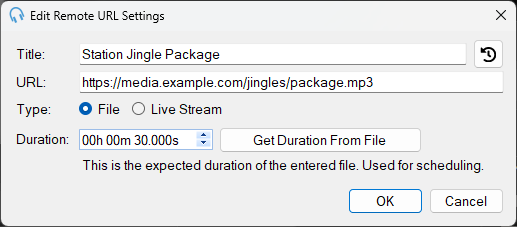
Title

The title of the stream for your reference.
History

Use the History button to use a recent Remote URL. This is handy if you regularly use the same Remote URL and want to quickly populate the settings.
URL

The internet address of the file or stream to play. This should refer to a file or an internet stream. Please note that playlist files (m3u or pls) are not supported as they are actually playlist text files that contain the stream to play.
Type

The type of audio the URL refers to. Choose File for a static audio file, or Live Stream for a continuous audio stream.
Duration

For file URLs, this is the expected duration of the file used for scheduling. Use the Get Duration From File button to automatically fetch the duration from the remote file. For live stream URLs, this is the duration the live stream will play for.
OK Button

Click OK to save the settings and close the window.
Cancel Button

Click Cancel to discard changes and close the window.