Backup and Restore
PlayIt Live can back up and restore your database and settings on demand or on a regular schedule.
Backups contain your database and settings only - they do not include your audio files. Tracks and voice track recordings are referenced by their file path, so the audio itself is not copied into the backup. Back up your audio files separately, and make sure they are present at the same paths when you restore, otherwise the restored library will point to missing files.
To open Backup and Restore, go to Tools > Backup and Restore.
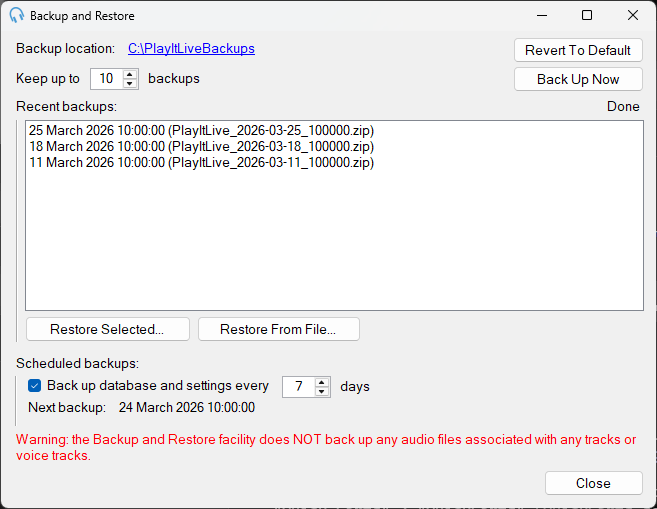
Backup location

The location where backup files are stored. Click the link to change the location of future backups.
Revert To Default

Revert the backup location to the default location.
Keep up to

The number of backups to keep.
Back Up Now

Click Back Up Now to back up the database and settings immediately.
Backup Status

The backup status updates while a backup is in progress.
Recent backups

A list of backups in the current backups folder.
Restore Selected

Restore the selected backup in the backups list. The backup will be marked to restore when PlayIt Live next restarts. When the backup is restored, any existing data will be overwritten and irretrievable.
Restore From File

Restore a specific backup from a file. The backup will be marked to restore when PlayIt Live next restarts. When the backup is restored, any existing data will be overwritten and irretrievable.
Scheduled backups

Schedule PlayIt Live to regularly back up the database and settings every specified number of days. This happens automatically in the background when PlayIt Live is running.
Close

Closes the window. Any currently running backup will continue in the background.
Restoring a backup
After marking a backup to restore and restarting PlayIt Live, you will be prompted to restore the backup.
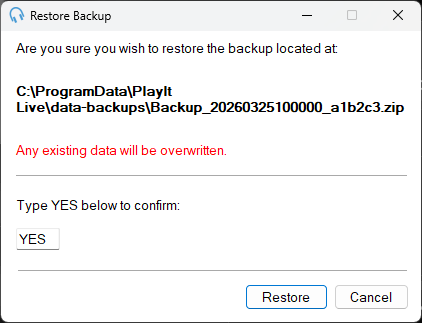
Type YES into the text box and click Restore to restore the backup. Any existing data will be overwritten.
Click Cancel to abort the restore and use the existing data.