Decks Mode
Decks Mode emulates a cart machine where a disc jockey physically presses a button to control the cart. Tracks are loaded into individual decks by dragging and dropping from the track list or from a file on your file system.
To enable Decks Mode, go to Settings > General and select the Decks Mode (Classic) option under player mode. You can configure the number of decks and audio device assignments in the Settings > Decks Mode tab.
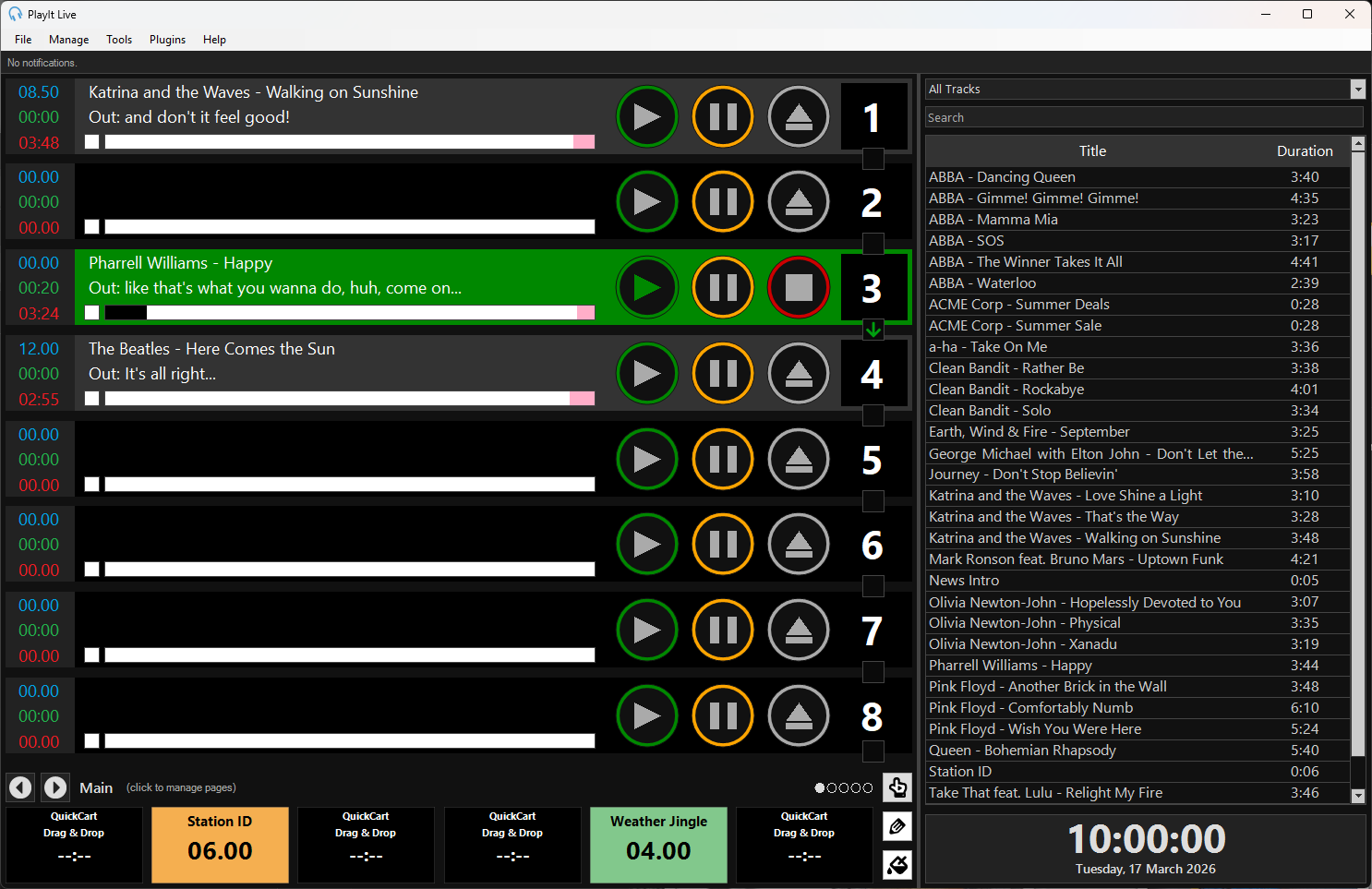
Players
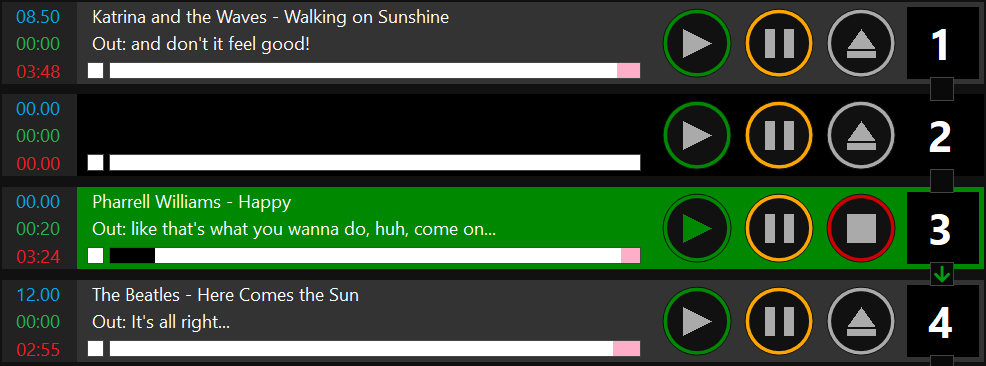
The deck players at the top allow you to load and play tracks. Each deck operates independently with its own playback controls. See Decks Mode Player for details on the individual deck controls.
Segue button

The segue button between each pair of decks controls whether the next deck will automatically start playing when the current deck finishes. A green arrow indicates that automatic playback is enabled. Click the button to toggle this behaviour.
QuickCarts panel

The QuickCarts panel provides instant playback buttons for jingles, sound effects, and other audio items. See QuickCarts.
Onscreen clock

The onscreen clock shows the current date and time. See Onscreen Clock for configuration options.
Track list
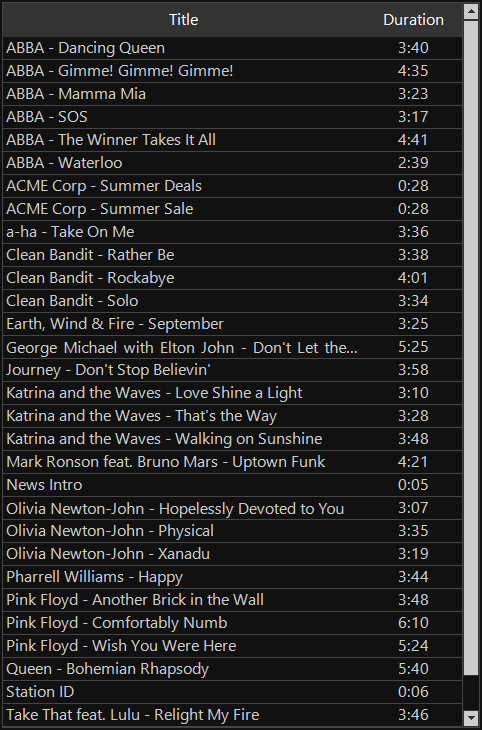
The track list shows a list of tracks added to the system. Drag and drop a track from this list onto a deck to load it. See Track list.

Track Group selector

Filter the track list by track group using the dropdown. See Track Group selector.