Mixdown Playout Log
The Mixdown Playout Log feature allows you to mix down a portion of your playout log into a single audio file. This is useful for creating pre-recorded shows, backups, or exporting audio for other uses such as playing while updating the software or restarting the computer. You can specify the range of items to include, choose the output file format, and control additional options such as saving CUE files for track markers.
To open the Mixdown Playout Log window, go to Tools > Mixdown Playout Log.
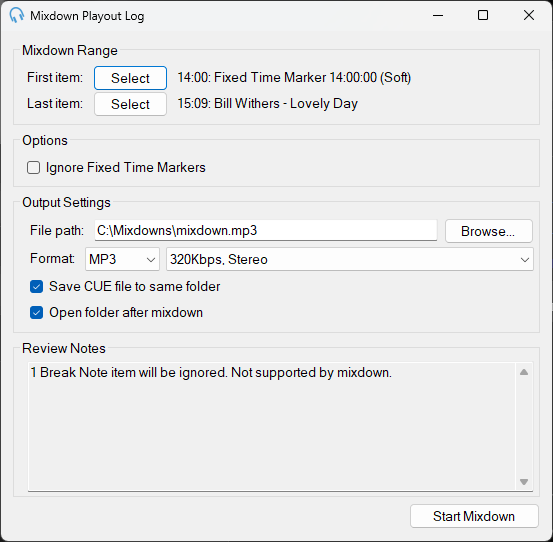
Mixdown Range

Use the First item and Last item fields to specify the range of items in the playout log to include in the mixdown. Click Select to choose specific items directly from the playout log.
Ignore Fixed Time Markers

Tick this option to ignore the effect of Fixed Time Markers. Any items skipped or truncated by Fixed Time Markers will be included in the mixdown.
File Path

Define where the mixdown file will be saved on your computer. Use the Browse button to select a folder and file name for the output.
Format

Choose the desired format for the mixdown audio file. Options include MP3 or WAV. For MP3, select the bitrate and audio quality settings.
Save CUE File

Tick this option to save a CUE file alongside the mixdown file. A CUE file contains information about the tracks within the mixdown file, which can be read by playout systems including PlayIt Live.
Open Folder After Mixdown

Enable this option to automatically open the folder where the mixdown file has been saved once the process is complete.
Review Notes
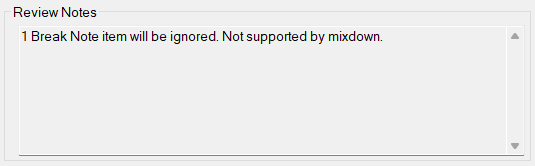
Displays any important notes or warnings, such as items in the range that are unsupported by the mixdown process. For example, if the Voice Tracking module is not active when you start the mixdown, the voice tracks in the range are left out of the mixdown file, and a review note tells you how many will be ignored. This applies even to voice tracks recorded while the module was active. See Without an active Voice Tracking module.
Start Mixdown

Click this button to begin the mixdown process. The system will process the selected range and save the audio file in the specified location. Leave the Mixdown Playout Log window open until the mixdown process is complete.