Move Tracks Window
You can use the Move Tracks window to easily move tracks from one Listed Track Group to another. Open it by clicking Move Tracks in the Manage Track Groups window.
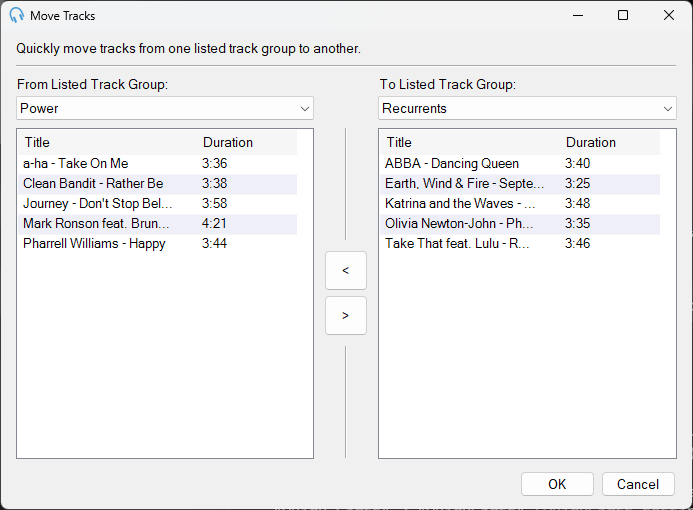
The Move Tracks window showing two track groups side by side with move controls.
From Listed Track Group
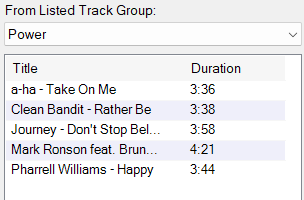
Select the track group you want to move tracks from. Select the tracks you wish to move and click the right arrow. You can select multiple tracks while holding the Ctrl key. You can also double-click tracks to move them to the other track group. Right-click the header and select Select columns... to customise the displayed columns. Right-click a track to show additional options, including the ability to preview the audio.
To Listed Track Group
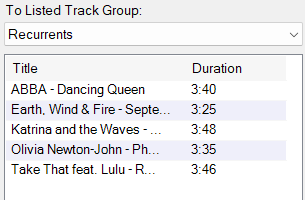
Select the track group you want to move tracks to. Select the tracks you wish to move back and click the left arrow. You can select multiple tracks while holding the Ctrl key. You can also double-click tracks to move them to the other track group. Right-click the header and select Select columns... to customise the displayed columns. Right-click a track to show additional options, including the ability to preview the audio.
Move Right

Move the selected tracks from the track group on the left to the track group on the right.
Move Left

Move the selected tracks from the track group on the right to the track group on the left.
OK

Save changes and close the window.
Close

Close the window without saving changes.