Edit Clock Window
The Edit Clock window allows you to create and edit clocks. A clock is a template for an hour of programming, containing a list of items that define the order and type of content to be scheduled. This window is launched from the Manage Clocks window.
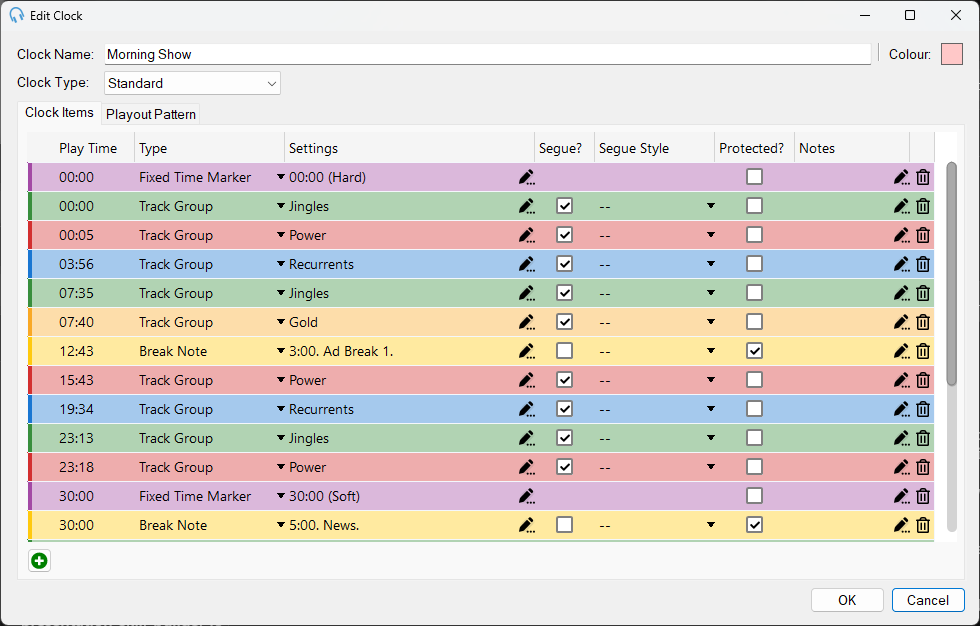
Clock name

The name of the clock.

Clock type

Determines how the clock functions within the scheduling system. There are two types:
- Standard: A standard clock is a full hour-long template that can be scheduled directly onto the Clock Schedule window. Standard clocks contain all the items that will make up an hour of programming.
- Partial: A partial clock is a reusable mini clock that contains a sequence of clock items designed to be inserted into other clocks. Partial clocks cannot be scheduled directly but are instead inserted into standard clocks using a Partial Clock item. This allows you to define commonly used sequences (such as a top of the hour sequence) once and reuse them across multiple different clocks. Partial clocks require the Advanced Scheduling module.
Clock item list
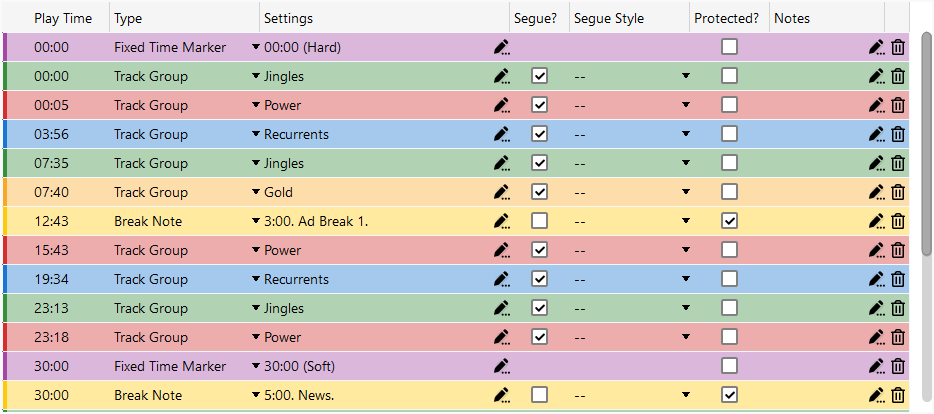
The list of items in the clock. Each item features its approximate play time, type, settings, segue flag, segue style, protected flag, and notes. Clock item rows are highlighted with different colours depending on their type or track group, making it easier to visually distinguish between different elements in your clock at a glance.
To duplicate an item, select it and press Ctrl+D. You can also copy a clock item with Ctrl+C and paste it with Ctrl+V. Click and drag items to re-order them in the list.
The columns are:
- Play Time The approximate play time of a clock item, determined from the sum of all previous item durations. The duration of each item varies depending on the choice of settings. For a track group item, the duration is determined from the average duration of all tracks in the group. A fixed time marker resets the play time to the fixed time.
- Type: The type of the clock item.
- Settings: The settings of the clock item. Click the edit icon to launch the edit settings window, such as the Edit Track Settings window, Edit Track Group Settings window, or other settings windows depending on the item type.
- Segue?: When checked, the scheduled playout log item will have the segue flag set.
- Segue Style The segue style to apply to the scheduled playout log item. If set to '--' the default will be used. For tracks marked as sweeper, the default from Settings will be used.
- Protected? When checked, the scheduled playout log item will be protected. Protected items will not be dropped by Fixed Time Markers or the Auto Adjust feature. Use this for items that must be played during an hour, such as advert blocks.
- Notes: Click the edit icon to add notes about this clock item. This is purely for informational purposes.
To remove a clock item, select it and press the Delete key, or right-click the item and choose Delete from the context menu.
Add

Click the Add Clock Item button to add a clock item to the end of the list.
OK

Click OK to confirm changes to the clock.
Cancel

Click Cancel to discard changes.
Playout pattern override
The playout pattern is the repeating sequence of track groups that the scheduling engine cycles through to build the playout log. Normally a single playout pattern, configured in the Manage Playout Pattern window, applies to every hour of the week. Each clock you schedule fills its track group items by drawing from this one station-wide pattern.
A playout pattern override lets an individual clock use its own sequence of track groups instead of the station default. The override is a property of the clock itself, set on the Playout Pattern tab of the Edit Clock window, so wherever that clock is scheduled, its override applies for those hours.
This is useful when a particular type of programming should mix content differently from the rest of your output. For example, you might run a relaxed weekend overnight clock that should play two songs between each jingle, or a specialist music show clock that draws from a different balance of track groups than your daytime rotation. Rather than changing your station-wide pattern, you give just those clocks an override, and every other hour continues to use the default pattern unchanged.
The playout pattern override requires the Advanced Scheduling module. Start a free two-week trial from within PlayIt Live via Help > Licensing Information.
The Playout Pattern tab is only shown for Standard clocks; it is hidden for Partial clocks, which are inserted into other clocks rather than scheduled directly.
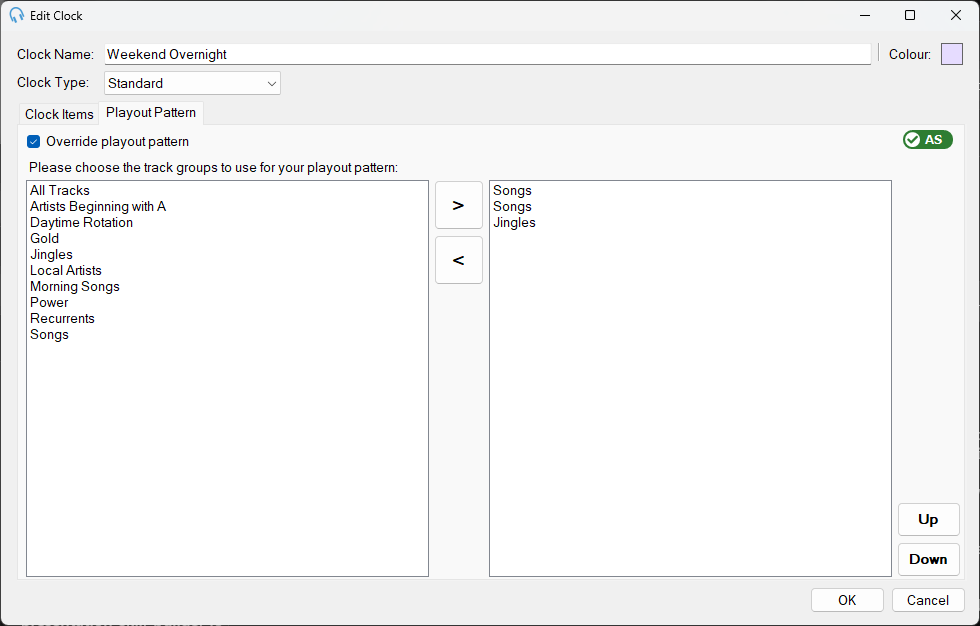
On the Playout Pattern tab, tick Override playout pattern to give this clock its own sequence of track groups in place of the station default.
Override playout pattern

The Override playout pattern checkbox that enables the clock-level override. When it is unticked, the track group list below is disabled and the clock uses the station-wide playout pattern.
Playout pattern
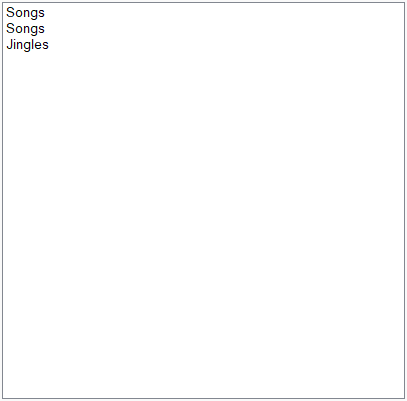
The track group list defining this clock's playout pattern, enabled only when the override is ticked. Build the sequence of track groups you want this clock to use, for example two songs between each jingle.
To give a clock its own playout pattern:
- Open the clock in the Edit Clock window and select the Playout Pattern tab.
- Tick Override playout pattern. The track group list below becomes editable.
- Build the sequence of track groups you want this clock to use. The list is pre-filled from your current station-wide pattern as a starting point, which you can then adjust.
- Click OK to save. The clock will now use this pattern for every hour where it is scheduled.
When Override playout pattern is left unticked, the clock uses your station-wide playout pattern as normal. This is the default for every clock, so clocks you do not explicitly override are unaffected. Unticking the override on a clock that previously had one restores it to the station default.
You must add at least one track group to the list when the override is enabled. If the list is empty, PlayIt Live will prompt you to add a track group before the clock can be saved.