Edit Monitored Folder Window
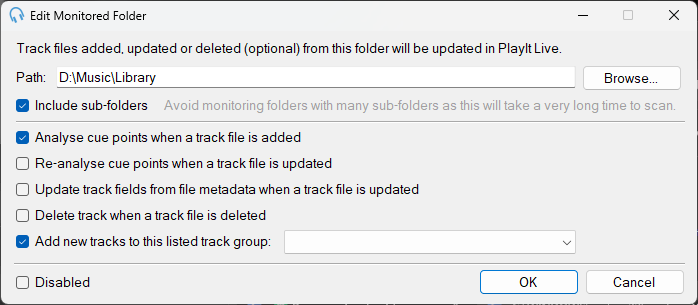
Path

The path to the folder you want to monitor.
Include Sub-Folders

If checked, sub-folders of the folder will also be scanned. Avoid folders with a large number of sub-folders as this will take a long time to scan.
Analyse Cue Points

If checked, when a track file is added the cue points of the track will be analysed.
Re-analyse Cue Points

If checked, when a track file is updated the cue points of the track will be re-analysed. Do not use this option if you manually set cue points as these will be overwritten.
Update Track Fields

If checked, when a track file is updated the fields of the track will be updated from the file. Do not use this option if you manually change the track fields as these will be overwritten.
Delete Tracks

If checked, a track will be deleted if the track file is deleted. A track file is determined to be deleted if it is not found after scanning the folder.
If a network folder or external drive is used in a monitored folder and this folder is disconnected or the drive is unplugged, PlayIt Live will warn in the notification bar that the folder is no longer accessible. Tracks will not be deleted in this case.
If this folder is regularly updated where a file is deleted and subsequently replaced with a file of the same name, you should switch this option off. When a track is added through a monitored folder it is assigned a unique identifier, and that identifier is stored in the playout log and clocks. If the track file is later deleted and the deletion is processed by the monitored folder, the track record is removed and any playout log or clock entries that referenced it will show a "missing track" message. With this option off, the existing track record is kept: clocks and the playout log will maintain the original reference and use the new track file once it appears.
Add Tracks to Track Group

If checked, new tracks will be added to the selected track group. Tracks will not be re-added to this track group if they are subsequently removed from the group.
Disabled

If checked, the monitored folder will be disabled and will not be monitored.
OK
Click OK to save the monitored folder settings.
Cancel
Click Cancel to discard changes and close the window.