Keyboard
The Keyboard tab allows you to configure keyboard shortcuts for common actions in PlayIt Live.
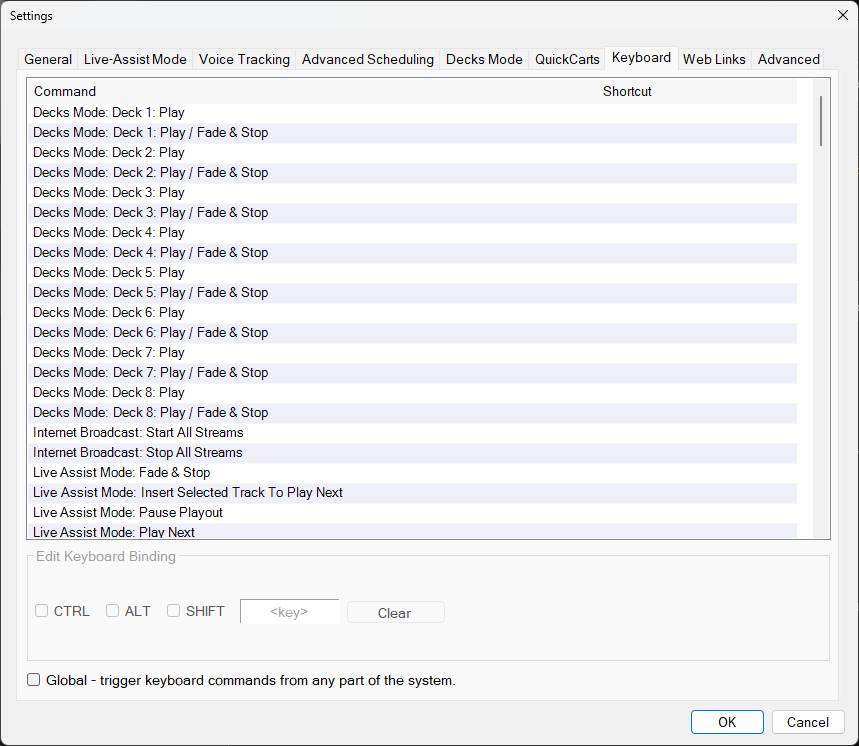
The Keyboard tab of the Settings window.
Command/Shortcut List
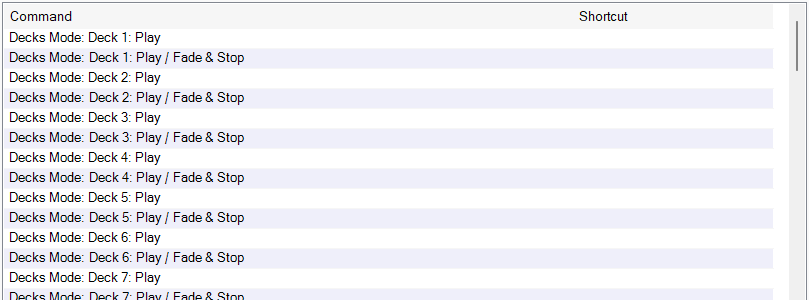
The list shows all available commands and their current keyboard shortcuts. Select a command from the list to view or change its shortcut in the editing panel below.
Edit Keyboard Binding

Use the modifier checkboxes (CTRL, ALT, SHIFT) and click the key box to define the shortcut for the selected command. Click Clear to remove an existing shortcut.
For example, to bind CTRL+Right to move to the next QuickCart page, select the CTRL checkbox and click the '<key>' text box. When prompted to press a key, press the Right arrow on your keyboard. The keyboard shortcut is now configured.
Global Trigger

Enable this checkbox to make the shortcut work even when PlayIt Live is not the active window. This is useful for controlling playback from other applications.
Please think carefully when choosing keyboard shortcuts. For example, it is not recommended to configure the Space Bar as a keyboard shortcut. This could interfere when you are typing into the search box and inadvertently trigger an action.