Import Playout Log
The Import Playout Log window allows you to import logs from an external scheduler. The import feature supports the PlayIt Playout Log Format (.pipl), M3U Playlist, and Scott Studios (SS32) format (deprecated).
The Scott Studios (SS32) format is deprecated and will be removed in a future update. Please contact support if you wish to learn more about this.
When a file is imported, the entire log for the selected date range will be cleared and replaced with the imported file. Click Import to import the file, then review the updated log in the Edit Playout Log window before applying the changes. If there are any errors processing the imported log file, you will be prompted to view these when the import process has completed.
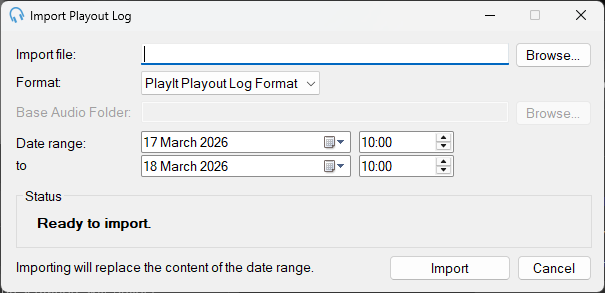
Import file

The file path to import. Click Browse to select a file.
Format

The format of the file to be imported. Supported formats are PlayIt Playout Log (.pipl), M3U Playlist, and Scott Studios (SS32).
Base Audio Folder

The Base Audio Folder used by the importer. This is optional and used with the M3U or SS32 format. These formats can contain relative paths to files, so the Base Audio Folder is used to resolve an absolute path.
Date range

The date range to import into. Any existing log entries for the selected date range will be cleared and replaced with the imported log.
Status

Shows any issues with the selected import file. If the duration of the file content does not match the date range, you will be prompted to change the duration of the date range to match.
Import

Click Import to start the importing process.
Cancel

Click Cancel to close the window.