Add New Tracks Additional Options
After selecting your source in the Add New Tracks Wizard, the Additional Options page lets you configure how the import will be processed.
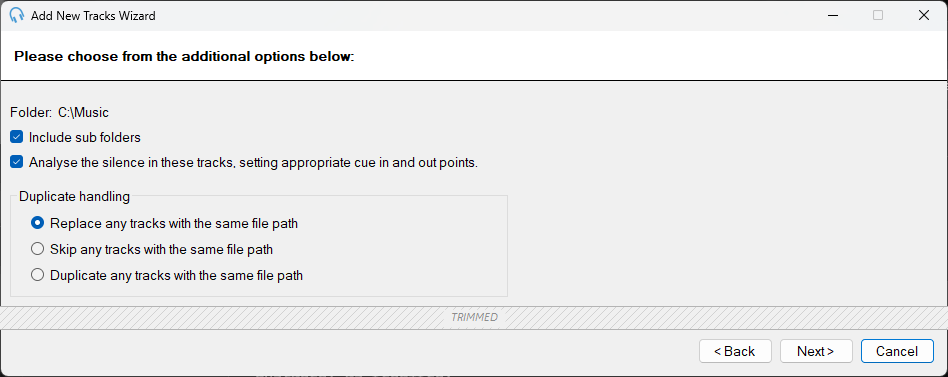
The Add New Tracks Wizard showing the additional options for a folder import.
Source

Displays a summary of the source you selected on the previous page. For a folder import, this shows the folder path. For individual files, it shows the number of files selected.
Include Sub Folders

When importing from a folder, tick this option to also scan all sub-folders within the selected folder for audio files. This option is only available when importing from a folder.
Analyse Silence

When ticked, PlayIt Live will analyse the silence at the start and end of each track and cue in and out points. This is recommended for most imports. The parameters for the silence analysis can be configured from Settings > General.
Duplicate Handling
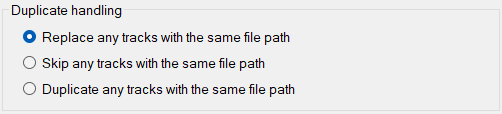
Controls what happens when an imported track has the same file path as an existing track in your library. This section is only available when your library already contains tracks.
- Replace any tracks with the same file path: If a file is found that has the same path as a track in the system, it will be overwritten by the new track file.
- Skip any tracks with the same file path: If a file is found that has the same path as a track in the system, it will be ignored and will not change the existing track already added to PlayIt Live.
- Duplicate any tracks with the same file path: If a file is found that has the same path as a track in the system, it will be added again, resulting in two instances of the same track in the system.