Internet Broadcast
The Internet Broadcast feature in PlayIt Live allows you to stream audio from your system to an internet streaming server including Icecast and SHOUTcast.
Open the Internet Broadcast window from Tools > Internet Broadcast.
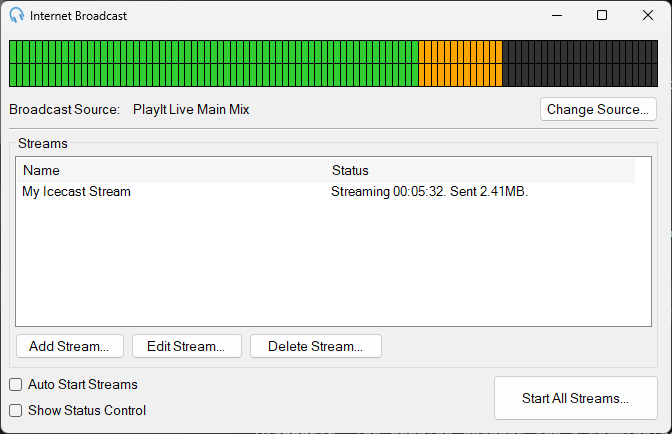
Broadcast Source

The Broadcast Source section displays the current audio source being used for the internet broadcast. It includes a visual audio level meter that shows the output levels in real-time. Click Change Source... to select a different audio input for the broadcast.
Changing the source while broadcasting will cause streams to disconnect and reconnect.
Streams
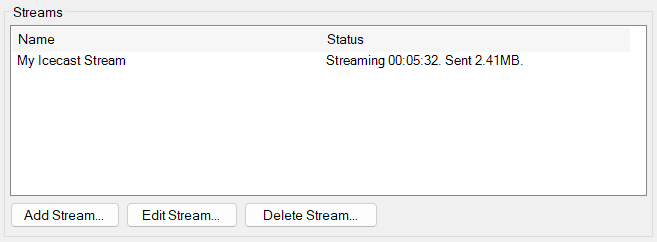
The Streams section lists all configured broadcast streams. Each stream displays its name, status, elapsed streaming time and data sent. Use the buttons to manage streams:
- Add Stream... to create a new broadcast stream.
- Edit Stream... to modify an existing stream's configuration.
- Delete Stream...
Changing a stream while broadcasting will cause it to disconnect and reconnect.
Streams can be started or stopped individually by right-clicking the stream in the list.
Recent Connection Events
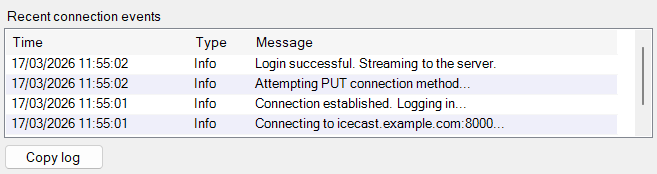
Select a stream in the Streams list to see its recent connection events. Each event shows the time it occurred, its type (Info, Warning or Error) and a message describing what happened as the stream connects, logs in and streams to the server. Errors reported by the streaming server are shown here, making it easier to diagnose connection problems such as a wrong password or an unreachable server.
Click Copy log to copy the selected stream's connection log to the clipboard, ready to paste into an email or support ticket.
Auto Start Streams

When enabled, all configured streams will start broadcasting automatically when PlayIt Live launches.
Show Status Control

Toggles the visibility of the broadcast status indicator on the main PlayIt Live interface.
Start/Stop All Streams
Start or stop all enabled streams at once. Streams can also be started or stopped individually by right-clicking in the stream list.