Edit Listed Track Group Window
The Edit Listed Track Group window allows you to manually select which tracks belong to the track group.
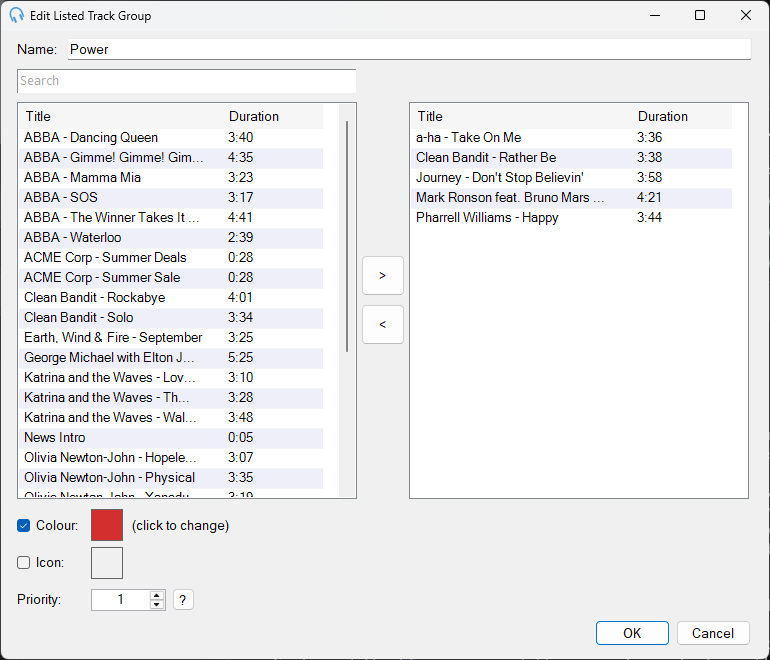
The Edit Listed Track Group window showing the track list and track group track list side by side.
Track Group Name

The name of the track group.
Track Search Box

Enter text into the search box to filter the track list by artist - title.
Track List
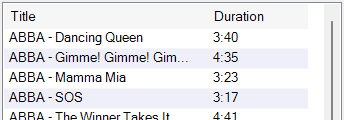
List of tracks not already in the track group. You can select the columns that are displayed in this grid by right-clicking the header and selecting Select columns.... You can right-click a track in the track list to show additional options, including the ability to preview the audio to hear what the track sounds like.
Add to Track Group

Click the > button to add the selected tracks from the track list to the track group.
Remove from Track Group

Click the < button to remove the selected tracks from the track group.
Track Group Track List
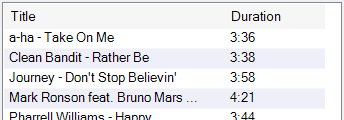
List of tracks in the track group. You can select the columns that are displayed in this grid by right-clicking the header and selecting Select columns.... You can right-click a track in the track list to show additional options, including the ability to preview the audio.
Colour

Tick the Colour box to show a colour for any tracks in this track group when they are displayed on the playout log on the main interface. Click in the colour box to change the colour.
Icon

Tick the Icon box to show an icon for any tracks in this track group when they are displayed on the playout log on the main interface. Click in the icon box to change the icon, and the Select Icon window will be shown. To add your own icons, see the Customising the playout log section.
Priority

The priority is used to determine which track group is used when displaying a track on the playout log on the main interface that appears in multiple track groups. The track group with the highest priority will be used when displaying the colour or icon.
OK

Click OK to confirm changes to the track group.
Cancel

Click Cancel to discard changes to the track group.