Hardware
The Hardware section is where you configure the physical devices that connect to your computer. PlayIt Live supports the following types of hardware interfaces:
- Serial Port - Connect devices via RS-232 serial ports or USB-to-Serial adapters. Compatible with Arduino boards, relay controllers, and custom hardware.
- Broadcast Tools Switcher - Direct integration with Broadcast Tools switcher equipment as well as the PIP-compatible Easy Driver relay control.
- X-Keys USB GPIO - Support for X-keys USB GPIO devices.
Click Add New to configure a new hardware device. Each hardware device must be properly configured before you can create Named Outputs or Named Inputs that use it.
Configuring Hardware Devices
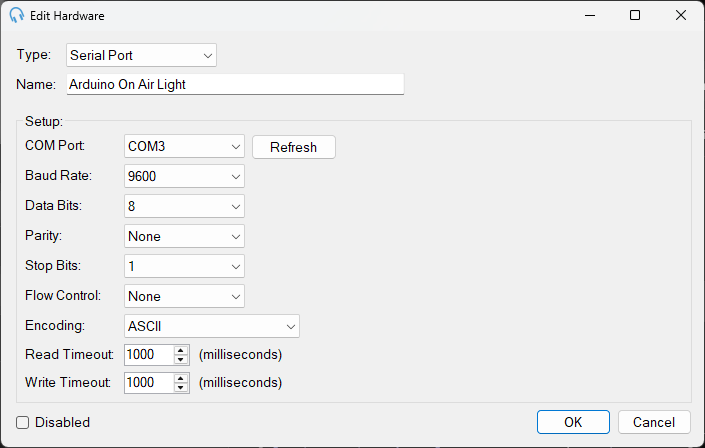
When you add or edit a hardware device, you configure its connection settings and communication parameters. The available settings depend on the hardware type you select.
General Settings
Type: Select the hardware interface type.
Name: A descriptive name for this hardware device (e.g. "Serial", "Studio Controller", "Main GPIO"). This name will appear in dropdown menus when creating Named Outputs and Named Inputs.
Disabled: Check this box to temporarily disable the hardware device without deleting its configuration. While disabled, the device will not communicate with PlayIt Live, and any Named Outputs or Inputs using this hardware will not function.
Serial Port Setup
COM Port: Select the serial port your device is connected to (e.g. COM1, COM3). Click Refresh to update the list of available ports if you have just connected your device.
Baud Rate: Communication speed in bits per second. Common values are 9600, 19200, 38400, 57600, and 115200. Must match your device's configuration. Default: 9600.
Data Bits: Number of data bits per character. Typically 8 for modern devices. Options: 5, 6, 7, or 8.
Parity: Error checking method. Options: None, Odd, Even, Mark, or Space. Most devices use None.
Stop Bits: Number of stop bits signaling the end of a byte. Options: 0, 1, 1.5, or 2. Most devices use 1.
Flow Control: Hardware or software flow control for managing data transmission. Most simple devices use None.
Encoding: Character encoding for text communication. Options include ASCII and UTF8. Default: ASCII.
Read Timeout: Maximum time (in milliseconds) to wait for incoming data before timing out. Default: 1000 ms.
Write Timeout: Maximum time (in milliseconds) to wait when sending data before timing out. Default: 1000 ms.
Broadcast Tools Switcher Setup
Broadcast Tools devices use a simplified serial configuration:
COM Port: Select the serial port your Broadcast Tools device is connected to. Click Refresh to update the available ports.
Baud Rate: Communication speed. Default is 9600, which is standard for most Broadcast Tools equipment. Adjust only if your device is configured differently.
Read Timeout: Maximum time (in milliseconds) to wait for responses from the device. Default: 1000 ms.
Write Timeout: Maximum time (in milliseconds) to wait when sending commands. Default: 1000 ms.
Broadcast Tools devices typically use standardised protocols, so additional serial parameters (data bits, parity, stop bits) are pre-configured automatically.
X-Keys USB GPIO Setup
X-Keys USB devices connect directly via USB and require minimal configuration:
Specific Unit ID: Check this box and enter a Unit ID number if you have multiple X-keys devices connected to the same computer. This allows PlayIt Live to target a specific device when multiple units are present. Leave unchecked if you only have one X-keys device connected. Enable and set a unique ID (1, 2, 3, etc.) for each device when using multiple units. The Unit ID must match the ID configured on your X-keys hardware.
X-keys devices are plug-and-play USB devices and do not require COM port or baud rate configuration.