QuickCarts
The QuickCarts tab contains settings for configuring QuickCart panels. QuickCarts provide instant playback of jingles, sound effects, and other short audio clips.
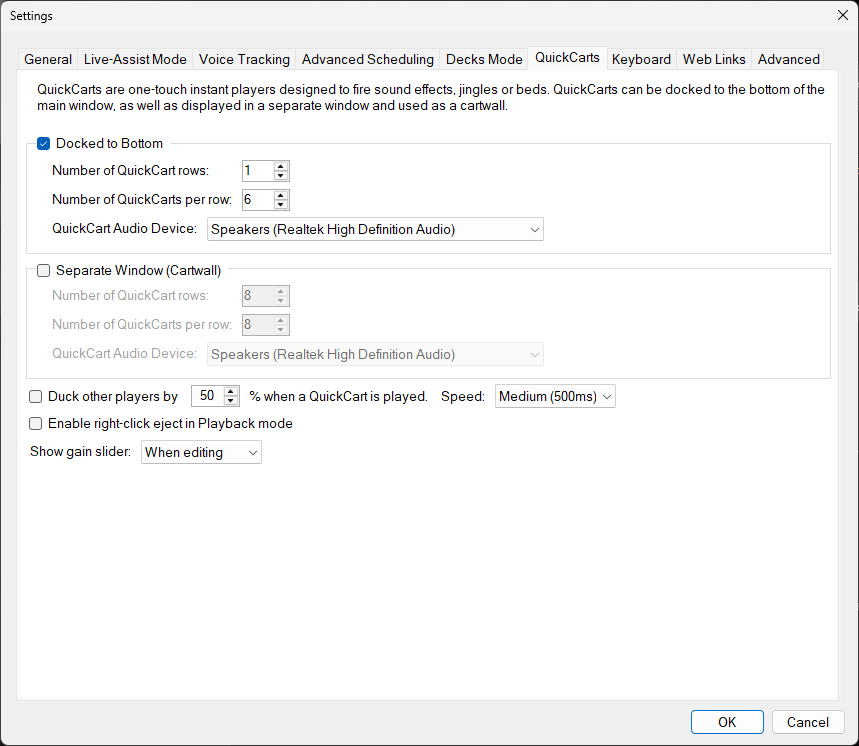
The QuickCarts tab of the Settings window.
Docked to Bottom

Enable or disable the QuickCarts panel docked to the bottom of the main window. When enabled, you can configure the number of rows, carts per row, and audio device for this panel.
Number of QuickCart Rows

Set the number of rows of QuickCart buttons in the docked panel.
Number of QuickCarts Per Row

Set the number of QuickCart buttons displayed in each row. As more QuickCarts are displayed per row they will be resized to fit the available space on the screen.
QuickCart Audio Device

Select the audio output device used for playing QuickCarts in the docked panel.
Separate Window (Cartwall)

Enable or disable the separate Cartwall window. This provides an additional set of QuickCarts in its own floating window with independent layout and audio device settings.
Enable right-click eject in Playback mode

When enabled, right-clicking a QuickCart in Playback or Edit mode will eject the currently loaded cart. When the setting is off, eject only works in Edit mode.
Duck Other Players

When enabled, the volume of other players is reduced while a QuickCart is playing. You can set how much the volume is reduced (the duck amount, as a percentage) and how quickly the change is applied (the duck speed).
Show Gain Slider

Choose whether to display a gain slider on each QuickCart button, allowing presenters to adjust individual QuickCart volumes.