Edit User
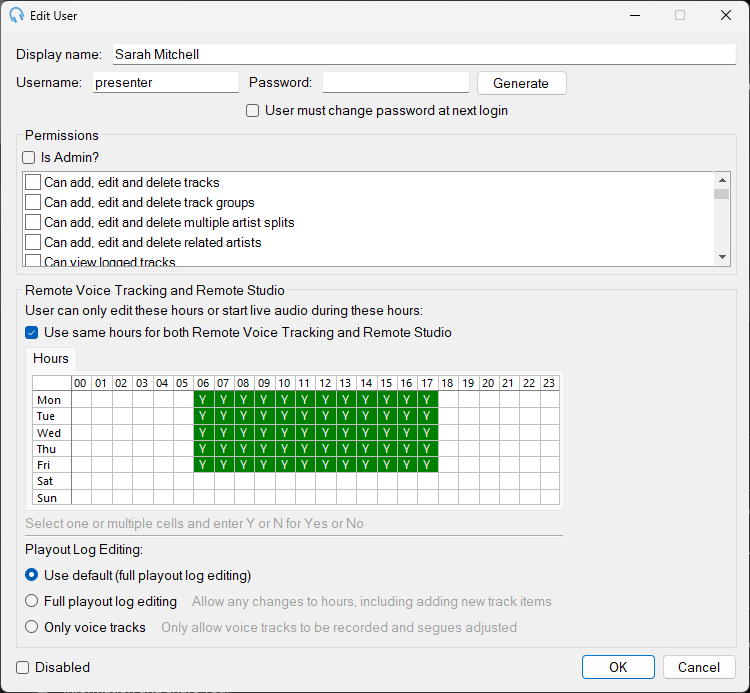
Display name

The real name of the user. This is displayed on the main interface to show who is currently logged in.
Username

The username used by the user to log in. This must be unique and cannot be used by any other user.
Password

The password used by the user to log in. The password must be at least 6 characters long. If editing a user, you can leave this blank to keep the existing password. Use the Generate button to quickly generate a new password that can be given to the user.
Tick the User must change password at next login box to require the user to change the password to something they can remember.
Passwords are cryptographically hashed and stored in the database. The actual password is not stored and cannot be retrieved if forgotten. Take care not to lock yourself out of the system.
Permissions
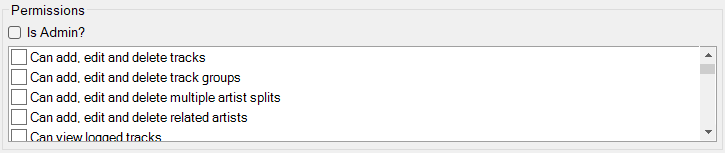
This section allows you to select what features the user is allowed to use. Ticking Is Admin? will allow the user to use any feature and perform any action. Where the user does not have permission to perform a particular action, that section will be disabled or hidden on the user interface.
Remote Voice Tracking and Remote Studio
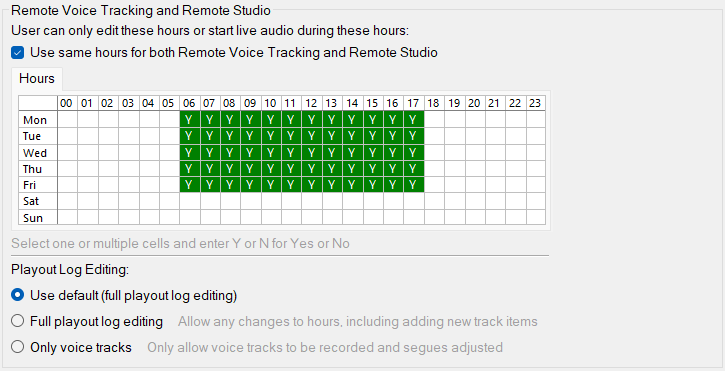
Use the grid to select the hours that the user should be allowed to record voice tracks and access and broadcast using Remote Studio. Select one or multiple cells and enter Y or N for Yes or No. No cells will be shown as blank. Select a weekday heading or hour heading to select the entire week or hour.
Playout Log Editing

You can restrict the user when remote voice tracking by allowing them to either edit the full playout log for the hours they have access to, or only allow them to record voice tracks and adjust their segues. The default can be changed via the Voice Tracking tab in Settings.
Disabled

Tick this box to disable the user, preventing them from logging in.
OK / Cancel

Click OK to save the changes. Click Cancel to discard the changes.