Edit Advert
Some images on this page may not display correctly if you have an ad blocker installed. Disable your ad blocker on this site to see all images.
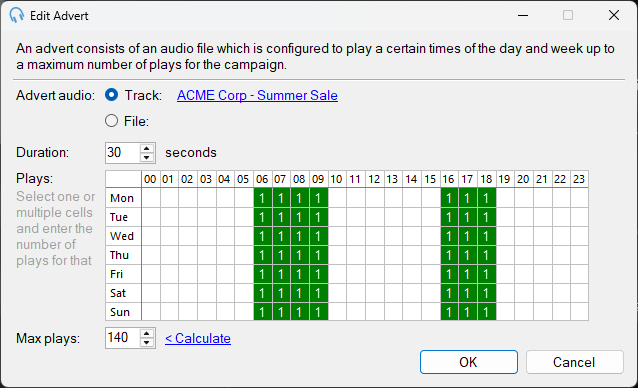
The Edit Advert window lets you configure an individual advert within a campaign, including the audio cut to play, its duration, which hours and days it should be scheduled, and the maximum number of times it should play during the campaign.
Advert Audio

The audio cut to play for this advert. Choose from an existing track already added to PlayIt Live, or choose an audio file from disk.
- Select Track and click the track name link to pick a track from the PlayIt Live library.
- Select File and click the file path link to pick an audio file directly from disk.
Duration

The duration of the advert in whole seconds. This is used by the advert scheduler to ensure an advert block does not over-run. This field is automatically populated when you select a track or audio file.
A duration that is a multiple of 5 (e.g. 5, 10, 15, 30 seconds) helps the scheduler fit adverts into whole minutes such as 1 minute or 2 minutes.
Plays
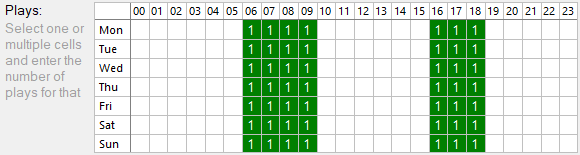
The Plays grid shows how many times the advert should be played in each hour of the day and day of the week. By default, the advert tries to play once in every hour where an advert block is scheduled.
For example, you could set the advert to only be scheduled during Breakfast (6am to 10am) and Drive (4pm to 7pm).
- To change plays for a specific day and hour, click the cell, type the number of plays, and press Enter.
- To change plays for every day at a specific hour, click the column heading, type the number of plays, and press Enter.
- To change plays for every hour on a specific day, click the row heading, type the number of plays, and press Enter.
Max Plays

The maximum number of times this advert will play during the campaign dates. Click the Calculate link to calculate the maximum based on the campaign duration and the selected plays above.
OK / Cancel

Click OK to save the advert. Click Cancel to discard changes.