Named Outputs
Named Outputs are commands that PlayIt Live sends to your external hardware devices. Each output represents a specific action your hardware should perform, such as turning on a light, activating a relay, or switching equipment states.
When you create a Named Output, you specify:
- Hardware - Which configured hardware device will receive the command.
- Output Name - A descriptive name displayed in PlayIt Live (e.g. "On Air Light ON").
- Output ID - A unique identifier used for scheduling and API access (e.g. "ONAIR_ON").
- Command - The actual text string sent to the device (e.g.
LIGHT_ON\r\n).
Named Outputs can be triggered by Scheduled Events (using the "Trigger Output" scheduled event action) within Manage > Scheduled Events or within a Scheduled Event Action item in the playout log.
Common examples include controlling on-air indicators, activating recording equipment, or switching audio sources.
Configuring Named Outputs
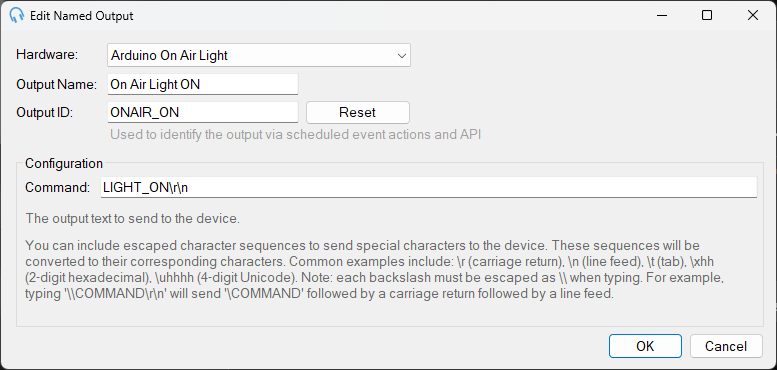
When you click Add New or Edit in the Named Outputs section, you configure the following settings:
Hardware
Select which configured hardware device will receive this output command. The dropdown lists all hardware devices you have configured in the Hardware section. You must configure at least one hardware device before you can create Named Outputs.
Output Name
A descriptive, human-readable name for this output that appears throughout PlayIt Live's interface. This name is displayed when selecting outputs in scheduled events and other PlayIt Live features.
Output ID
A unique identifier used to reference this output in scheduled event actions and API calls. It must be unique across all Named Outputs. Click Reset to automatically generate a unique ID based on the Output Name you entered.
If you change the Output ID after it is already being used, any existing scheduled events or playout log items referencing the old Output ID will no longer work and must be manually updated. Only change the Output ID if absolutely necessary.
Configuration - Command
The Command field contains the exact text string that will be sent to the hardware device when this output is triggered. This is the actual data transmitted to your device.
You can include special character sequences to send non-printable characters:
| Sequence | Character |
|---|---|
\r | Carriage return (CR) |
\n | Line feed (LF) |
\t | Tab character |
\\ | Literal backslash |
\xhh | 2-digit hexadecimal byte (e.g. \x0D) |
\uhhhh | 4-digit Unicode character |
Each backslash must be escaped as \\ when typing. For example, to send the text \COMMAND followed by a carriage return and line feed, type: \\COMMAND\r\n