Connect to Remote Management Server Window
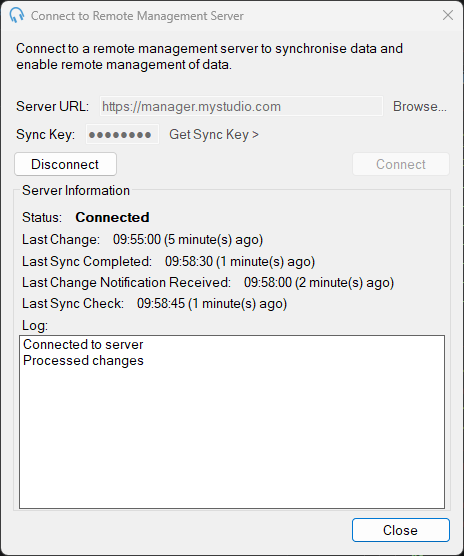
Server URL

Enter the URL of your PlayIt Manager server, or click Browse... to discover servers on the local network.
Sync Key

Enter the sync key for your PlayIt Manager server. Click Get Sync Key > to open the server in your browser and retrieve the key.
Connect

Click to connect to the specified server using the provided URL and sync key.
Hold Shift while clicking Connect to perform a full re-sync. Instead of fetching only the changes made since the last synchronization, PlayIt Live re-downloads the server's entire data set and rebuilds its synced database from scratch. This is useful if this computer's copy has drifted out of step with the server.
Warning: A full re-sync clears the synced data on this computer and starts again from the server's copy. Any changes made on this computer that have not yet been synced to the server will be lost. The data on the server is not affected.
Disconnect

Click to disconnect from the current server and switch back to the local database.
Server Information
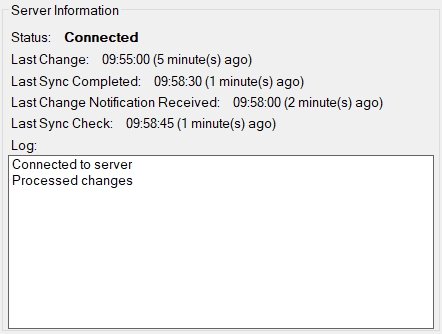
Shows the current connection status and synchronization activity:
- Status: the connection state. Connected means PlayIt Live is linked to the server and syncing; Disconnected means you are working from the local database; Connection lost. Trying to reconnect... means the link dropped and PlayIt Live is trying to reconnect.
- Last Change: when the last data change occurred.
- Last Sync Completed: when synchronization last finished successfully. If this is the same as or more recent than Last Change, all changes have been synced.
- Last Change Notification Received: when the server last notified this computer that there were new changes to pull down.
- Last Sync Check: when a Sync Check last verified that the data on this computer matches the server. Older servers that do not support Sync Check will show a message here instead.
- Log: a running log of recent synchronization messages, useful for diagnosing problems.
When everything is working correctly, Status shows Connected, Last Sync Completed is at or after Last Change (so there is nothing waiting to sync), and the timestamps update regularly as you make changes.
Close

Click to close the window.