Bulk Editing Tracks
You can edit multiple tracks at once using the bulk edit feature. This is useful when you need to change a shared property across several tracks, such as correcting an artist name or setting a genre.
Selecting Multiple Tracks
Open the Manage Tracks window, then hold Ctrl or Shift to select multiple tracks in the list. To select all tracks in the list, click any track and press Ctrl+A. Click Edit to open the bulk edit dialog.
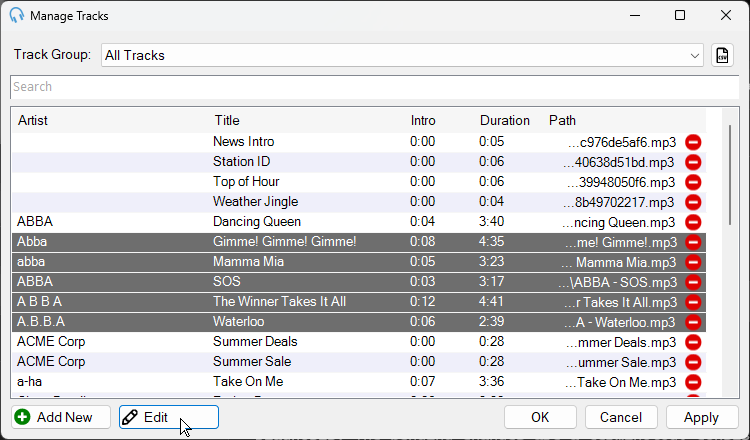
Select multiple tracks using Ctrl or Shift, then click Edit.
Editing Shared Properties
The bulk edit dialog shows the properties of all selected tracks. Fields where all selected tracks share the same value display that value. Fields where the values differ are left blank.
Each field has a checkbox next to it. Check the checkbox for any field you want to change, then enter the new value. Only fields with a checked checkbox are updated when you save. Fields without a check mark are left unchanged on all selected tracks.
In this example, several ABBA tracks have been imported with different spellings of the artist name. By selecting them all and checking the Artist checkbox, you can correct them all to "ABBA" in one step.
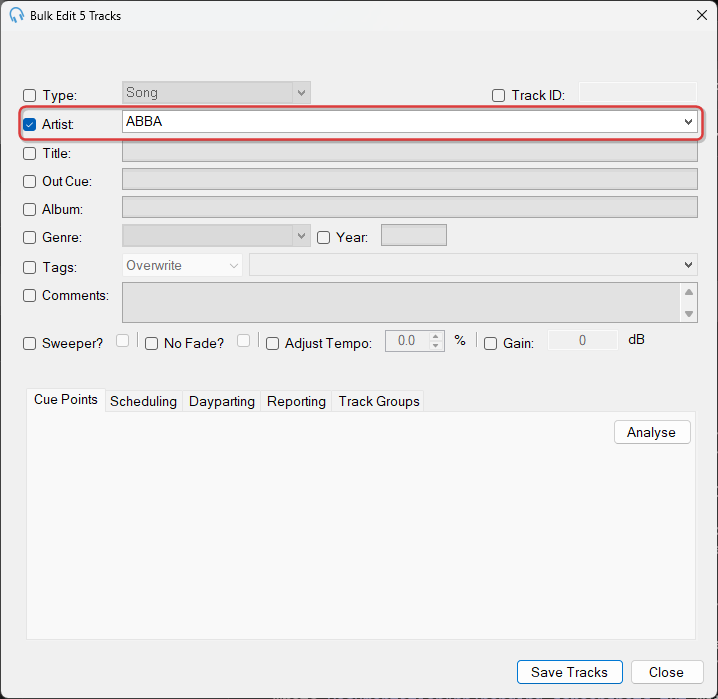
Check the checkbox next to a field to change it across all selected tracks. Here the Artist is being corrected to ABBA.
Bulk Analyzing Cue Points
You can also bulk analyze cue points in the selected tracks by clicking the Analyze All button in the Bulk Edit dialog. This runs cue point detection across every selected track in one step, so you do not need to open and analyze each track individually.
Bulk Editing Tags
When bulk editing tags, you can choose how the tags you enter are applied to the selected tracks. Check the Tags checkbox, choose an operation, then enter the tags you want to apply, add, or remove in the Tags field.
Three operation modes are available:
- Overwrite: Replaces all existing tags on the selected tracks with the tags you enter. Any tags previously assigned to the tracks are removed, and only the new tags you specify are applied.
- Add: Adds the tags you enter to the selected tracks without removing any existing tags. Use this to supplement the tracks' current tags with additional ones.
- Remove: Removes the specific tags you enter from the selected tracks while leaving all other existing tags intact. Use this to clean up tags that are no longer relevant.
Click Save Tracks to apply your changes to all selected tracks, or Close to discard them.