Synchronizing Data
PlayIt Live data can be remotely managed and synchronized to multiple PlayIt Live instances by using the dedicated remote management server, PlayIt Manager or the built-in remote management server in PlayIt Live. PlayIt Manager can be downloaded from https://www.playitsoftware.com/Products/Manager. Details on how to use PlayIt Manager can be found on that page.
PlayIt Live can connect to a remote management server via a URL (Uniform Resource Locator). This is the base web address of your remote management server instance. For example: http://<server name goes here>:25432. For more information on how to connect to your remote management server, see the Connect PlayIt Live page on the web interface.
Connecting and disconnecting
When PlayIt Live connects to a remote management server, it switches to using a separate "synced" database to the normal "local" PlayIt Live database to store the remote data. When you first connect, you may notice all your tracks "disappear". This happens as you will now be using the empty "synced" database instead of the "local" one. While PlayIt Live is connected to a remote management server it synchronizes changes and applies them to the database. This process will populate the data to match the ones seen on the remote management server. When changes are made via the remote management server the same changes will immediately be applied to PlayIt Live.
When you disconnect PlayIt Live from the remote management server, it will switch back to using the normal "local" database, and your previous local data will be displayed.
If for whatever reason you notice that data is out of sync, disconnect from the remote management server and connect again, except hold Shift while clicking the Connect button to clear your synced data and resync from scratch.
For more information on connecting to a server, see the Connect to Remote Management Server page.
Data management restrictions
While connected to a remote management server it is not possible to manage PlayIt Live data directly from PlayIt Live. The only exception to this is the playout log: modifications made to the playout log via the main window will be synced to the remote management server.
Multiple instances
When PlayIt Live instances are synced, only one machine can be the "on-air" machine. Only the "on-air" machine can play out audio and schedule items via the Log Scheduler.
When your machine is not the "on-air" machine, you can make it the "on-air" machine from options at the bottom right, if you wish. This will stop the current "on-air" machine from continuing playout and scheduling.
When tracks are playing on another machine, their status will be shown on your screen.
Voice track synchronization
Please note that voice track recordings recorded directly within PlayIt Live are not synced via the remote management server. Use PlayIt VoiceTrack to perform remote voice tracking.
Track path substitutions
When PlayIt Live is connected to a remote management server it will be using tracks that were added to the remote management server. If the remote management server software is installed on a different machine to PlayIt Live, the track files added to that software will not be present on the PlayIt Live machine. In order to resolve this problem, track path substitutions can be configured from the Settings page on the remote management server. These are designed to substitute parts of the file path on the server with a file path that can be accessed by the PlayIt Live machine.
For example, the audio store on PlayIt Manager is C:\ProgramData\PlayIt Manager\AudioStore. A network share can be created by going to the folder properties and creating a share via Advanced Sharing...
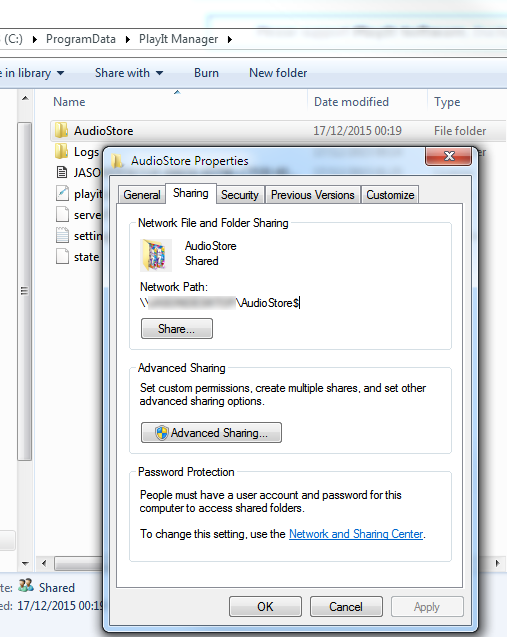
This will enable other machines on the network to access the audio files on the PlayIt Manager machine. On PlayIt Manager you should then add a track path substitution of:
From:
C:\ProgramData\PlayIt Manager\AudioStoreTo:
\\SERVER\AudioStore$
When track data is synchronized to PlayIt Live, the track path substitutions will be applied when loading tracks for playout.