General
The General tab contains settings for the overall appearance and behavior of PlayIt Live.
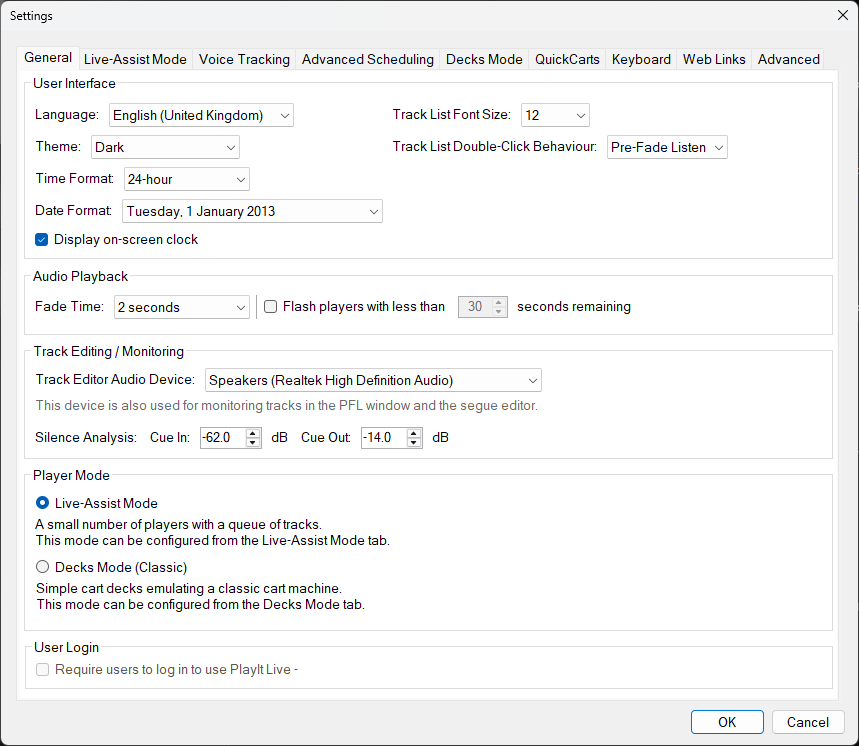
The General tab of the Settings window.
Section Tabs

The tab strip at the top of the Settings window allows you to switch between the different settings sections.
Language

Select the language used throughout the PlayIt Live user interface. A change of language only takes effect after you restart PlayIt Live. If you switch to a language by accident and can no longer read the menus, see Changing the language back at the bottom of this page.
Theme

Select the visual theme for PlayIt Live. You can choose between Dark and Light, which change the color scheme of the application.
Track List Font Size

Set the font size used in track lists throughout the application.
Track List Double-Click Behavior

Choose what happens when you double-click a track in a track list. Options include playing the track, editing its properties, or adding it to the playout log.
Time and Date Display
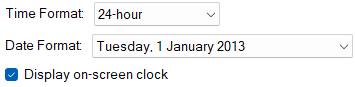
Configure the time and date format used throughout the application. You can choose between 12-hour and 24-hour time, and between day-first and month-first date formats. You can also enable or disable the on-screen clock.
Fade Time

Set the default fade time in seconds. This is the duration used when fading between tracks. This also applies when tracks are segued in Live-Assist Mode.
Flash Players

When enabled, players will flash when the remaining time drops below the specified number of seconds. This provides a visual warning that a track is about to end.
Track Editor Audio Device

Select the audio device used for previewing and editing tracks. This is the device used when you audition a track from the track editor or track list. The track editor audio device is also used for the player in the Pre-Fade Listen window and the segue editor.
Silence Analysis

Configure the cue-in and cue-out thresholds for silence analysis. These values determine at what volume level (in dB) a track is considered to have started or ended. By default, the Cue In threshold is -62 dB and the Cue Out threshold is -14 dB. Silence analysis is used to automatically set cue points on imported tracks. These settings are also applied when a file is dragged and dropped from the file system onto a player, helping to achieve the best sounding gapless playback.
Live-Assist Mode

Select Live-Assist Mode as the player mode. In Live-Assist mode, tracks are queued in a playout log and played sequentially through a set of players.
Decks Mode

Select Decks Mode as the player mode. In Decks Mode, each deck operates independently, similar to traditional broadcast mixing desks.
User Login

When enabled, users must log in before using PlayIt Live on this computer. This is primarily used to restrict user permissions, and applies to logging in locally on the same computer as PlayIt Live. This is the same checkbox available under Manage > Users.
OK

Click OK to save your settings and close the Settings window. If there are any errors that need correcting a popup box will be displayed.
Cancel

Click Cancel to discard your changes and close the Settings window.
Changing the language back
If you switch to a language by accident and can no longer read the menus, you can still find your way back to this setting. Open the menu at the top left (the File menu), choose the Settings... item, then use the Language setting at the top of the General tab. The table below gives those two menu labels in each language:
| Language | File menu | Settings item |
|---|---|---|
| Deutsch (Deutschland) | Datei | Einstellungen... |
| English (United Kingdom) | File | Settings... |
| English (United States) | File | Settings... |
| Español (España) | Archivo | Configuración... |
| Español (Latinoamérica) | Archivo | Configuración... |
| Français (France) | Fichier | Paramètres... |
| Italiano (Italia) | File | Impostazioni... |
| Nederlands (Nederland) | Bestand | Instellingen... |
| Português (Brasil) | Arquivo | Configurações... |