Auto Adjust
The Auto Adjust feature automatically adjusts the tempos and segues of upcoming items so they fit neatly to a target time - the next fixed time marker, or the end of the hour - rather than over-running or under-running. It is useful for hitting a fixed point such as the top-of-hour news: PlayIt Live nudges each song slightly faster, or shortens the overlap between tracks, so the run lands on time instead of a song being cut off abruptly.
Adjustments are only applied to track items with the Type Song. You can change the type of a track by editing it under Manage > Tracks.
To open the Auto Adjust window, go to Tools > Auto Adjust. This feature requires the Advanced Scheduling module.
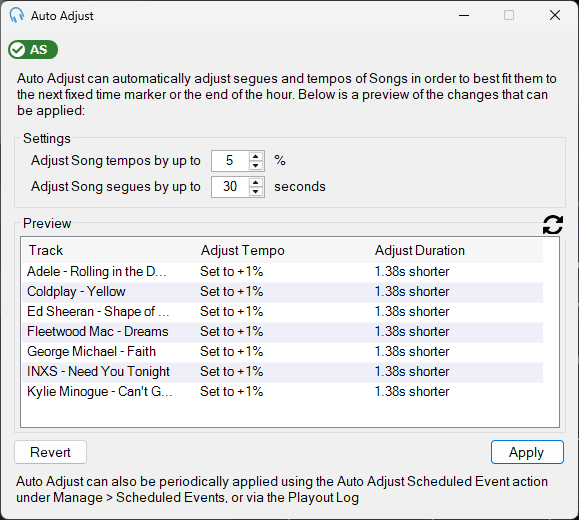
Settings

Configure the maximum tempo adjustment (%) and the maximum segue adjustment (seconds). These values control how much Auto Adjust is allowed to modify items to fit the target time.
Preview
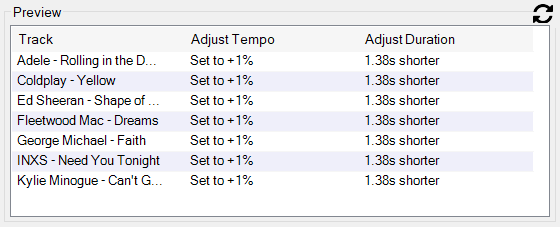
Shows what Auto Adjust will do when the Apply button is clicked. Click the refresh icon to update the preview list. If there are not enough scheduled items, you will be prompted to schedule more from the playout pattern.
Revert

Reverts the most recent Auto Adjust change to pre-adjusted values. This applies to tempos, segues and fade envelopes. Items that were soft deleted will not be restored.
Apply

Applies the adjustments shown in the preview.
How Auto Adjust works
When Auto Adjust is applied, the following steps are taken:
- A target time is determined. This is the target time of the next fixed time marker, or the time of the start of the next hour, whichever arrives first.
- If there are not enough items before the target time, you will be prompted to Schedule more items. Items will be scheduled based on the playout pattern.
- If there are enough items:
- Each item starting after the target time is soft deleted.
- Each Song item will have its tempo adjusted up to the maximum tempo value in settings.
- For the remaining duration, each Song item will be shortened up to the maximum segue value in settings.
Auto Adjust will not adjust items that have already started playing. Custom volume envelopes set manually on items may be destroyed when Auto Adjust is applied.
Automatically applying Auto Adjust
Auto Adjust can be automatically applied in one of two ways:
Scheduled Event
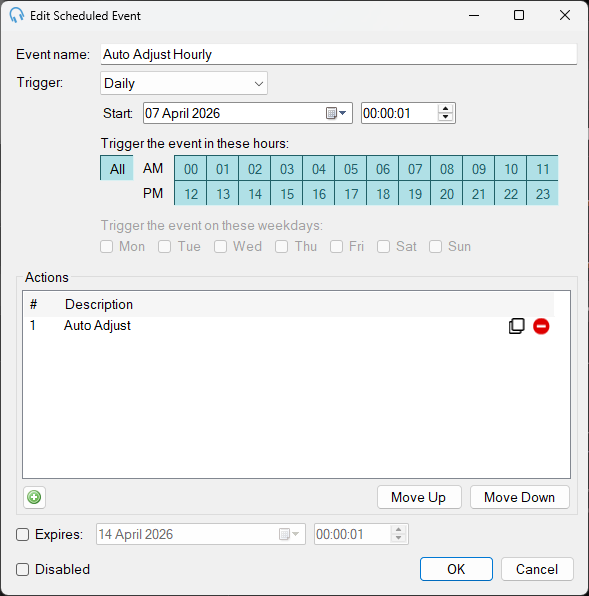
Under Manage > Scheduled Events, click Add New. Here you can run an Auto Adjust action on a schedule, for example every hour at 1 minute past the hour.
Scheduled Event Action in Clocks
In a clock, add an item with Type "Scheduled Event Action" and select Auto Adjust under Settings. When the clock is scheduled into the Clock Schedule and the Playout Log is scheduled, the Auto Adjust action will be applied when the item is reached.
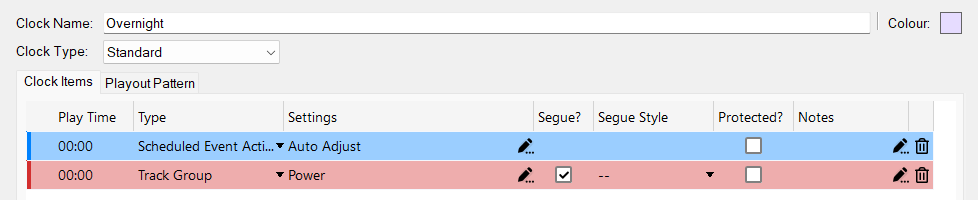
When the Auto Adjust Scheduled Event Action is run, more items will be scheduled into the hour in order to fulfill the Auto Adjustment, if required.