Edit Internet Broadcast Stream
The Edit Stream window is where you set up and customize your audio streaming configuration. It allows you to connect PlayIt Live to a streaming server, define the audio quality, and provide metadata about your station. You can also configure options like archiving audio to a local file and streaming track titles.
Open this window from the Internet Broadcast window by clicking Add Stream... or Edit Stream....
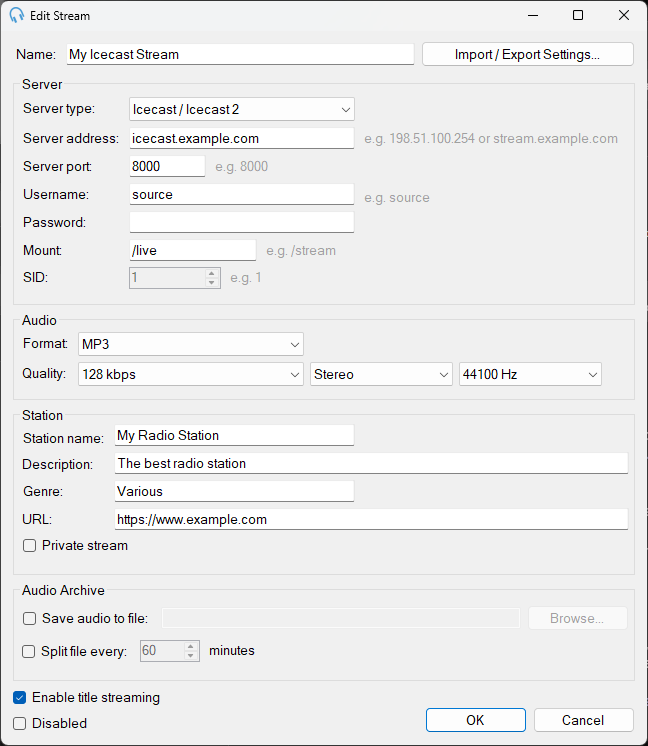
Name

Enter the name of the stream for identification purposes in the stream list.
Import / Export Settings...

Import or export the stream settings to or from an XML file. This is useful for sharing settings between installations to avoid configuration errors.
Server Details
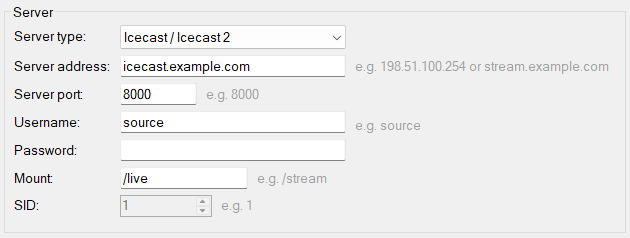
Enter details as provided by your streaming provider:
- Server type: Select the server type (Icecast, SHOUTcast V1, SHOUTcast V2).
- Server address: The server's hostname or IP address.
- Server port: The port used by the server (e.g. 8000).
- Username: The username for authentication (e.g. source). If left blank,
sourceis used. - Password: The password associated with the username.
- Mount: The mount point or stream path (e.g. /live). Icecast only.
- SID: The Stream ID. SHOUTcast V2 only.
Audio Details

Configure the audio encoding settings:
- Format: The audio format (currently MP3).
- Quality: Set the bitrate, channels (stereo/mono) and sample rate.
Station Details
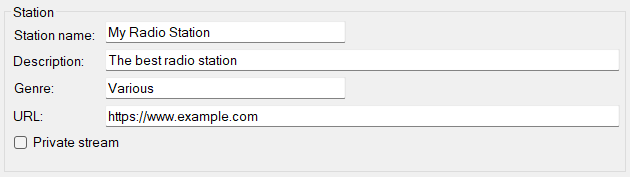
Provide metadata about your station:
- Station name: The name of your station.
- Description: A brief description of the station.
- Genre: The genre (e.g. Pop, Rock).
- URL: Your station's website URL.
- Private stream Check this option if you do not want the stream to appear in public directories.
Audio Archive

Save a copy of the broadcast audio to a local file:
- Save audio to file: Enable archiving and specify the file path using Browse....
- Split file every: Optionally split the recording into new files at a specified interval in minutes.
Enable title streaming

Stream track title metadata to the server. The Now Playing feature must be configured with an Internet Broadcast target to send to all connected streams. This is configured by default.
Disabled

Temporarily disable this stream without deleting its configuration. Disabled streams do not start on Auto Start Streams or when the Start All Streams button is clicked.
OK

Save all settings and close the window.
Cancel

Close the window without saving changes.