Merge External Log File Action
The Merge External Log File action merges external playout content, such as commercial traffic logs, into the playout log. Items from the external file are inserted between Merge Start and Merge End segments already present in the log.
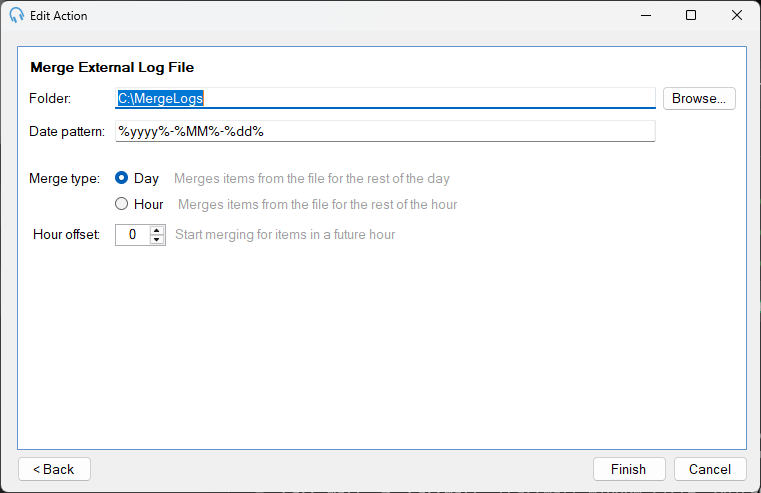
Folder

The folder where the external log files are stored. Click Browse... to select the folder path.
Date Pattern

The naming convention of the external log files, using dynamic date parts enclosed in % signs. This ensures the correct file is loaded based on the current date and time. The example below the field shows the resolved file name.
Do not include the .pipl file extension in the pattern. PlayIt Live adds it automatically, so the pattern %yyyy%-%MM%-%dd% loads the file 2024-12-18.pipl on 18 December 2024.
See Date Pattern Parts below for all available pattern tokens.
Merge Type

Determines the scope of the merge:
- Day: merges all items from the external file for the remainder of the day.
- Hour: merges only the items from the file that fall within the current hour.
Hour Offset

Adjusts which hour's items are merged, relative to the current hour when the action runs.
0(default) - merge the items for the hour in which the action runs.1- merge the items for the next hour. Use this when the action fires near the end of an hour to prepare the hour that is about to start. For example, an hourly event set to fire at xx:45 with an offset of1merges the upcoming hour just before it begins, so the content is ready when the hour starts.
Match the offset to how far ahead the action runs: if your event triggers one hour before the content should air, set the offset to 1; if it triggers within the same hour the content airs, leave it at 0.
Merging the next day from the previous day: combine the offset with Merge Type: Day to prepare tomorrow's content tonight. Because the dated file name is resolved from the offset hour, an offset that crosses midnight rolls the date forward. For example, a Daily event triggering at 23:00 with an Hour Offset of 1 reaches 00:00 the next day, so PlayIt Live resolves the next day's file - such as 2024-12-19.pipl when run on 18 December - and merges the whole of that day. The next day must already be scheduled in the playout log for its Merge Start and Merge End markers to be present.
Date Pattern Parts
Dynamic date parts are enclosed in % signs. Any other text in the pattern is treated as a literal string.
| Pattern | Description | Example |
|---|---|---|
%yy% | 2-digit year | 24 |
%yyyy% | 4-digit year | 2024 |
%M% | Month of year | 6 |
%MM% | Month of year, zero-padded | 06 |
%MMM% | Abbreviated month name | Jun |
%MMMM% | Full month name | June |
%d% | Day of month | 3 |
%dd% | Day of month, zero-padded | 03 |
%ddd% | Abbreviated day name | Sat |
%dddd% | Full day name | Saturday |
%H% | Hour in 24-hour clock | 7 |
%HH% | Hour in 24-hour clock, zero-padded | 07 |
%h% | Hour in 12-hour clock | 7 |
%hh% | Hour in 12-hour clock, zero-padded | 07 |
%tt% | AM/PM designator | PM |
PIPL File Format
The PIPL format is a tab-separated file where each line contains a start time and a track ID:
00:30:00	SPOT001
00:30:00	SPOT002
00:30:00	SPOT003
01:30:00	SPOT001
01:30:00	SPOT002
01:30:00	SPOT003
Each line contains a Start Time and a Track ID separated by a tab character. The start time specifies when the item should be positioned within the scheduled hour, and the Track ID matches the identifier of a track in the Track List.
The full PIPL format definition can be found at https://pipl.playitsoftware.com.
Typical Workflow
1. Prepare the external log files
Use your external traffic software to generate log files and save them in a consistent location, such as C:\MergeLogs, following a clear date-based naming convention such as 2024-12-18.pipl.
2. Set up the Merge Action
- Go to Manage > Scheduled Events.
- Add a new Scheduled Event and select the trigger time.
- Add a new action and select Merge External Log File.
- Configure the action:
- Folder:
C:\MergeLogs - Date pattern:
%yyyy%-%MM%-%dd%(without the.piplextension) - Merge type: Day (to merge items for the remainder of the day)
- Hour offset:
0(to begin merging from the current hour)
- Folder:
With these settings, if today is 18th December 2024, PlayIt Live will look for the file C:\MergeLogs\2024-12-18.pipl.
Alternatively, you can add a Scheduled Event Action to the playout log at the position where you want the Merge Action to be executed.
3. Insert Merge Start and Merge End items
In your clocks, insert a Merge Start item where the external content should begin, and a Merge End item to define where the merge segment ends. These items act as markers in the playout log.
When the Scheduled Event runs, PlayIt Live reads the merge log file and inserts its items between the Merge Start and Merge End markers. For each item in the merge file, PlayIt Live finds the last Merge Start whose start time is earlier than or equal to that item's time, and inserts the item after it. Any items already sitting between that Merge Start and the following Merge End are removed first, so the merged content replaces whatever was there.
Before and after the merge
Suppose the 00:00 hour is scheduled from a clock that has a Merge Start at 30:00 (30 minutes past the hour) followed by a Merge End, ready to receive a commercial break. Before the merge runs, the playout log for that hour looks like this:
00:00   Station ID
00:00   Sample Artist 1 - Song A
00:00   Sample Artist 2 - Song B
        [ Merge Start - 30:00 ]
        [ Merge End ]
00:00   Sample Artist 3 - Song C
When the merge runs against a file containing these lines:
00:30:00	SPOT001
00:30:00	SPOT002
00:30:00	SPOT003
the three spots (timed at 00:30) are matched to the Merge Start at 30:00 and inserted between the markers, giving:
00:00   Station ID
00:00   Sample Artist 1 - Song A
00:00   Sample Artist 2 - Song B
        [ Merge Start - 30:00 ]
        SPOT001
        SPOT002
        SPOT003
        [ Merge End ]
00:00   Sample Artist 3 - Song C
If the hour already had spots between the Merge Start and Merge End from an earlier merge, they are cleared out and replaced by the new ones, so re-running the merge is safe. Place several Merge Start markers in an hour - for example at 15:00, 30:00, and 45:00 - to route the merge file's items into different breaks: each item ends up after the last Merge Start at or before its own time.