Remote Access Status
The Remote Access Status window shows every remote user currently connected to your PlayIt Live Built-in Remote Access Server. Use it to monitor live activity and force-disconnect individual users when needed.
To open the window, click View connected users... in the Built-in Remote Access Server configuration panel. This button is only available while the server is running.
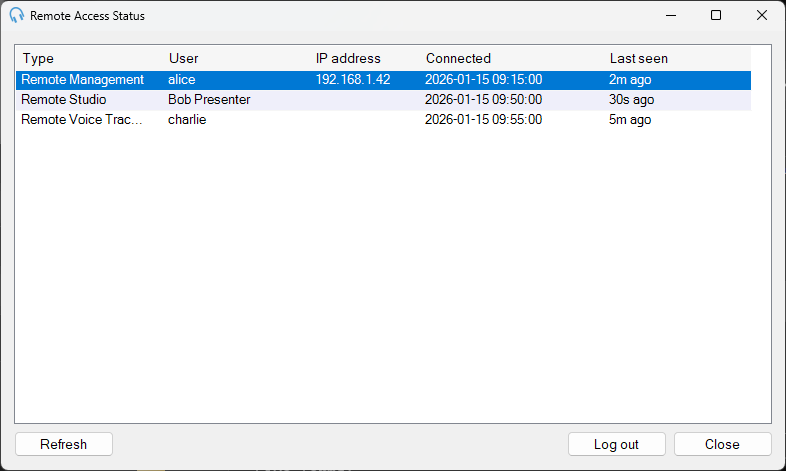
The Remote Access Status window lists every active remote session, including the connection type, username, IP address, and how recently each user was seen.
Session list
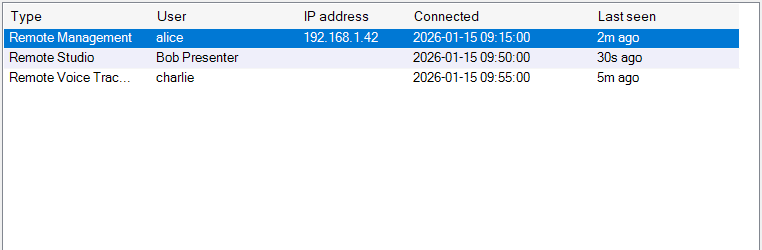
The main list view showing all active sessions with their columns.
Log out
The Log out button, enabled when a session is selected in the list.
Refresh
The Refresh button, which reloads the session list from the server.
Close
The Close button.
Understanding the session list
Each row in the list represents one active connection. The columns are:
| Column | What it shows |
|---|---|
| Type | The kind of remote session: Remote Management, Remote Studio, or Remote Voice Tracking. |
| User | The user's username, or their display name if no username is set. |
| IP address | The remote IP address of the user's device. Not available for Remote Studio or Remote Voice Tracking sessions, which connect via a peer relay. |
| Connected | The date and time the session started, shown in your local time zone. |
| Last seen | How long ago the server last received activity from this session, for example 30s ago, 5m ago, or 2h ago. |
The list refreshes automatically when the window opens. Click Refresh at any time to reload the list.
Logging out a user
To force-disconnect a user, select their row in the list and click Log out. PlayIt Live will ask you to confirm before closing the session. Once logged out, the user will need to log in again to reconnect.
Logging out a Remote Studio user will interrupt any live audio they are monitoring or presenting. Use this only when necessary, for example if a session appears stuck or a user should no longer have access.
Session types
The Type column identifies which part of the remote access system the user is connected to:
- Remote Management: a web browser session managing the track library, clock schedules, or playout log via the Remote Management interface.
- Remote Studio: a browser-based presenter session, with access to the playout log, players, and live audio.
- Remote Voice Tracking: a voice tracking session, either via the browser or PlayIt VoiceTrack desktop application.
For a full description of each session type, see the relevant pages: Remote Management, Remote Studio, Remote Voice Tracking.
When no users are connected
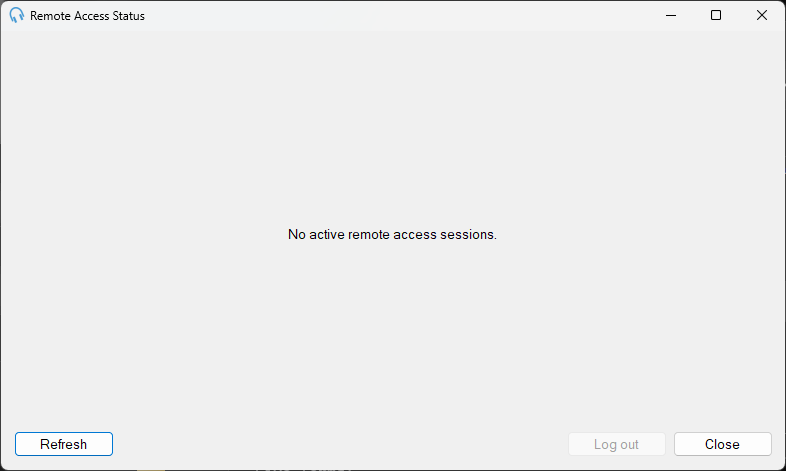
When no remote users are connected, the window displays a message in place of the list.
If no remote users are currently connected, the session list is replaced with a message indicating there are no active sessions. The Log out button is disabled until a session is selected.