Edit QuickCart
The Edit QuickCart window is opened by clicking a cart in Edit mode. It lets you configure the audio source, display name, background color, and playback behavior for an individual QuickCart.
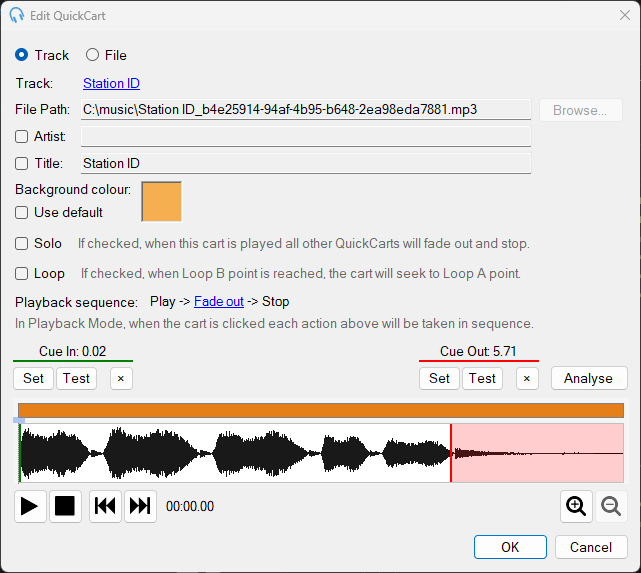
Type

Choose the audio source type:
- Track: Select a track that has been added to PlayIt Live.
- File: Select a file directly from the file system, without adding it to PlayIt Live.
Track selection

Click the track link to select a different track. This section is only available when the Track type is selected.
File selection

Shows the file path of the selected audio file. When the File type is selected, click Browse... to select a different audio file.
Artist

Check the Artist checkbox and type in the box to override the artist name displayed on the QuickCart.
Title

Check the Title checkbox and type in the box to override the title displayed on the QuickCart.
Background color
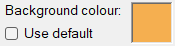
Click the color box to select a custom background color for the QuickCart. Click Use default to revert to the default color (blue).
Solo

When Solo is checked, playing this cart will fade out and stop all other playing carts. This cart will also stop if any other cart starts playing. Solo is designed to ensure only one cart plays at a time.
Loop

When Loop is checked, the cart will loop between the Loop A and Loop B cue points. If Loop B is not set, the cart loops from the end. If Loop A is not set, the cart returns to the Cue In point when the loop restarts.
Playback sequence

The playback sequence determines how the cart behaves when clicked in the main window. By default, the sequence is Play > Fade out > Stop, meaning each click advances the cart through these states. Click any step to change it.
For looping carts, additional options are available: Cease loop (stop the cart from looping, allowing it to play to the end) and Go to Loop B (jump to the end of the loop, useful for beds with a specific ending).
Cue points

Set the Cue In point where playback begins, and the Cue Out point where a segued cart will start. Use the Set button while listening to mark the current position. Use the Test button to preview from the set point.
For looping carts, Loop A and Loop B cue points also appear here.
Waveform

The waveform shows the audio volume over time. Cue points are overlaid as colored markers. Double-click on the waveform to start playing from that position. Use the mouse wheel to zoom in and out.
Playback buttons

Use Play and Stop to preview the cart. The audio device used to play back the audio can be configured in Settings. Use Back and Forward to jump to the start or end of the track. Use the Zoom buttons or the mouse wheel to adjust the waveform zoom level.
Analyze

Click Analyze to automatically detect the Cue In point based on the silence at the start of the track.
OK

Click OK to save changes and close the window.
Cancel

Click Cancel to close the window without saving changes.