Schedule View
The Schedule View is one of the two views of the Clock Schedule window. It shows the resolved schedule as it will be evaluated by the playout log scheduler, with the active clock for every hour of the visible week, taking every enabled clock grid and any one-off overrides into account.
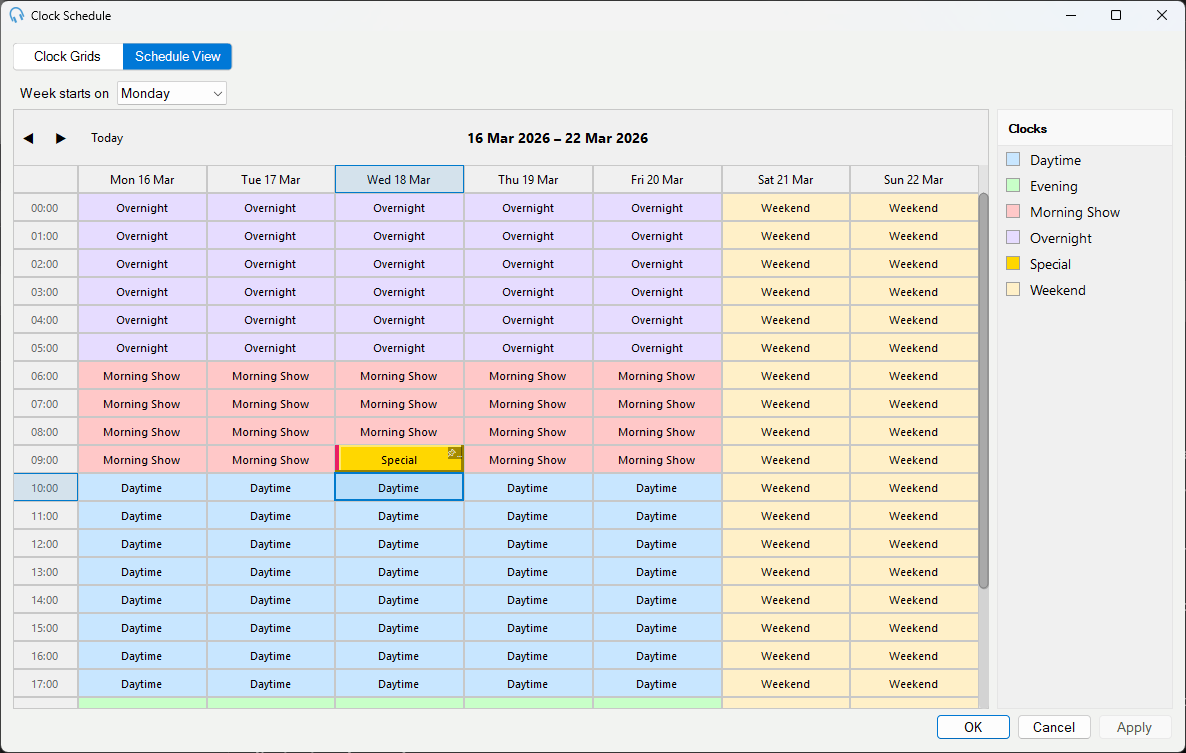
Hours can also be overridden one at a time without changing the underlying grids. Overrides take precedence over every grid layer and are shown with a pin indicator.
Using the schedule grid
The schedule grid works similarly to a spreadsheet. Each cell represents one hour in one day of the visible week, showing which clock is assigned to that slot.
Editing a clock assignment: double-click a cell to edit the clock assigned to that hour. Overriding a single hour this way does not affect the underlying clock grids.
Assigning a clock by drag and drop: drag a clock from the clock list on the right-hand side onto a cell to override that hour. If you have a range of cells selected, dropping a clock onto the selection applies it to every selected cell at once.
Right-click menu: right-click a cell or selection to open a context menu with the following options:
- Assign 'clock name' - apply the clock currently selected in the clock list to the selected cells as an override.
- Clear Override - remove the one-off override from the selected cells so they fall back to the clock resolved from the grids.
- Copy - copy the selected cells.
- Paste - paste copied cells over the selection.
Keyboard navigation: use the arrow keys (↑, ↓, ←, →) to move between cells.
Copy and paste: select one or more cells, then press Ctrl+C to copy and Ctrl+V to paste. This shortcut also works in the Clock Grids view.
Selecting multiple cells: click and drag with the mouse to select a range of cells, or hold Shift and press the arrow keys to extend the selection, the same approach as selecting cells in a spreadsheet.
Overridden hours: any hour that has been overridden is shown with a pin indicator, distinguishing it from hours resolved from the clock grids.
Daylight saving time
On days where the clocks change, the Schedule View adjusts the row layout automatically.
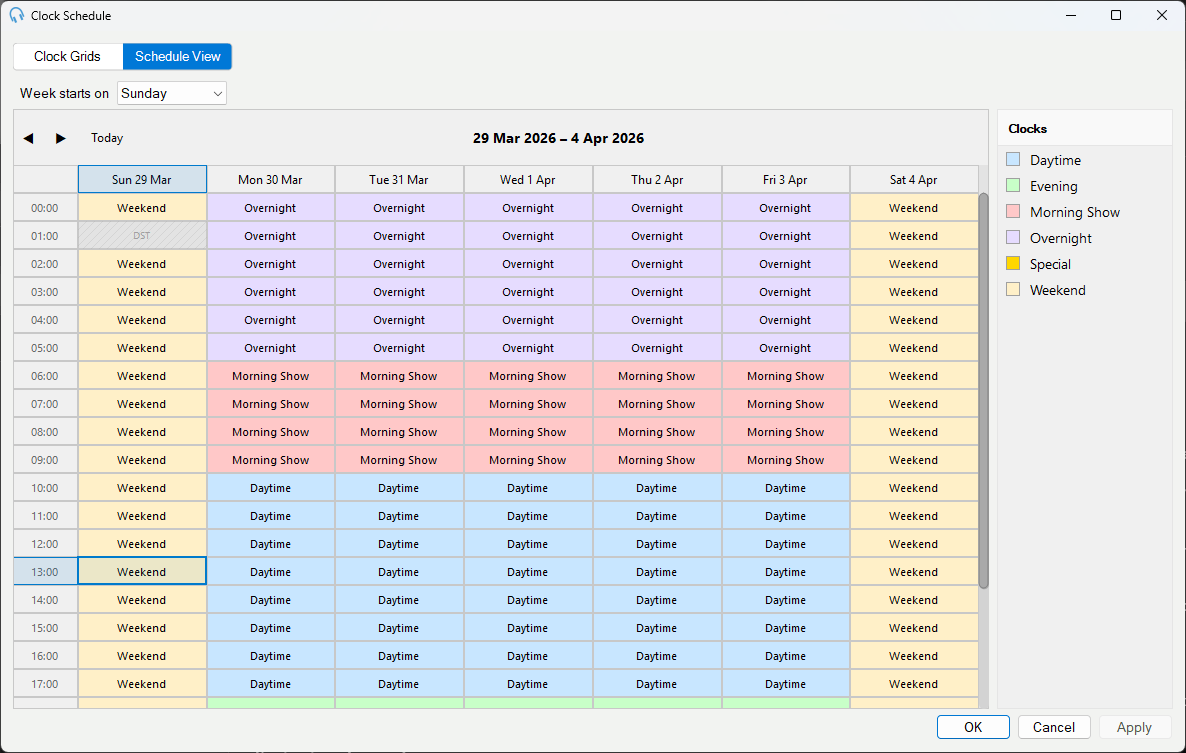
Spring forward (clocks go forward, e.g. last Sunday in March in the UK): the skipped hour does not exist in that timezone on that day. Its cell is shown as unavailable in the spring-forward day's column. The clock grid's assignment for that hour is simply not used; the playout log scheduler moves straight on to the next valid hour.
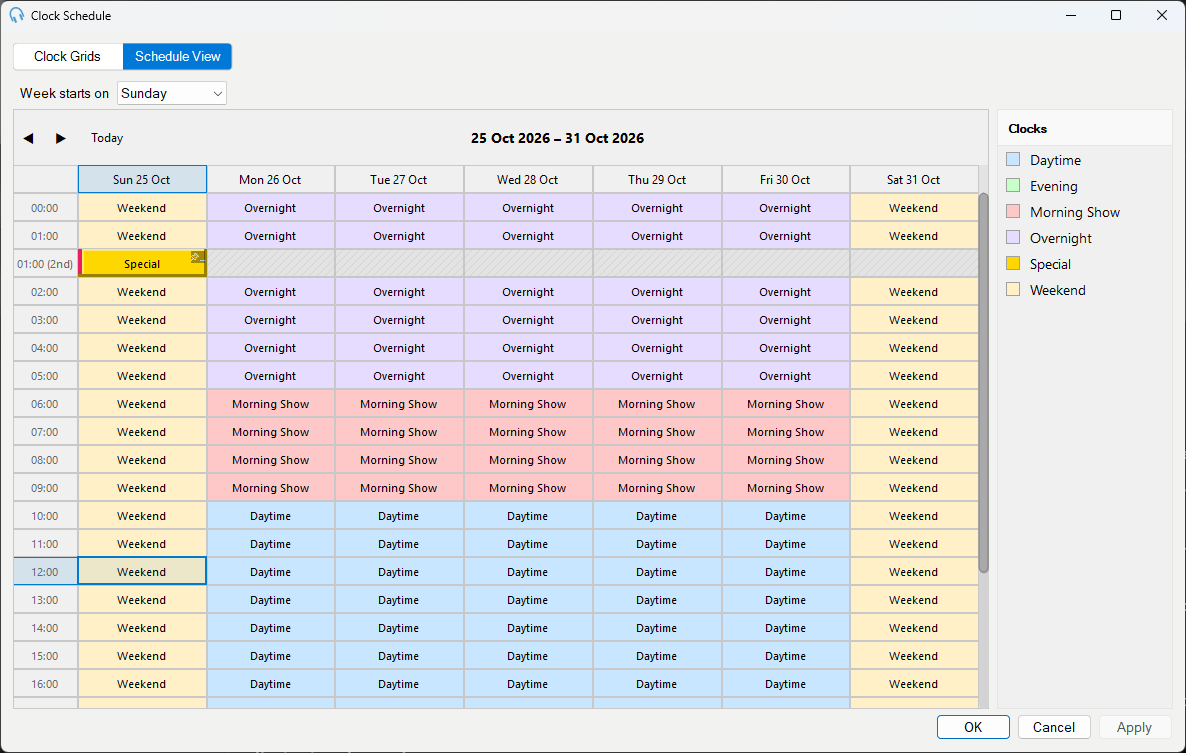
Fall back (clocks go back, e.g. last Sunday in October in the UK): the repeated hour appears twice in the row list. The second occurrence is labeled 01:00 (2nd) to distinguish it. Both rows resolve the same clock from the clock grid, since the grid assigns one clock per local hour. To use a different clock for the second occurrence, drag a clock from the picker onto the (2nd) row in the Schedule View to place an override on that specific hour.