Voice Tracking
The Voice Tracking tab contains settings for recording and managing voice tracks. Voice Tracking allows presenters to pre-record links between tracks.
Voice Tracking requires the Voice Tracking module. Whenever the module is not active, an audio notice plays on air before each recorded voice track, including voice tracks recorded while it was active. See Without an active Voice Tracking module.
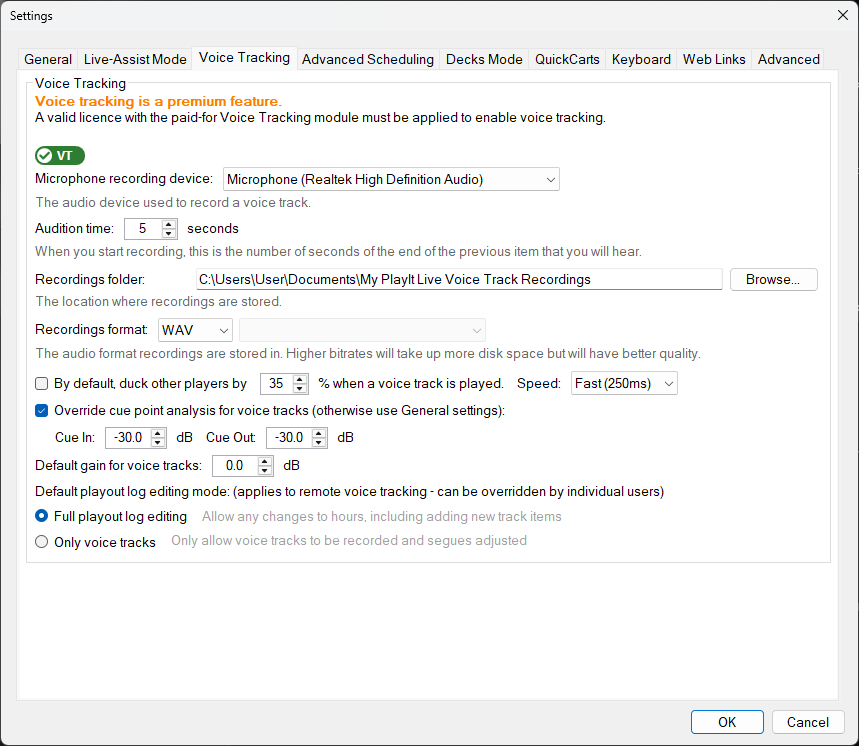
The Voice Tracking tab of the Settings window.
License Status

Shows the current license status for the Voice Tracking premium module. When the module is active, this shows Voice Tracking module found: ready to use. Otherwise it shows why it is not active, for example Voice Tracking module expired or Voice Tracking module not found, followed by a note that voice tracks will be preceded by an audio notice.
Without an active Voice Tracking module, every recorded voice track that goes to air is preceded by an audio notice requesting that you purchase the module. The status is checked when each voice track plays, so voice tracks recorded while the module was active still play with the notice after it expires. Keep your subscription active to avoid this.
Microphone Recording Device

Select the audio input device used for recording voice tracks. This should be set to the microphone or audio interface you use for recording. The device chosen here should not record audio that is played back, to avoid music from being recorded into the voice track recording.
Audition Time

Set the number of seconds from the end of the previous track that are played when you start recording a voice track. This determines how much context the presenter hears while recording a voice track.
Recordings Folder

Enter the folder where voice track recordings will be saved. Use the Browse... button to select a folder. Ensure the currently logged-in user has write access to this location, and that there is sufficient disk space to store recordings at this location.
Recordings Format

Select the audio format for voice track recordings. You can choose from different formats and quality levels. Higher quality recordings sound better but take up more disk space.
Duck Other Players

When enabled, the volume of other players is reduced while a voice track is playing. You can set how much the volume is reduced (the duck amount, as a percentage) and how quickly the change is applied (the duck speed).
Cue Point Analysis

When enabled, PlayIt Live automatically detects cue points for voice track recordings. Set the cue-in and cue-out thresholds (in dB) to control the volume levels at which the voice track is considered to start and end.
Default Gain

Set the default gain (in dB) applied to newly recorded voice tracks. This can be used to boost or reduce the volume of voice tracks relative to music tracks.
Default Playout Log Editing Mode

Choose the default editing mode when opening the playout log for voice tracking:
- Only voice tracks - Only voice track slots are editable.
- Full playout log editing - All items in the playout log can be edited, including adding, removing, and reordering tracks.
This setting can be overridden on a per-user basis.