Advert Log
Some images on this page may not display correctly if you have an ad blocker installed. Disable your ad blocker on this site to see all images.
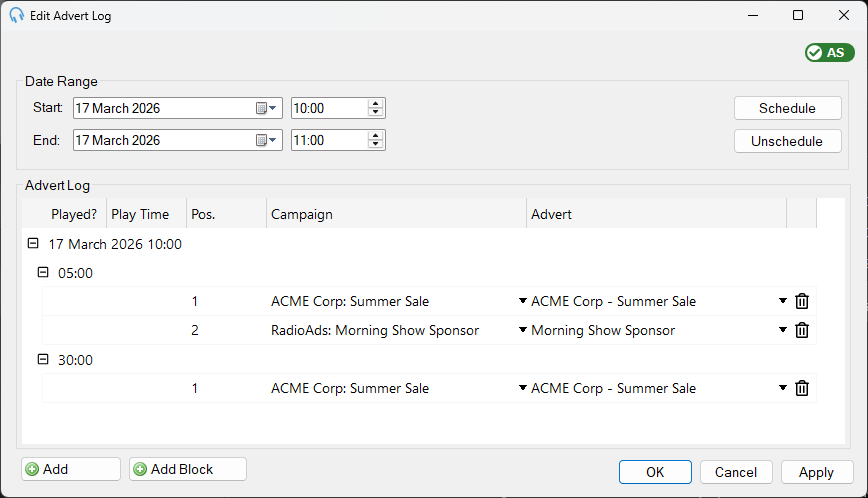
The Edit Advert Log window allows you to view and edit scheduled advert items. Use it to schedule adverts for a date range based on the Advert Block items in your playout log, or to manually add and adjust advert log entries.
Date range

Use the date and time selectors to choose the range of hours to view and edit advert log items for.
Schedule
Click Schedule to schedule adverts for the selected date range. The scheduler will populate advert log items based on the Advert Block items in the playout log.
If no items appear after scheduling, check that the playout log contains Advert Block items for the selected range. See Edit Playout Log.
Unschedule
Click Unschedule to remove all scheduled advert log items for the selected date range.
Hour group

Advert log items are grouped by hour. The hour group heading shows which hour the items below it belong to.
Advert block group

Within each hour, items are further grouped by advert block. The block group heading shows the start time of the block. Click the pencil icon to change the start time.
Each block must have a corresponding Advert Block item in the playout log for the same hour. See Edit Playout Log.
Advert row

Each row represents an advert to be played. Use the dropdowns to select the campaign and advert. The Played? and Play Time columns are populated automatically once the advert has been played.
Add and Add Block

Click Add to add a new advert row in the current block. Click Add Block to add a new advert row in a new block.
OK, Cancel, and Apply

Click OK to save changes and close the window. Click Cancel to close the window without saving. Click Apply to save changes without closing the window.