Insert/Import External Log/Playlist Action
The Insert/Import External Log/Playlist action brings a log from an external scheduler or a playlist from another media player into the playout log. It works in one of two modes, chosen by the Mode setting: Insert drops the items into the log at a chosen position while keeping the existing log, and Import replaces the current log with the file's items - exactly as the Import Playout Log window does.
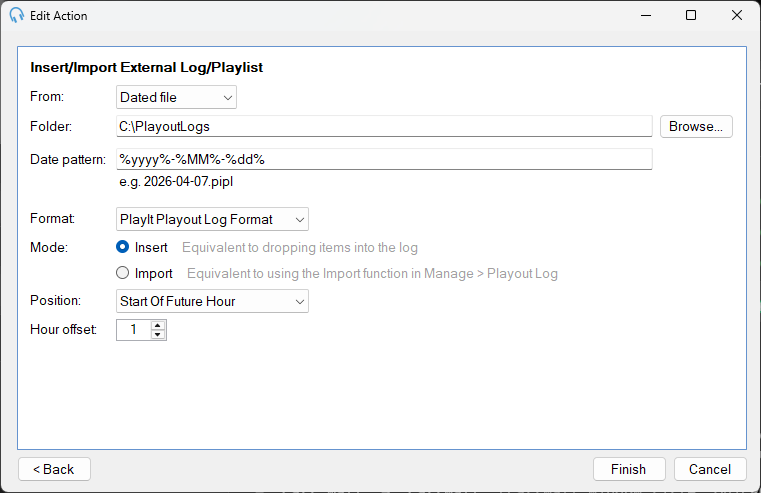
From

Choose how to locate the external log file:
- Specific file: select a fixed file from the file system.
- Dated file: select a folder and define a date pattern so the correct file is picked automatically based on the current date and time.
Dated file

When Dated file mode is selected, specify the folder where the log files are stored and a date pattern that matches the file naming convention. The example below the pattern shows the resolved file name for the current date and time.
This is useful for cases such as an Adverts folder, where the files are named based on the time they should play and the correct one is picked dynamically from the current date and time.
For example, selecting the folder C:\PlayoutLogs with the pattern %yyyy%-%MM%-%dd% will look for the file C:\PlayoutLogs\2024-12-18.pipl on 18th December 2024.
See Date Pattern Parts below for all available pattern tokens.
Specific file
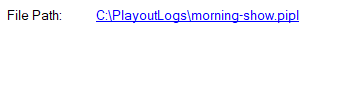
When Specific file mode is selected, click the link to browse for the log or playlist file to insert.
Format

The format of the external log or playlist file. Select the format that matches the files produced by your external scheduler or media player.
Mode

How to add the log items to the playout log:
- Insert: drops the items from the file into the log at the selected position, keeping the existing items.
- Import: replaces the current log with the items from the file - the same as importing through the Import Playout Log window.
Position

Where to insert the log items in the playout log:
- Play Next: after the currently playing track.
- End Of Current Hour: at the end of the current clock hour.
- Start Of Next Hour: at the start of the next clock hour.
- End Of Next Hour: at the end of the next clock hour.
Hour offset
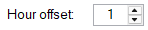
Adjusts the reference hour, relative to the current hour when the action runs. For example, set to 1 to target the next hour rather than the current one. The offset moves the insert position and, when using a Dated file, the date and time the file name is resolved from.
This matters for a daily log named by date (such as %yyyy%-%MM%-%dd%): because the file name is built from the offset time, an offset that crosses midnight rolls the date forward and selects a different day's file. For example, an event running at 23:00 with an offset of 1 resolves the next day's file rather than today's.
Date Pattern Parts
Dynamic date parts are enclosed in % signs. Any other text in the pattern is treated as a literal string.
| Pattern | Description | Example |
|---|---|---|
%yy% | 2-digit year | 24 |
%yyyy% | 4-digit year | 2024 |
%M% | Month of year | 6 |
%MM% | Month of year, zero-padded | 06 |
%MMM% | Abbreviated month name | Jun |
%MMMM% | Full month name | June |
%d% | Day of month | 3 |
%dd% | Day of month, zero-padded | 03 |
%ddd% | Abbreviated day name | Sat |
%dddd% | Full day name | Saturday |
%H% | Hour in 24-hour clock | 7 |
%HH% | Hour in 24-hour clock, zero-padded | 07 |
%h% | Hour in 12-hour clock | 7 |
%hh% | Hour in 12-hour clock, zero-padded | 07 |
%tt% | AM/PM designator | PM |