Monitored Folders Status
The Monitored Folders Status window shows what PlayIt Live's Monitored Folders feature is doing right now. The upper list summarises every monitored folder and its current scanning state, while the lower Recent events log records the individual actions taken as files are added, changed, or removed.
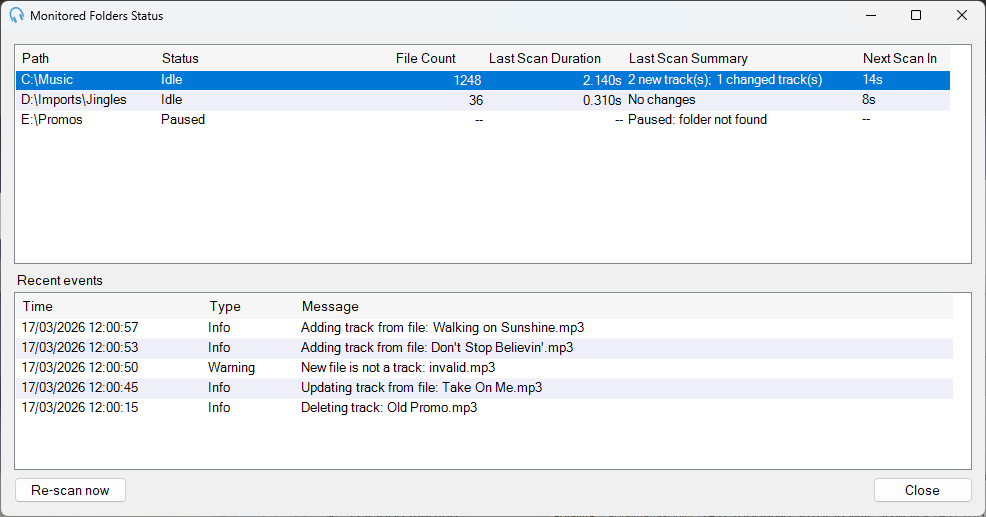
The Monitored Folders Status window: the upper list summarises each folder's scan status, and the lower Recent events log shows what happened to individual files in the selected folder.
Folder list

The upper list of monitored folders showing path, status, file count, last scan duration, last scan summary, and next scan countdown.
Recent events

The Recent events log for the selected folder, with Time, Type, and Message columns.
To open this window, click View status... on the Monitored Folders settings page.
Understanding the folder list
The upper list shows one row per monitored folder. The columns are:
| Column | What it shows |
|---|---|
| Path | The folder being monitored. |
| Status | The folder's current state: Idle (waiting for the next scan), Scanning (a scan is in progress), Paused (the folder could not be found), Disabled (monitoring has been turned off for this folder), or an Error message if the last scan failed. |
| File Count | The number of files found in the folder during the last scan. Shows -- if the folder has not been scanned yet. |
| Last Scan Duration | How long the last scan took, for example 2.140s. Shows -- if the folder has not been scanned yet. |
| Last Scan Summary | What the last scan found, for example 2 new track(s); 1 changed track(s), or No changes if nothing changed. |
| Next Scan In | A countdown to the next automatic scan, in seconds. Folders are re-scanned automatically every 30 seconds. |
The list refreshes automatically while the window is open.
A folder scan can repeatedly report new files. This happens when a folder contains files that are not valid audio tracks: because they are never added to the track library, each scan treats them as new again. The Recent events log makes these files easy to spot. Look for Warning entries such as New file is not a track.
The Recent events log
Below the folder list is the Recent events log. Where the folder list tells you the summary of the last scan, the events log tells you exactly which files were affected and what happened to each one.
Select a folder in the upper list to see its events. The log shows up to the 100 most recent events for that folder, newest first, and updates automatically. The columns are:
| Column | What it shows |
|---|---|
| Time | The date and time the event occurred, in your local time zone. |
| Type | The severity of the event: Info, Warning, or Error. |
| Message | A description of what happened, usually naming the file involved. |
What each event type means
- Info: a normal monitoring action completed successfully. Examples:
Adding track from file: <name>,Updating track from file: <name>,Deleting track: <name>, andDeleted file is not an existing track: <name>. - Warning: something was skipped or needs your attention, but monitoring continues. Examples:
New file is not a track: <name>andChanged file is not a track: <name>(the file could not be loaded as an audio track), andPaused: folder not found(the folder is currently unavailable). - Error: a scan failed. The message includes the underlying error, for example
Error: <details>.
The events log is held in memory and lists only recent activity. It is cleared when PlayIt Live restarts, and only the last 100 events per folder are kept. It is intended for live troubleshooting, not as a permanent audit trail.
Example: finding out why a file did not import
Suppose a presenter copies a new jingle into a monitored folder but it never appears in the track library. Open the Monitored Folders Status window and select that folder. In the Recent events log you might see a Warning entry reading New file is not a track: jingle-final.wav.
That tells you the file was detected, but PlayIt Live could not load it as a track, usually because the audio is corrupt, the format is unsupported, or the file is still being written. You can then re-export or re-copy the file and click Re-scan now to try again, watching the log for an Info entry such as Adding track from file: jingle-final.wav to confirm it imported.
Re-scanning immediately
Click Re-scan now to force every monitored folder to be scanned immediately, without waiting for the automatic countdown. This is the quickest way to confirm that a file you have just added or fixed is now being picked up. New activity appears in the Recent events log for the selected folder as the scan runs.
Click Close to close the window. Monitoring continues in the background whether or not this window is open.