User Login Window
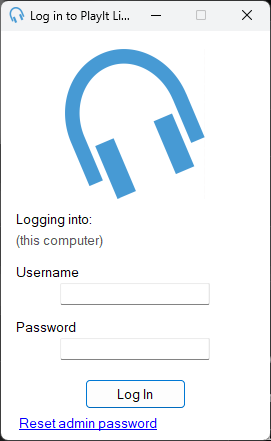
The Log In window appears when PlayIt Live is configured to require users to log in before use. Enter your username and password and click Log In.
If you have just installed PlayIt Live you will not see this window. To require users to log in, go to Manage > Users and click Require users to log in to use PlayIt Live.
Changing Your Password
If your administrator has set up your account and requires you to change your password on first login, you will be prompted to enter and confirm a new password. Click Change Password to continue.
Forgotten Admin Password
If you are an administrator and have forgotten your password, you can reset it by logging into your PlayIt Software account on the PlayIt Software website with the same account as that who has licensed the software:
- Visit https://www.playitsoftware.com/Account/Dashboard/ResetAdminPassword and verify that the Client ID matches. You must be signed in to the PlayIt Software account that licensed the software; attempting to reset the admin password from any other account will not work.
- Enter Reset Code Part 1 into the website, which will generate Reset Code Part 2.
- Enter Part 2 into the box in PlayIt Live and click Reset.
- You will be prompted to change your password.