Adding New Tracks
Tracks can be added to PlayIt Manager from this page. Uploaded files are stored in the Audio Store folder inside the PlayIt Manager ProgramData folder. By default this is C:\ProgramData\PlayIt Manager\AudioStore\.
The page has three source tabs at the top which let you choose where the tracks come from:
- Upload to Server: drag and drop files from your computer, or click to browse for them.
- Files on Server: select existing audio files that already live on the PlayIt Manager server.
- Folder on Server: point PlayIt Manager at a folder on the server and add every audio file inside.
Queueing tracks for upload
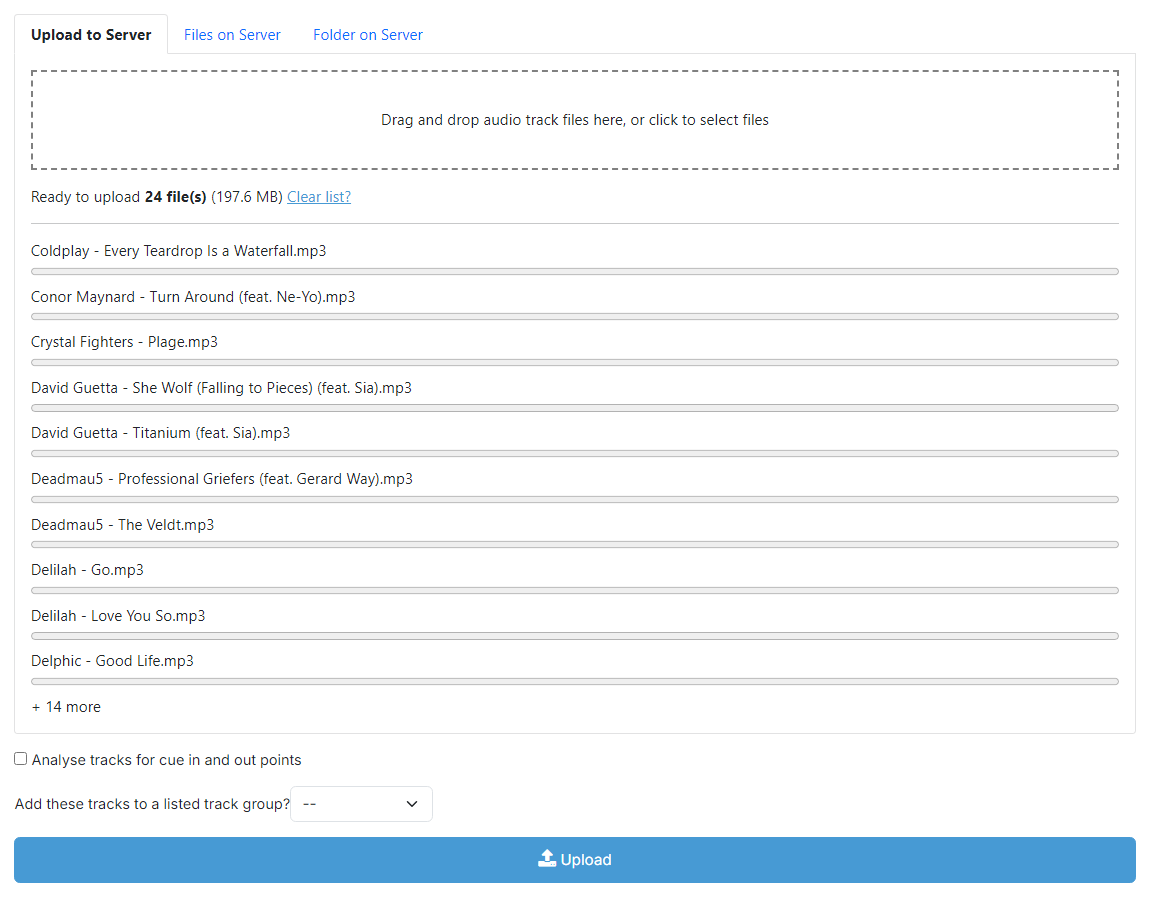
The first screenshot shows the Upload to Server tab with 24 audio files queued and ready to upload.
Drag and drop box

Drag audio files into this box to queue them, or click anywhere inside the box to open a file picker. Dropping or selecting files appends them to the existing queue (it does not replace what is already there).
Queue summary

Once tracks are queued the summary line appears showing the current state (Ready to upload), the number of files in the queue, and the total size on disk. The Clear list? link removes every queued file so you can start over before uploading.
Queue file list
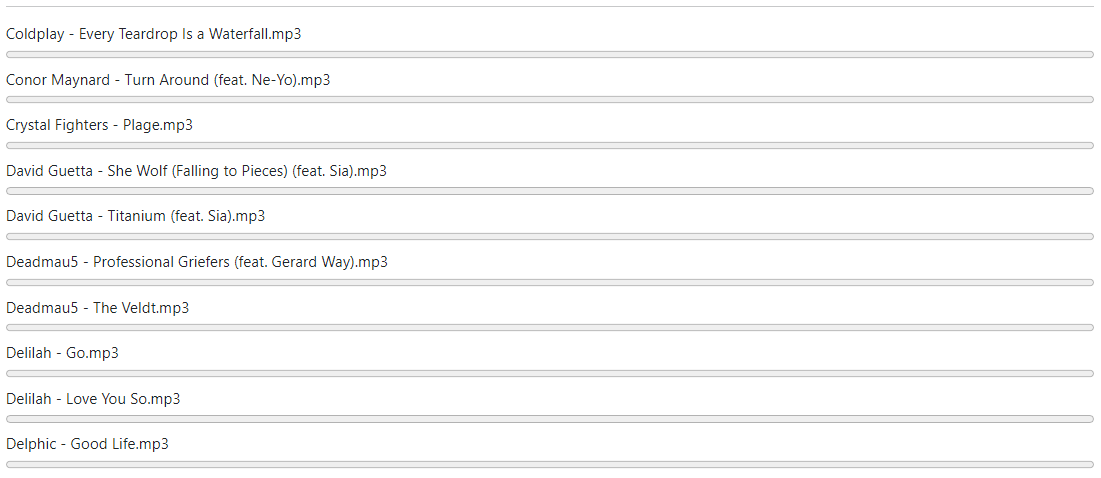
The first ten queued files are listed by name. If more than ten files are queued an additional line shows the count of files that are not visible (for example + 14 more files). An empty progress bar appears beside each file and starts to fill once the upload begins.
Analyze tracks for cue in and out points

Tick this box to automatically analyze each track for silence at the start and end and set its cue in / cue out points after upload.
Add to listed track group

Optionally add every uploaded track to a listed track group. Pick an existing group from the dropdown, or choose <new> and give the new group a name to create it as part of the upload.
Upload button

Starts uploading the queued files. While files are uploading the button is replaced by a red Stop button that cancels any uploads that have not yet completed.
Uploading in progress
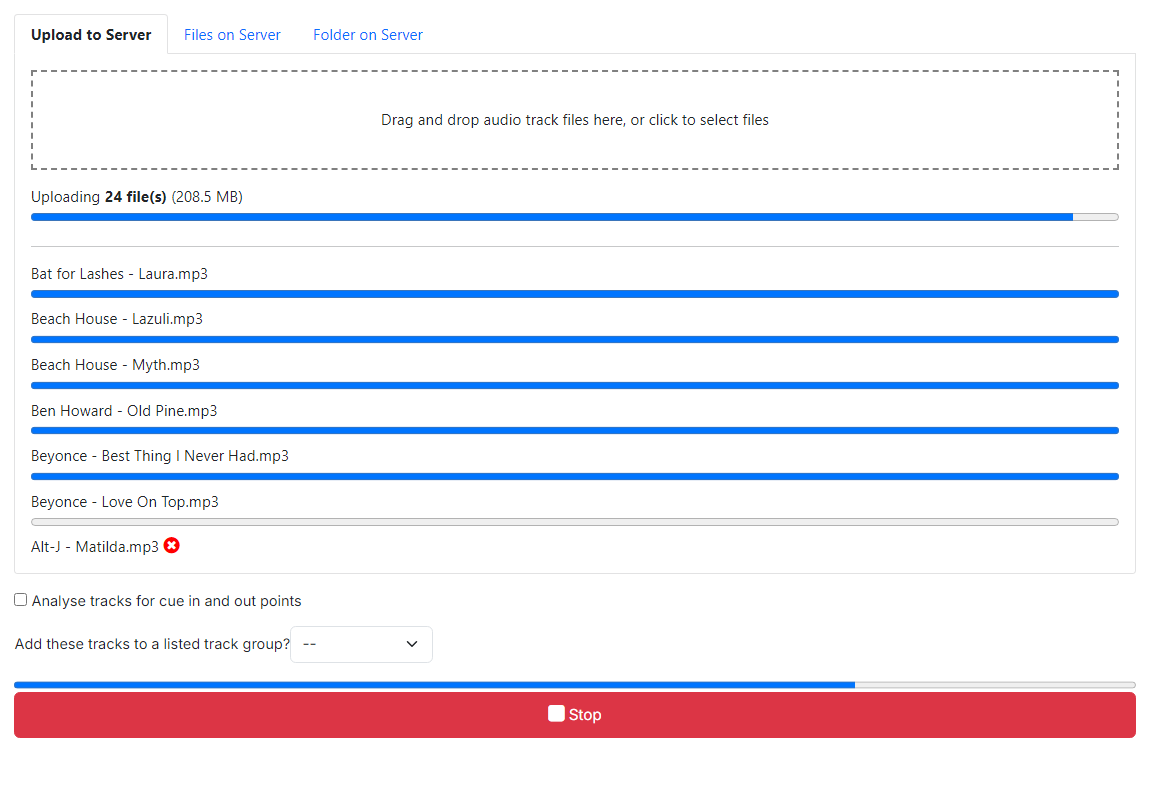
After clicking Upload, PlayIt Manager uploads up to five files at a time. The next screenshot shows the page partway through an upload, with most files completed, one file in error and the remainder in flight.
Queue summary (uploading)

While uploads are running the state text changes to Uploading..., the file count and total size still reflect the original queue, and the Clear list? link is hidden so the queue cannot be cleared mid-upload.
Overall progress bar

Tracks the overall upload progress across the queue, treating every finished file (success or error) as one unit complete.
In-flight files and errors
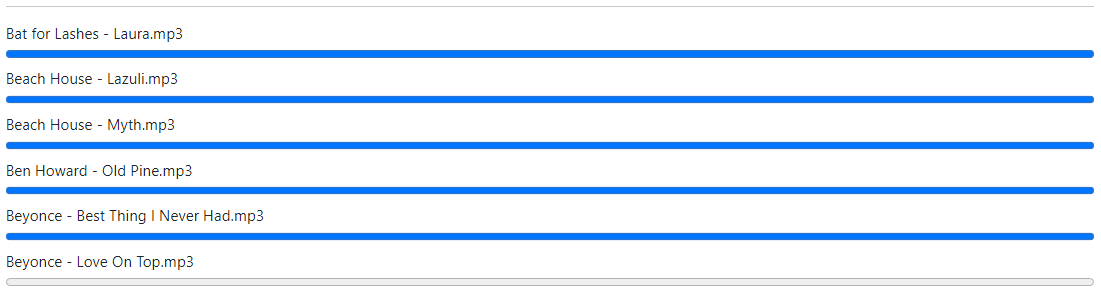
Shows up to ten files that are currently in flight, each with its own per-file progress bar. If more files are still queued an additional line shows the count (for example + 1 more files). Any file that failed to upload is listed separately below with its filename and a red error icon; failed files are not retried automatically.
Stop button

Replaces the Upload button while uploads are running. Clicking Stop cancels any uploads that have not yet started; uploads already in flight continue to completion.
Viewing the tracks you just added
When every upload has finished, a green confirmation banner appears reading Your track files have finished being added. It carries two links: Track List and Track Groups.
The Track List link opens the list filtered to show only the tracks that were added during this upload session. This lets you confirm at a glance that everything imported, and quickly open any track whose metadata needs tidying up.
For example, after uploading 20 tracks you can click Track List to see exactly those 20 tracks, check the artist and title are correct, and click Edit on any that need their details completing, without having to search the whole library to find them.

Recently added banner
The blue information banner reading Showing recently added tracks. that appears above the list when it is filtered to a recent upload.
Clear filter button

The Clear filter button inside the banner that removes the filter and returns to the full track list.