Audio Storage Settings
The audio store is where uploaded tracks and voice tracks are stored. This location must have read and write permissions so PlayIt Manager can save and access audio files.
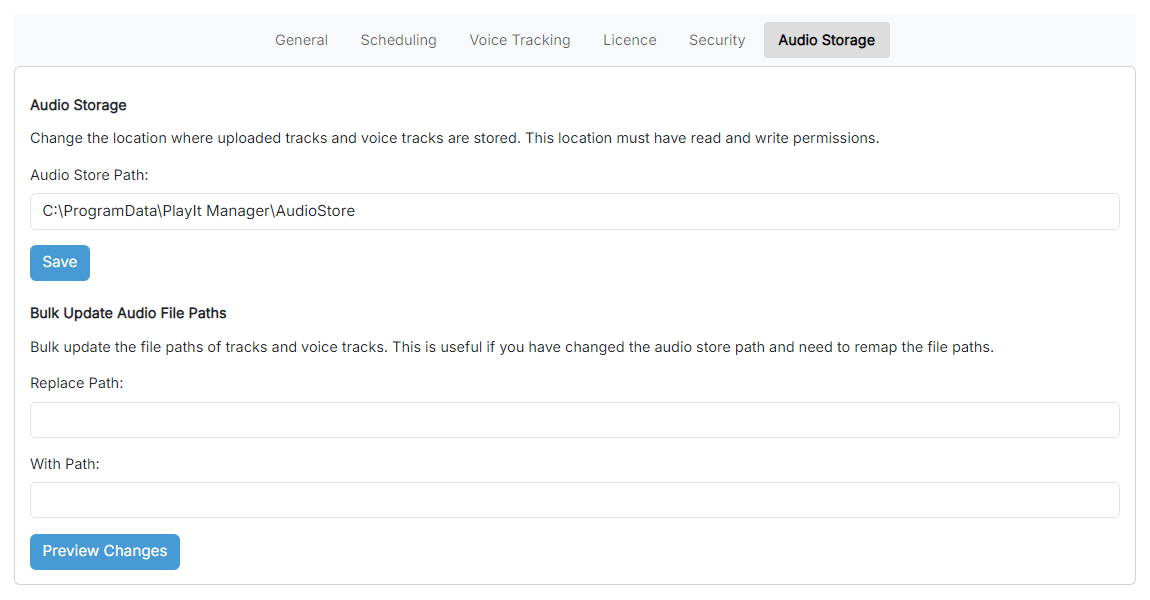
The Audio Storage Settings page.
Audio Store Path

The folder where uploaded tracks and voice tracks are stored.
Save

Save the audio store path.
Replace Path

The old path prefix you want to replace, for example C:\ProgramData.
With Path

The new path prefix that will replace the old one, for example F:\ProgramData.
Preview Changes

Show a sample of the files that will be affected before any change is made.
Changing the Audio Store Path
When you change the audio store path, the new location is only used for newly uploaded tracks. Existing audio files stay where they are and are not moved automatically.
To move existing audio files to a new location:
- Manually move the audio files using File Explorer (or your operating system's file manager) from the old location to the new location.
- Update the file paths using the Bulk Update Audio File Paths feature below, so all track references in the database point to the new location.
Bulk Update Audio File Paths
Use this feature to bulk update the file paths of tracks and voice tracks in your database. This is essential when you have changed the audio store path and need to remap the file paths so PlayIt Manager can locate the audio files in their new location.
- Replace Path: enter the old path prefix to replace.
- With Path: enter the new path prefix.
- Preview Changes: see a sample of the files that will be affected. The preview shows the total number of updates and example path transformations, each displaying the old path with an arrow pointing to the new path.
When you are happy with the preview, confirm that you have backed up your data and apply the changes.
Warning: This operation cannot be undone. Before proceeding, carefully review the preview to make sure the path changes match your expectations, and verify that you have backed up your database. The backup instructions are the same as for upgrading versions.