Logged Tracks
The Logged Tracks list shows every track that has been played, each stored with the date and time it went to air. It is a permanent record of your output, often called a "proof of play" or "as-run" log, used mainly for royalty reporting and reconciliation.
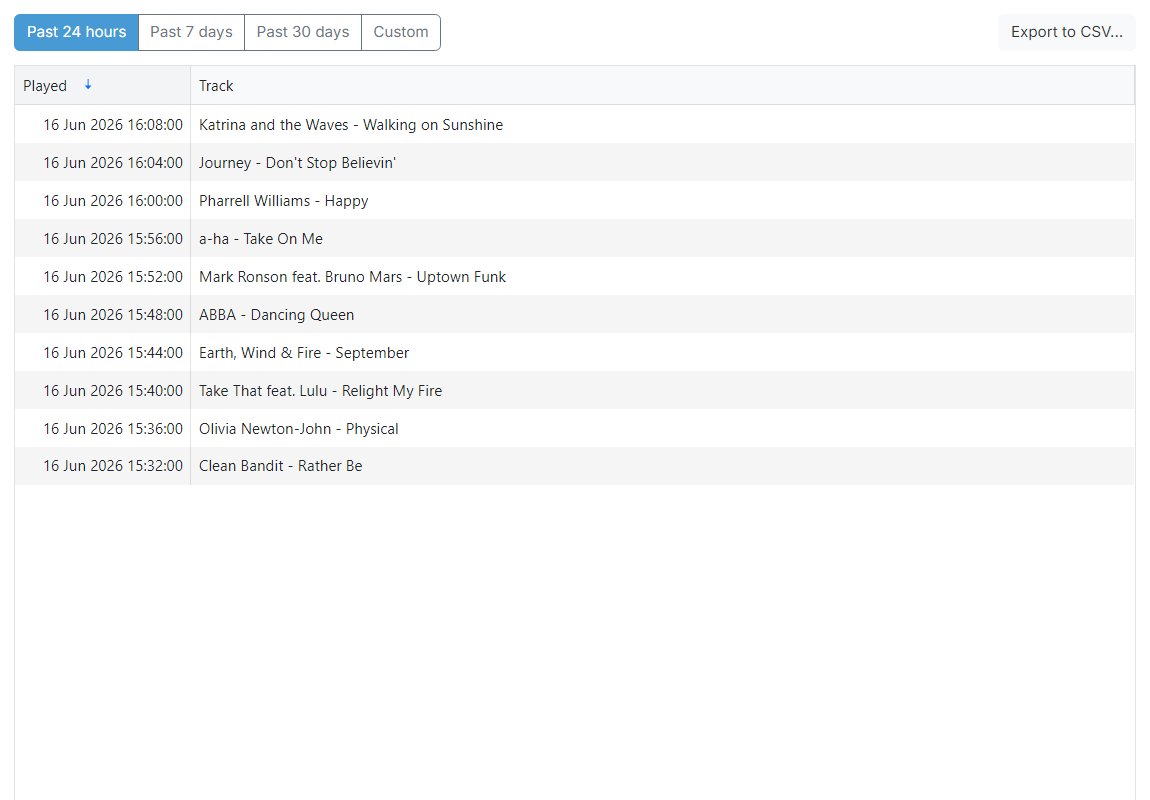
Date range buttons

Across the top of the page are four buttons that set the period the list covers. Click one to choose how far back the list reaches:
- Past 24 hours shows tracks played in the last 24 hours.
- Past 7 days shows tracks played in the last 7 days.
- Past 30 days shows tracks played in the last 30 days.
- Custom lets you choose your own start and end date and time.
The page opens on Past 24 hours, and the list refreshes automatically when you switch between the presets. When you choose Custom, a start and an end date and time input appear, separated by a to label, with a Go button; set the start and end points and click Go to reload the list for that range.
Export to CSV button
The Export to CSV... button takes the record out of PlayIt Manager for a royalty submission, for reconciliation, or for your own analysis. It downloads the current date range as a spreadsheet file. See Exporting Logged Tracks for the full process, including choosing which fields to include.
Logged track list
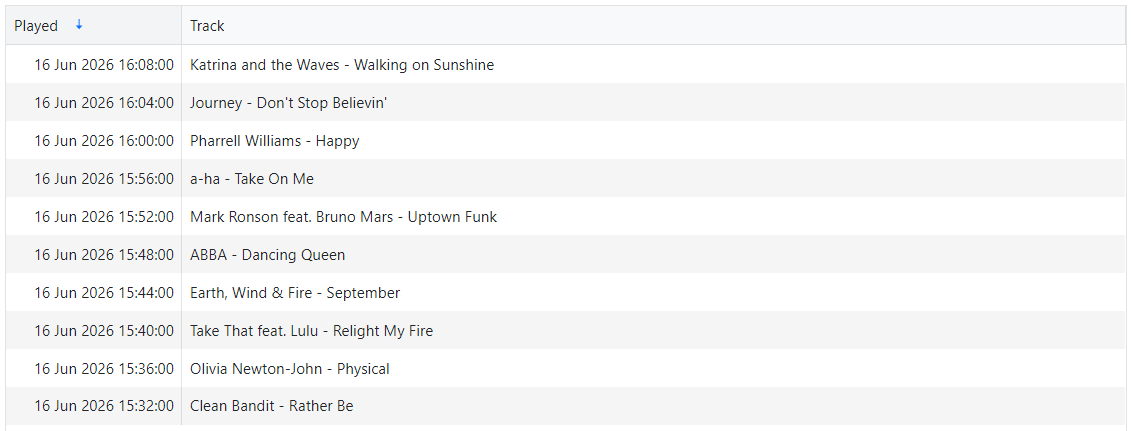
The list shows one row per play, sorted with the most recent first. The Played column gives the date and time the track went to air and the Track column shows its artist and title.
A track is recorded here when it actually plays on air, so the list reflects what was genuinely broadcast rather than what was merely scheduled.