Editing Clock
Clocks are used as hour long templates to generate events in the playout log.
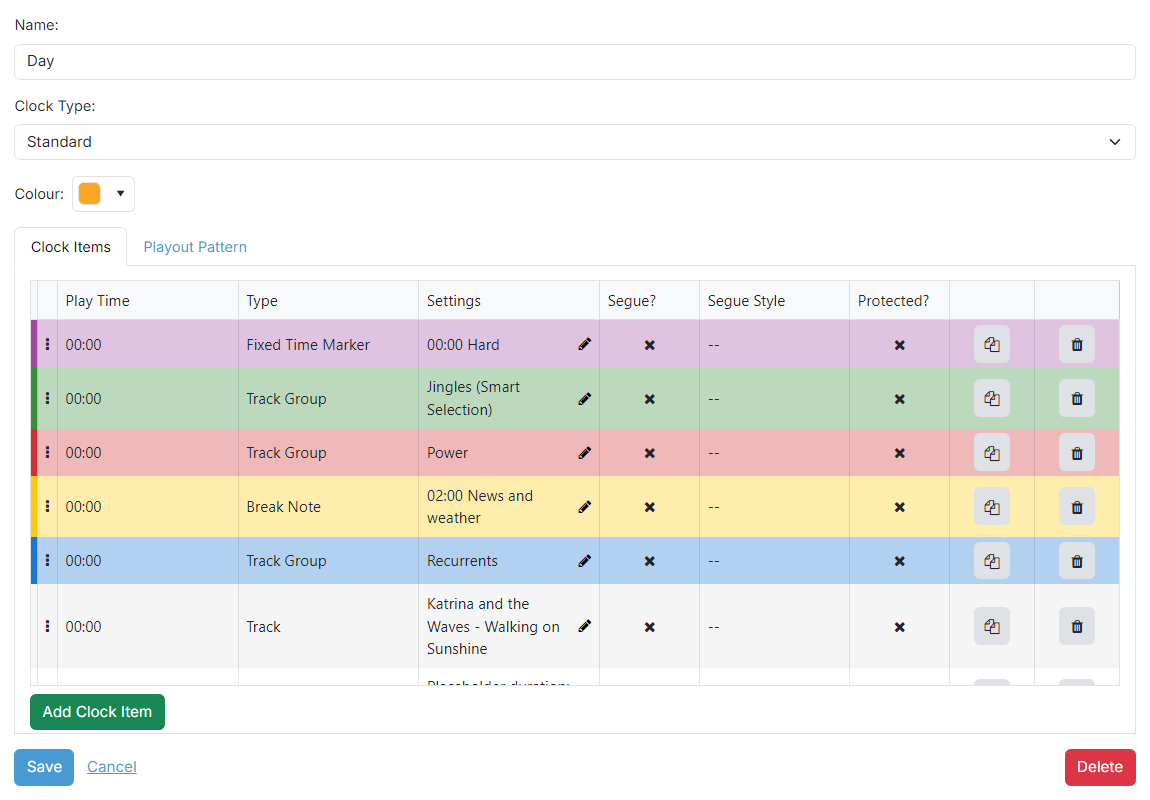
Clock Name

The name of the clock. This is for your reference.
Clock Type

The type of clock:
- Standard: A normal hour-long clock that fills the whole hour. Standard clocks can override the station's playout pattern on the Playout Pattern tab.
- Partial: A shorter sequence of clock items that does not fill a whole hour, intended to be inserted into the schedule rather than used on its own. Partial clocks do not have a Playout Pattern tab. Using partial clocks requires the Advanced Scheduling module; without it a warning is shown above the form.

Clock item list
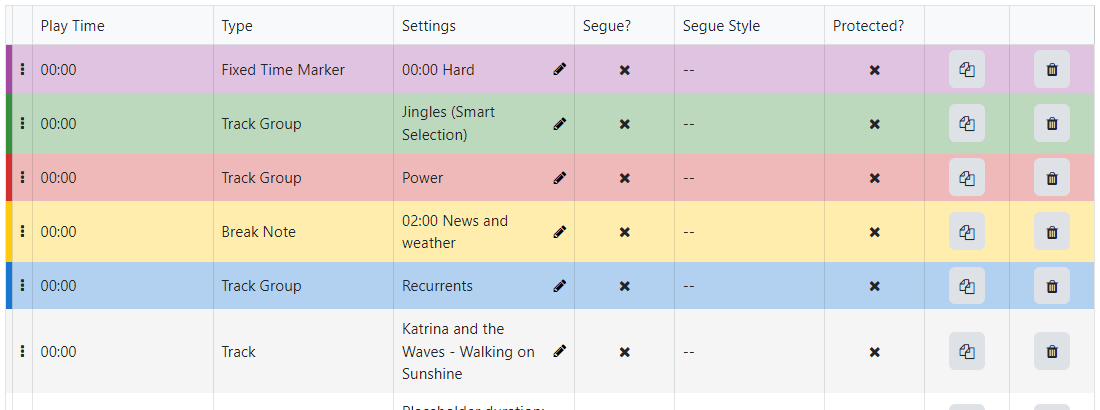
The clock item list shows each of the event items that belong to the clock in order. There are four columns:
Play Time:
The approximate play time of a clock item is determine from the sum of the all the previous item durations. The duration of each item varies on the choice of settings - the duration of a track group item is determined from the average duration of all the tracks in the group. A fixed time marker will cause the play time to reset to the fixed time.
Type:
The clock item type. To change the clock item type, click the text and you will be presented with a dropdown. Choose from Track, Track Group, Fixed Time Marker, Voice Track or Break Note.
Settings:
The settings of the clock item. This is dependent on the type you have selected. Click the settings text to change the settings.
Track
Track: Choose a fixed track to play in this slot. Clicking the settings text opens the same track picker used by the playout-log Replace Track flow. Its heading reads Replace Track when the item already references a track (so you are swapping it) or Select Track when the row is still empty:
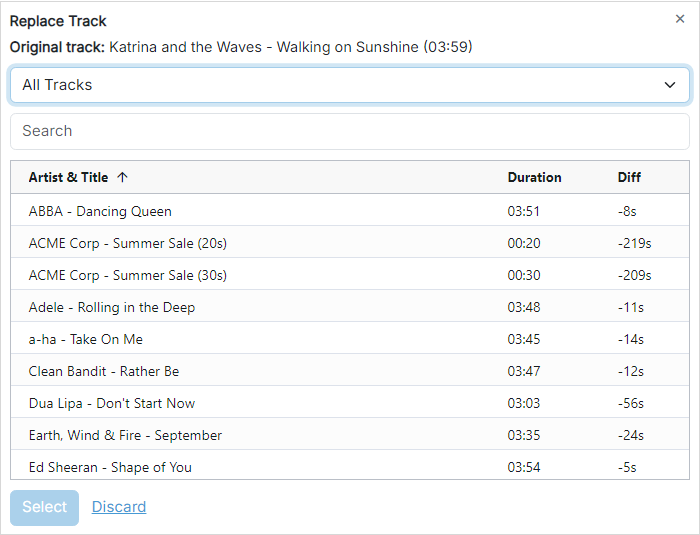
Pick the track you wish to play:
- Original track: when you are replacing an existing track, this shows the track currently in the slot with its artist, title and duration.
- The track-group dropdown at the top limits the candidates to a single track group, or All Tracks to consider every track. When the item was already scheduled from a track group, the dropdown is preselected to that group.
- The Search box filters the candidates by artist or title.
- The list shows each candidate's Artist & Title and Duration. When you are replacing an existing track a Diff column is also shown: how much longer (
+) or shorter (-) each candidate is than the original, so you can pick a replacement of a similar length.
Select a candidate and click Select (or double-click it) to use that track. Click Discard to close the picker without changing the item.
Playout-policy violation checking (the Advanced section with its Check playout policy violations option, the Highlight / Hide choices and the amber Violates playout policy highlighting) is only offered when editing the playout log, where each item has a scheduled time to evaluate policies against. It is not shown when building or editing a clock: a clock item has no fixed target time, so the picker here is a plain library pick with no violation evaluation, row highlighting or Advanced control.
Track Group
Track Group: Choose the track group you wish to play. The PlayIt Manager scheduler will choose a track using the selected scheduling strategy and that adheres to the playout policies you have configured:
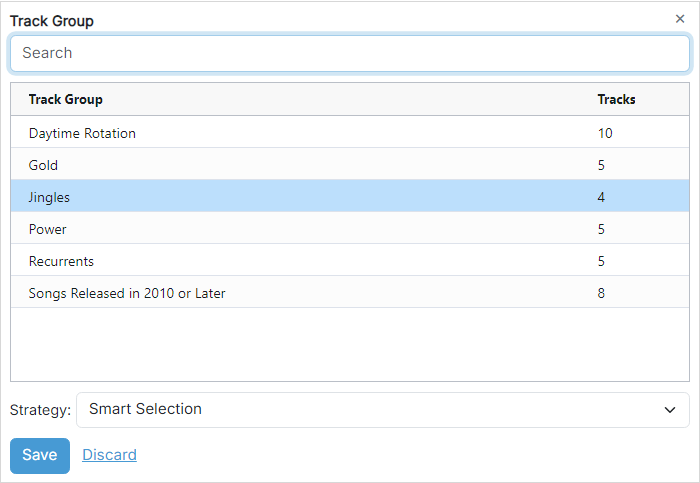
Pick the track group, then choose the Strategy the scheduler should use to pick a track from the group.
Default from settings: Use the scheduling strategy as defined in Settings.
Smart Selection: Selects a track using a weighted random algorithm. A track played longer ago is given a larger weight, increasing its chance of being selected.
Random: Select a track entirely at random from the track group.
Most Rested: Selects the track from the track group that was played longest ago.
Fixed Time Marker
Fixed Time Marker: A fixed time marker ensures time keeping within the hour. If you want a particular event to happen at a certain time within the hour, please a fixed timer marker before that event. There are 3 types of fixed time markers:
- Hard: The item immediately following this fixed time marker will start at the selected time. The preceded item will fade out and stop at this time.
- Soft: The item immediately following this fixed time marker will start only once the preceding item has finished after the selected time.
- Not Before: This type of fixed time marker ensures that items following the fixed time marker will not play until at least the selected time has passed.
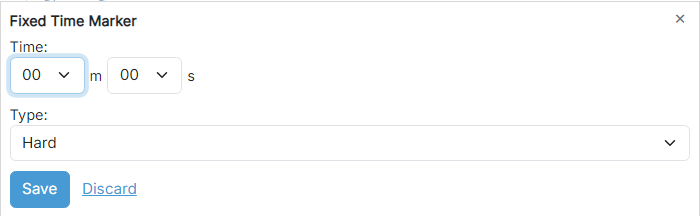
Set the target Time in minutes and seconds past the top of the hour, then choose the Type of fixed time marker.
Break Note
Break Note: A 'silent' track used to signify a block of time when something happens. This could be used to play commercial spots from the cartwall on PlayIt Live.
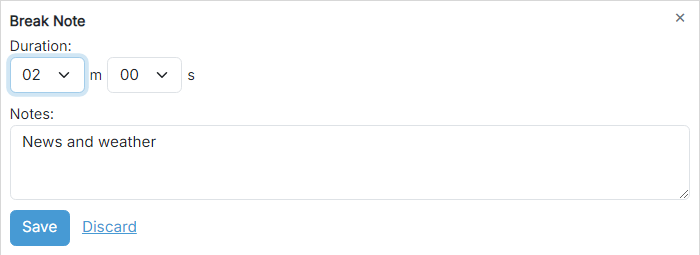
Set the Duration of the break and add a free-text note describing what the break is for.
Voice Track
Voice Track: A voice recording track used to play between tracks in order to give the impression that the radio show is live. Voice tracks can be recorded via PlayIt Live.
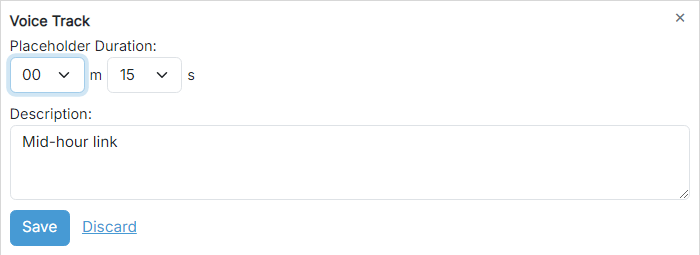
Set the Placeholder Duration used when the voice track has not yet been recorded, and add a short Description so the presenter knows what the link is for.
Remote URL
Remote URL: A remote URL item is used to play a remote file or live stream in PlayIt Live.
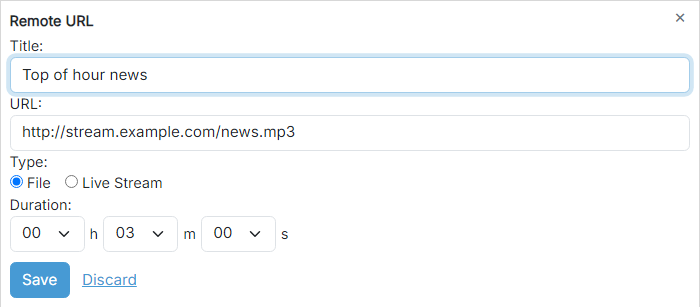
Enter a Title for the item, the URL to fetch, the Type (File or Live Stream), and the Duration of the item.
A File URL typically refers to a static file located on a server which is downloaded by PlayIt Live when it is loaded into a player. Remote files are intended to be a fixed length duration and this must be provided in order to ensure the item is scheduled with the correct length (as this is not known until load time).
A Live Stream URL typically refers to an audio stream provided by a streaming media server such as Icecast or Shoutcast and could be an internet radio station or a remote DJ stream. PlayIt Live assumes the live stream will run forever so will attempt to restart the stream if the connection is dropped. PlayIt Live will play the live stream until the specified duration has elapsed. Live streams can also be stopped manually, or by using a hard fixed time marker.
Advert Block
Advert Block: An advert block is used to schedule a block of adverts in PlayIt Live. The Start Time indicates the corresponding block in the advert log to schedule the adverts. Duration indicates the maximum length of all the adverts in the advert block. Slots indicates the maximum number of adverts that will play in the advert block.
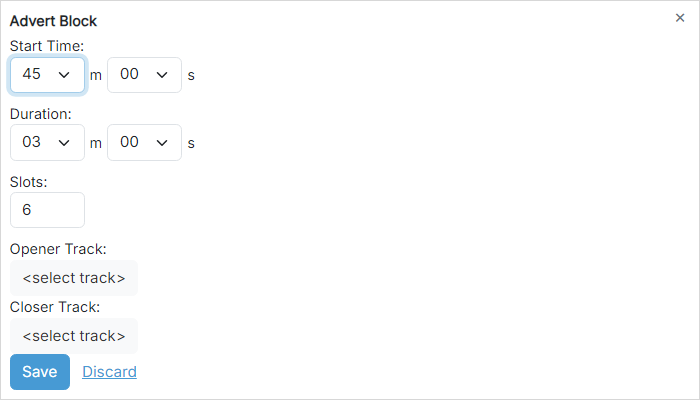
Set the Start Time within the hour, the maximum Duration of the block, and the maximum number of Slots (adverts). Optionally pick an Opener Track and Closer Track that bookend the advert block.
Hook Sequence
Hook Sequence: A hook sequence will play only the hooks of tracks back to back within a short clip. This allows you to promote songs that will be playing within the next hour or just songs from a specific track group.
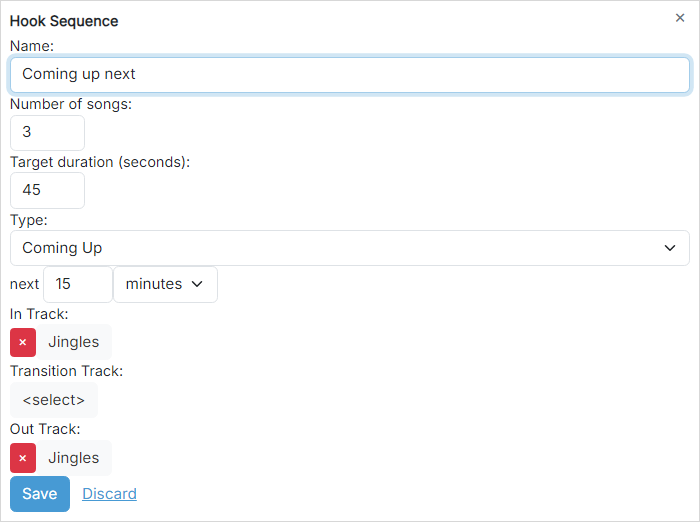
Give the sequence a Name, choose the Number of songs to include and the Target duration of the whole sequence in seconds.
Pick the Type:
- Track Group Random picks the hooks at random from the chosen track group.
- Coming Up, Coming Up (Reversed) and Coming Up (Random) pick the hooks from the songs that will be playing in the next N minutes or songs, in order, reverse order, or at random.
In Track, Transition Track and Out Track are optional bookend items inserted before, between and after the hooks. Pick a specific track or a track group from which the scheduler will choose.
Other columns
Segue?
Signals if the scheduled item will segue into the next item.
Segue Style
The segue style to use for the log item. See PlayIt Live documentation for how segue style is used.
Protected?
When this checkbox is checked the scheduled playout log item will have the same protected status. In PlayIt Live, protected items will not be dropped by Fixed Time Markers or the Auto Adjust feature. Use this for items that must be played during an hour, for example, advert blocks.
Per-row actions
Clone button

Clones the selected item to the next row. This is useful if you want to easily duplicate an item.
Delete button

Deletes the item row from the clock.
Reorder handle
Use the  icon to reorder the clock items.
Each clock item is shown in color: a solid stripe runs down the leftmost edge of the row and the whole row is given a faint tint of the same color, making it easy to see at a glance what kind of item it is. Track Group items take the track group's configured color, while other item types are tinted with a default color for their type.
Playout Pattern
Overriding a clock's playout pattern requires the Advanced Scheduling module. You can try the module out by going to Settings > License and choosing to enable the Advanced Scheduling module.
The clock editor has two tabs: Clock Items (described above) and Playout Pattern. The Playout Pattern tab lets a single clock override the station's global playout pattern with its own. Most clocks should leave this alone so they follow the global pattern, but it is useful when one part of the schedule needs a different rotation from the rest of the station: for example, a dance show clock that overrides the station pattern so the hour is built from dance track groups rather than the station's usual rotation.
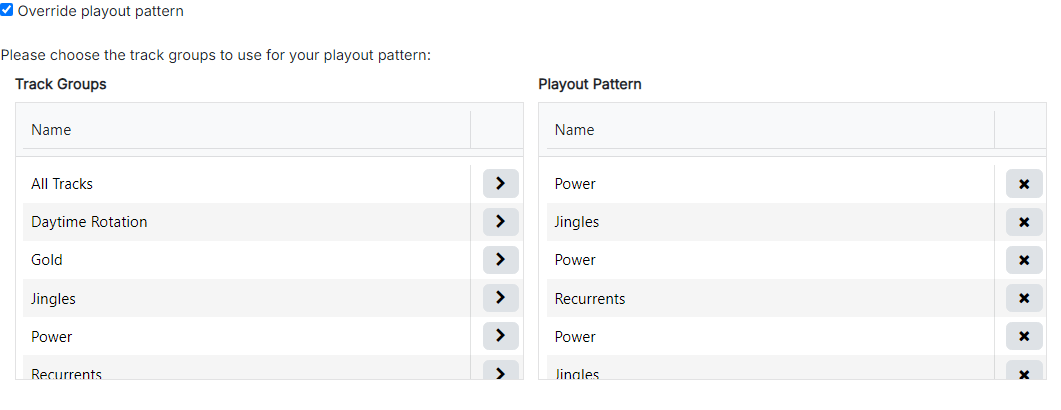
Open the Playout Pattern tab to control which playout pattern this clock uses.
Override playout pattern: When this checkbox is left unticked, the clock follows the station's global playout pattern and the picker below is disabled. Tick it to give this clock its own pattern; the picker becomes editable and pre-populated with the current global pattern as a starting point, which you can then adjust.
The pattern picker works exactly like the global playout pattern editor: send track groups from the Track Groups source list into the clock's Playout Pattern list, remove entries, and reorder them.
Overriding the playout pattern requires the Advanced Scheduling module. Without it the override is ignored and the global playout pattern is used instead; a warning is shown above the checkbox in that case.
The Playout Pattern tab is not available for partial clocks.
Add Clock Item button
Adds a blank clock item to the end of the clock.
Clock operations

Use the Save button to save the clock to the database.
Use the Cancel button to discard all changes.
Use the Delete button to remove the clock from the database. A confirmation box will be shown.