Backup Settings
PlayIt Manager can back up your database and settings on demand or on a regular schedule. A backup is a single file that captures your tracks, track groups, scheduling configuration, voice tracks references and application settings, so you can return to a known-good state if something goes wrong.
Backups matter because the data that drives your station, your library, your clocks and your scheduling, builds up over months or years and is not easily recreated. A backup protects you against accidental changes, a corrupted database, a failed disk or a problem during an upgrade. Take a backup before any major change, such as upgrading PlayIt Manager, performing a bulk path update or cleaning up the database.
The Backup page is part of the Tools section. To open it, go to Tools > Backup. You need the Manage Backups permission to see it.
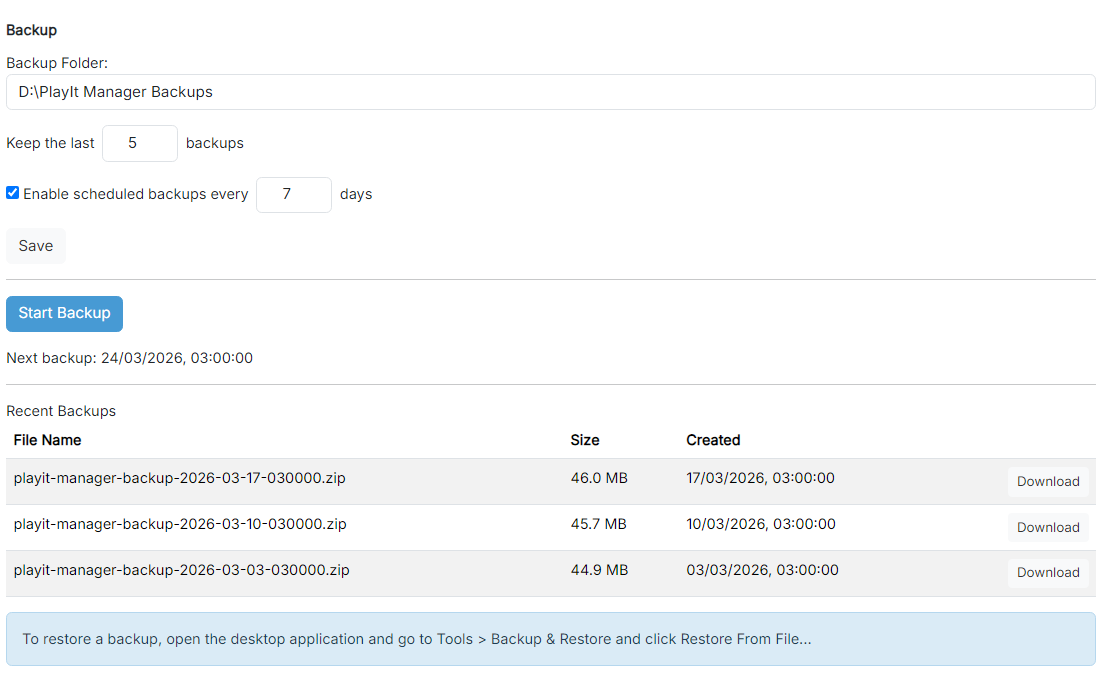
Backup folder

At the top of the page is the Backup Folder: field, a text box containing the folder where backup files are written, for example D:\PlayIt Manager Backups.
Retention count

On one line is Keep the last followed by a small number box showing 5 and then the word backups: this is how many of the most recent backups to retain in the folder. Older backups beyond this count are removed automatically.
Scheduled backups

A ticked Enable scheduled backups every checkbox, followed by a small number box showing 7 and the word days, turns on automatic background backups at the chosen interval.
Save

A Save button beneath these settings persists the folder, retention count and schedule.
Start Backup

Below a horizontal rule is the Start Backup button (a primary blue button), and beneath it a Next backup: label showing the date and time of the next scheduled backup.
Recent Backups

Below another rule is the Recent Backups heading and a striped table with the columns File Name, Size and Created, plus a Download button on each row. The example shows three backup rows. At the very bottom is an information panel explaining how to restore a backup.
Backup folder
The Backup Folder is where backup files are written, for example D:\PlayIt Manager Backups. This location must have read and write permissions so PlayIt Manager can create and manage backup files. For protection against disk failure, point it at a separate physical drive or a network location rather than the same disk as your database and audio store.
Keeping a number of backups
The Keep the last setting controls how many of the most recent backups are retained in the backup folder. When a new backup is created and the count is exceeded, the oldest backups are deleted automatically. This stops the folder from growing without limit while keeping a useful history of recent backups.
Scheduled backups
Tick Enable scheduled backups every and enter a number of days to have PlayIt Manager back up automatically in the background while it is running. The Next backup: date shown below the Start Backup button tells you when the next automatic backup is due. Scheduled backups respect the Keep the last retention setting in the same way as manual backups.
After changing any of these settings, click Save. You must save before starting a backup; if there are unsaved changes the Start Backup button is disabled and a reminder is shown.
Backing up now
Click Start Backup to back up the database and settings immediately. While a backup is running the button is disabled, a spinner and status text appear, and the page refreshes the status and backup list automatically until the backup completes. The new backup then appears in the Recent Backups list.
Recent backups and downloading
The Recent Backups table lists the backups currently in the backup folder, showing each backup's File Name, Size and the date it was Created. Use the Download button on a row to download that backup file to your computer, for example to copy it to off-site or cloud storage for safekeeping.
Restoring a backup
PlayIt Manager does not currently provide a user interface for restoring a backup. To restore, download the backup, close PlayIt Manager, then extract the contents of the backup file into the PlayIt Manager data folder (typically C:\ProgramData\PlayIt Manager), overwriting the existing files. Start PlayIt Manager again once the files are in place.
When you restore a backup, any existing data is overwritten and cannot be recovered, so be sure you have closed PlayIt Manager and chosen the correct backup file before you begin.