Listing Clocks
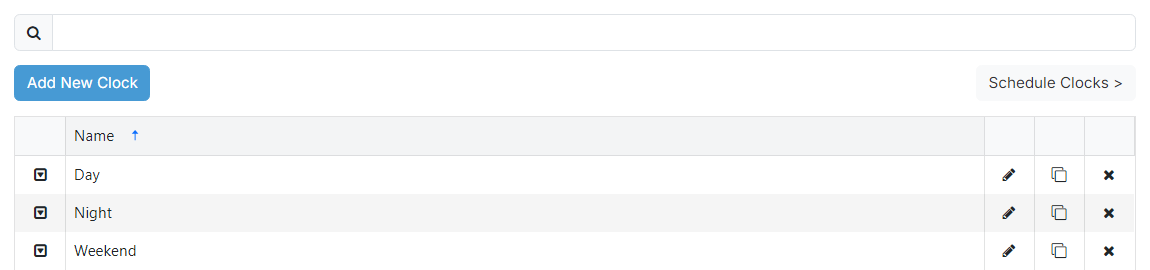
1
Search

Filter clocks to the name entered in the text box.
2
Add New Clock button

Add a new clock to PlayIt Manager.
3
Schedule Clocks button

Opens the clock scheduler to schedule clocks to hours in the schedule to be used by the playout log.
4
Clock list

Lists clocks added to PlayIt Manager. It shows the name of each clock along with four per-row action buttons covered below.

A drop down with all available options for the clock.

Opens the edit page for the clock.

Creates a duplicate of the clock.

Prompts for confirmation, then removes the clock.