Editing Playout Log
After picking a date range and clicking Start Editing Log, the page enters editing mode. The action buttons at the top become enabled, the date range is locked, the item list becomes editable, and a Save / Revert row appears at the bottom.
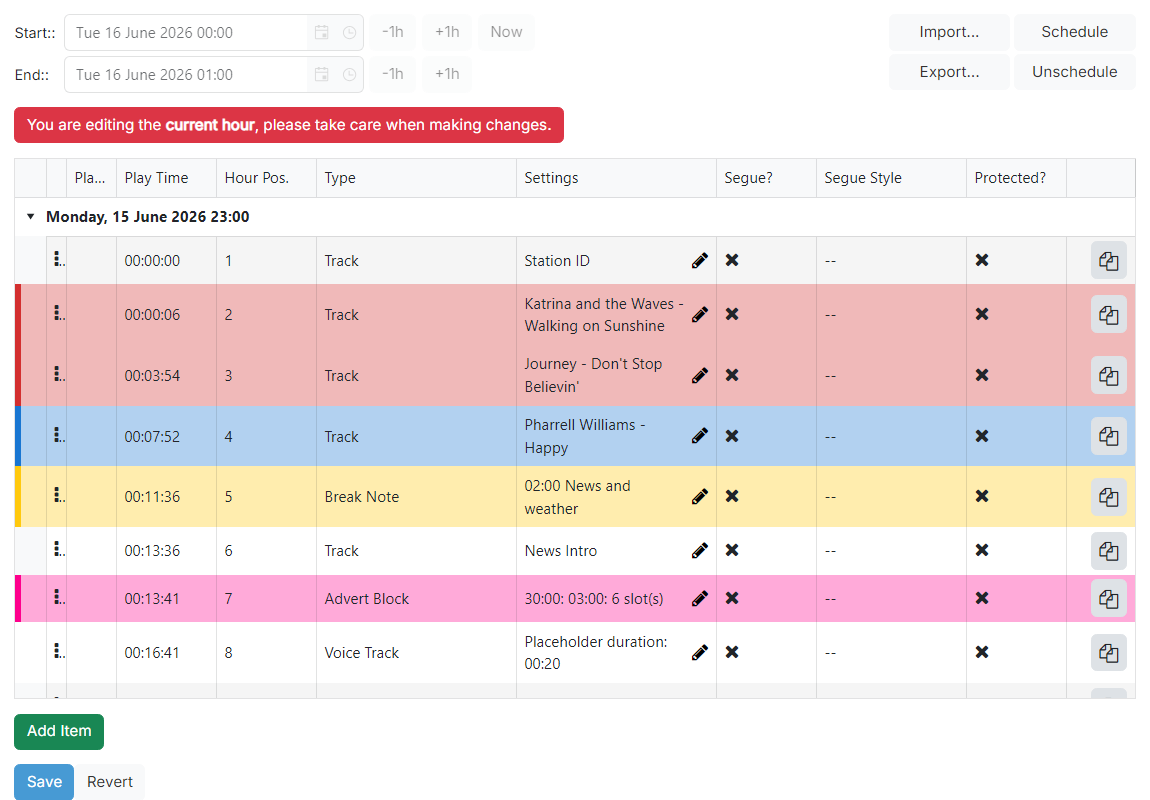
Editing notification

This banner is shown for the duration of an editing session. When the current hour falls within the selected date range, the banner switches to a red warning, reminding you that any change here can be disruptive to the operator running PlayIt Live live on air.
Schedule, Unschedule, Import and Export
Schedule runs the playout log scheduler over the selected date range, generating items from the clocks that have been scheduled to those hours (or from the playout pattern when no clock is scheduled).
Unschedule clears every item in the selected date range. Use this when you want to reschedule the range from scratch. Changes are not applied until you click Save.
Import opens the import dialog, which replaces the items in the selected date range with the contents of an external file (PlayIt, M3U or SS32 format).
Export downloads the items currently in the date range as a .pipl file in PlayIt Playout Log Format, which can later be imported into a different time range.
Playout log item list
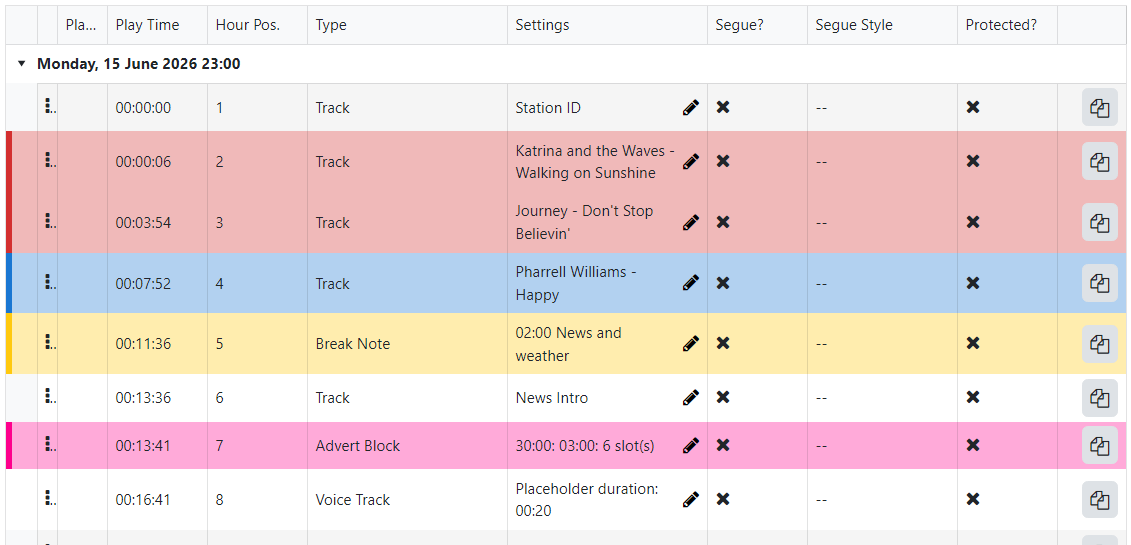
The grid shows every item scheduled for the selected date range, grouped by hour and sorted by their position within the hour. Drag the handle in the leftmost column to reorder items.
The columns (Play Time, Hour Pos., Type, Settings, Segue?, Segue Style, Protected?), the per-row Clone and Delete buttons, and the per-type settings editors (Track, Track Group, Fixed Time Marker, Break Note, Voice Track, Remote URL, Advert Block, Hook Sequence) are the same as on the clock item list. See Editing Clock for the full reference.
Two columns specific to the playout log appear before Type:
Played? A tick is shown for items that have already been played by PlayIt Live.
Hour Pos. The position of the item within its hour. This is recalculated automatically when items are added, removed or reordered.
Item color

Each log item is shown in color. A solid stripe runs down the leftmost edge of the row, and the whole row is given a faint tint of the same color, so you can scan the hour and tell items apart at a glance.
The highlighted row above is a Track taken from a red track group: it carries that group's configured color. A fixed Track uses the color of the track group it was added from, while items that are not associated with a track group are tinted with a default color for their type. This matches the coloring shown on the clock item list.
Add Item button
Adds a blank item to the end of the date range. Drag the new row using the handle in the leftmost column to move it to the position you want.
Save and Revert

Save writes every change in the selected date range to the database and exits editing mode. PlayIt Live will pick up the new items the next time it polls the manager.
Revert discards every change and exits editing mode without writing to the database.