Editing Advert Campaigns
The campaign editor lets you set the details of an advert campaign and manage the adverts that belong to it. Open it from the advert campaigns list by adding a new campaign or clicking the pencil icon next to an existing one.
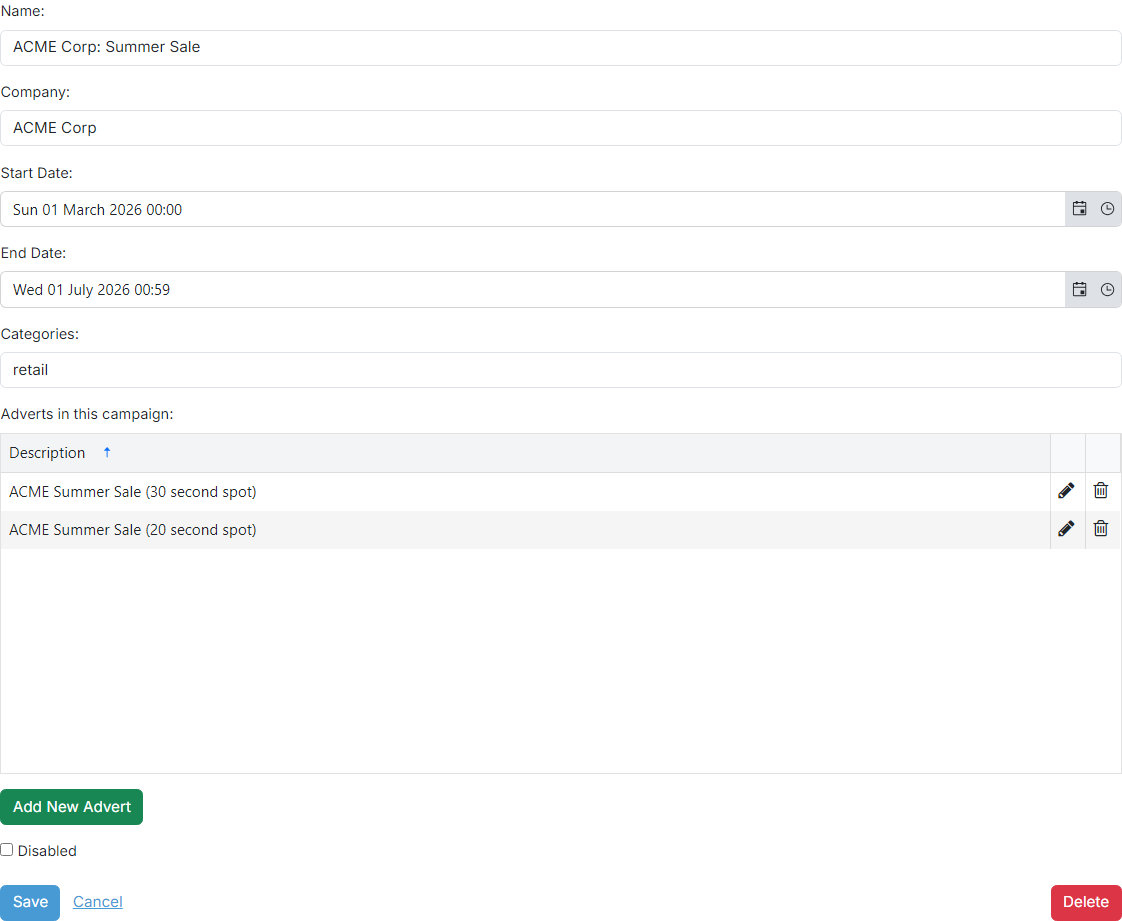

Company

The name of the company or customer the campaign is for.
Start Date

The start of the date range between which the advert scheduler will schedule this campaign. It is still possible to manually schedule the campaign outside this range.
End Date

The end of the date range between which the advert scheduler will schedule this campaign.
Categories

The categories (semi-colon separated) the campaign belongs to. Categories prevent adverts of the same kind being played in the same advert block: for example, you would not want two competing fast food restaurants in the same block. Adverts in campaigns that share a category will never be played in the same advert block.
Adverts in this campaign
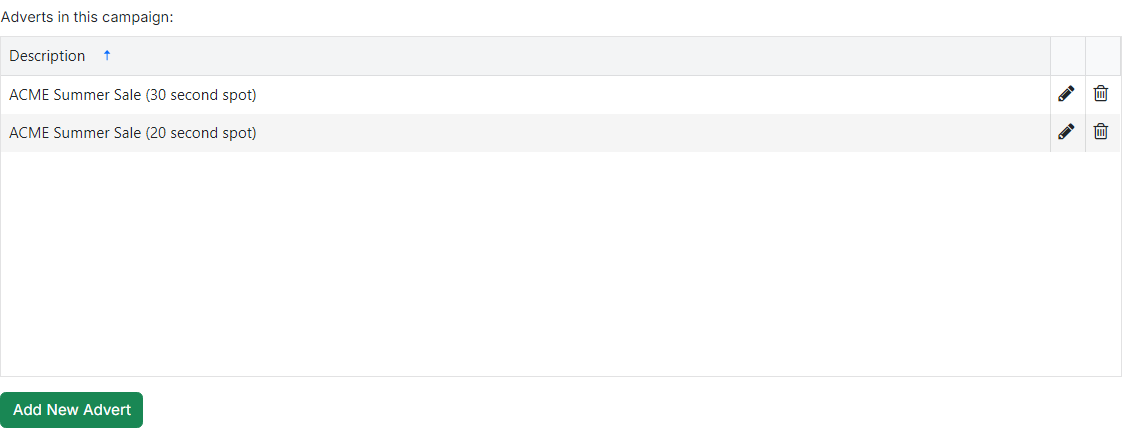
The adverts that belong to this campaign. An advert represents a cut of audio that can be played at specified times of the day or week up to a maximum number of plays. Use Add Advert to create one, or click the pencil icon to open the advert editor.
Disabled

Tick Disabled to stop the advert scheduler considering this campaign without deleting it.
Save / Cancel / Delete

Click Save to save your changes and return to the list page. Click Cancel to discard any changes and return to the list page. Click Delete to remove the campaign.