Duplicate Track File Analysis
Duplicate Track File Analysis scans your library for tracks that point to the same audio file path. When more than one track references a file path that already exists in the database, the extra entries are reported so you can remove them.
These duplicates are created when the same file on the server is added to the library more than once using the Files on Server or Folder on Server methods, which add tracks that reference a file already on the server by its path. For example, adding two folders with Folder on Server where one sits inside the other, running Folder on Server again over a folder whose files were already added, or picking the same file with Files on Server a second time, all leave more than one track pointing at the same file path.
Tracks added with Upload to Server do not create these duplicates: each uploaded file is copied into the Audio Store folder under its own path, so uploading the same file again produces a separate copy rather than a second reference to the same path. Duplicate entries clutter the track list and can cause the same song to be scheduled and played more often than intended.
Because it works purely on the file path, the tool only matches tracks that share an identical file path. It will not detect:
- The same audio content stored at two different file paths (for example, the same file added once with Folder on Server and again after being copied into another folder).
- Two different files that happen to have the same filename but live in different folders.
- Two files that contain the same audio but have different filenames.
To open the page, go to Tools and select the Duplicate Track Files tab. This tab is only available to users with the Manage Tracks permission.
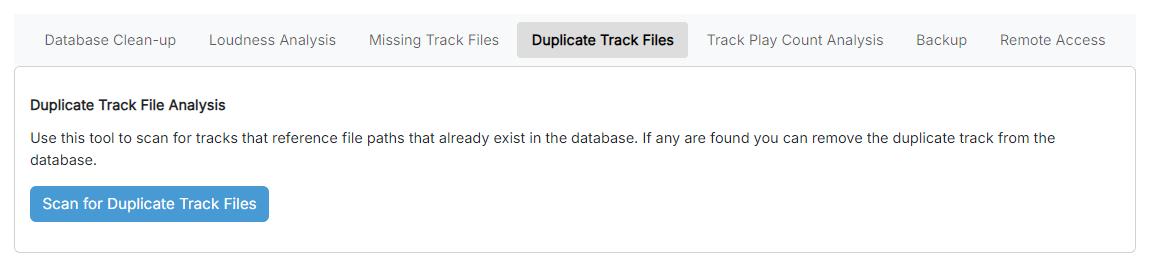
The Duplicate Track File Analysis page, reached from the Tools section.
Click Scan for Duplicate Track Files to begin scanning. When it finishes, any tracks that reference a file path already used by another track are listed in the results table. If no duplicates are found, a confirmation message No duplicate track files were found. is shown instead.
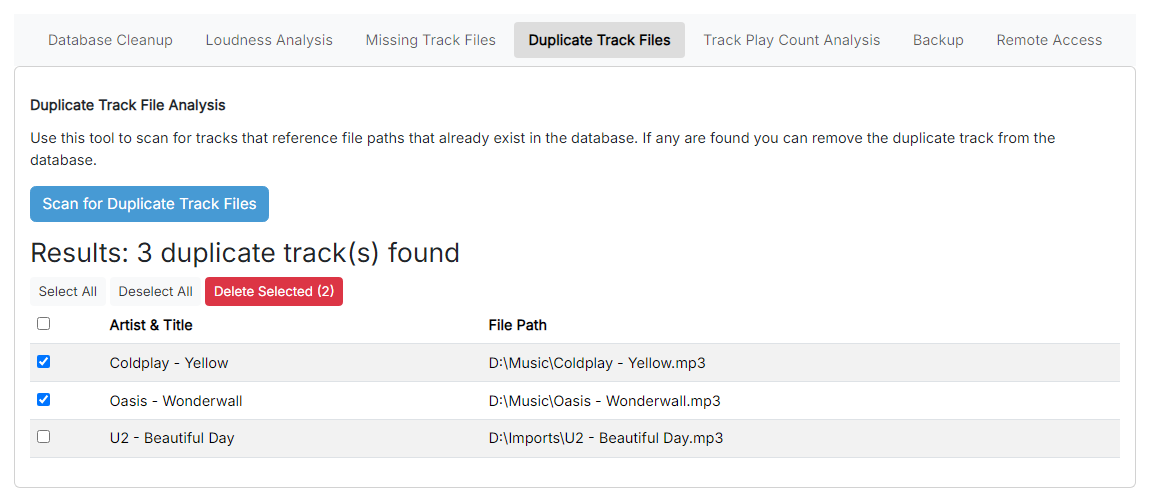
The results of a scan, with duplicate tracks selected ready for removal.
Each row in the results table represents a track whose file path is also used by another track. Review the rows and tick the checkbox next to each duplicate you want to remove. Use Select All or the header checkbox to tick every row at once, and Deselect All to clear the selection.
When you are happy with your selection, click Delete Selected (N), where N is the number of ticked rows. You are asked to confirm because the tracks are permanently removed from the database and this cannot be undone. The underlying audio files are not deleted. Only the duplicate track entries in PlayIt Manager are removed, so the track you keep continues to reference the file as before. After deletion, the removed rows disappear from the results.