Filtered Track Groups
Filtered track groups gather tracks that match a set of rules on track properties such as artist, title, genre or year. Tracks join or leave the group automatically as their properties change, so a filtered group always reflects the current library.
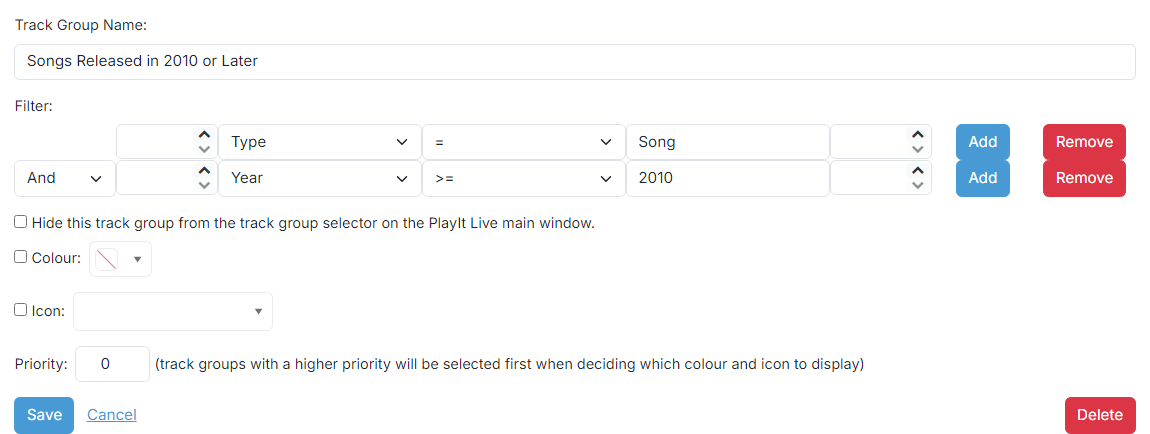
Track Group Name

The name of the track group. This is shown in the track group dropdown in PlayIt Live to filter by track group.
Filter rules

Build the filter that selects which tracks belong to the group. Each row matches one rule:
- Field: the track property to test (Artist, Title, Type, Genre, Year, Path, Intro, Active Duration and others).
- Operation: the comparison such as
=,!=,<,<=,>,>=,CONTAINS,DOES NOT CONTAIN,STARTS WITH,ENDS WITH. - Value: the value to compare against.
Add more rows with the Add button and combine them with And / Or to create more complex filters. Use parentheses to control grouping.
The example shown filters tracks of Type Song released in the year 2010 or later.
Hide this track group

Check this box to hide the track group from the track group selector on the PlayIt Live main window.

Track group operations

- Use the Save button to save the track group to the database.
- Use the Cancel button to discard all changes and return to the track group list.
- Use the Delete button to remove the track group from the database. A confirmation prompt is shown first.