Listing Tracks
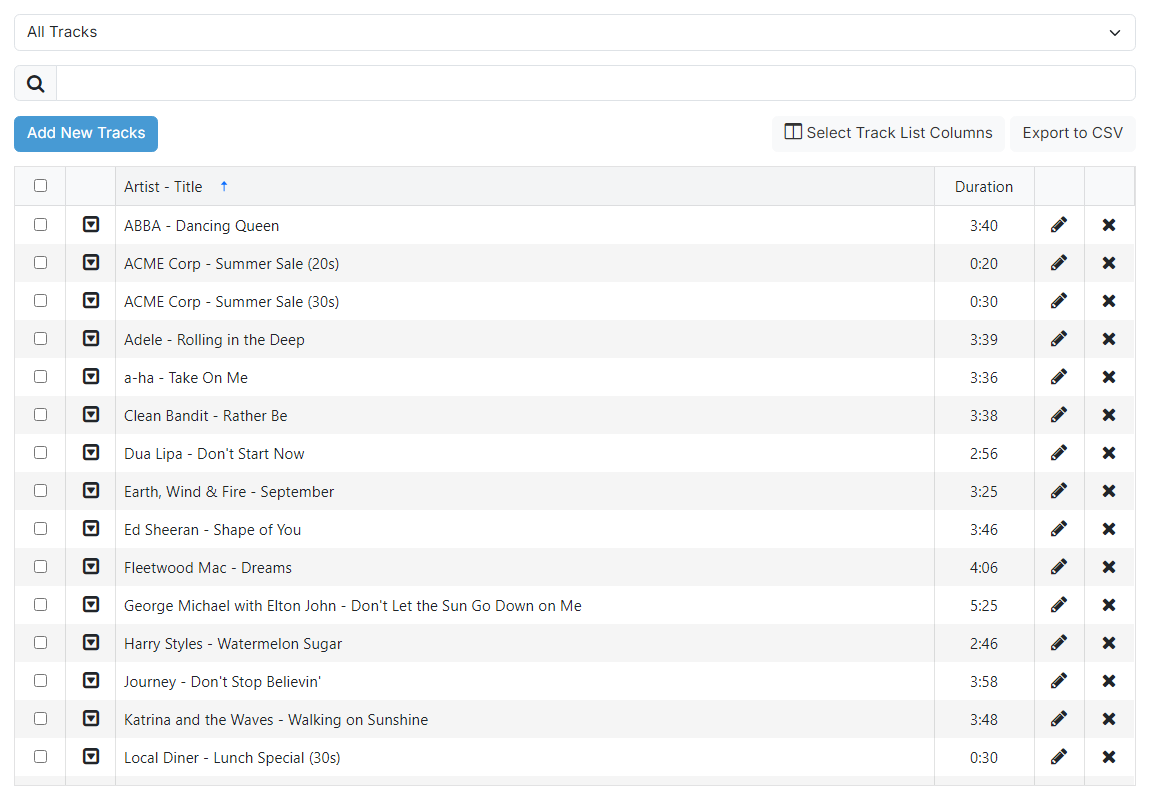
Track group filter

Filter the track list by track group.
Search

Filter the track list to the artist or title entered into the text box.

Export to CSV button
Export the current track list view to a CSV file for printing or review.
Track list
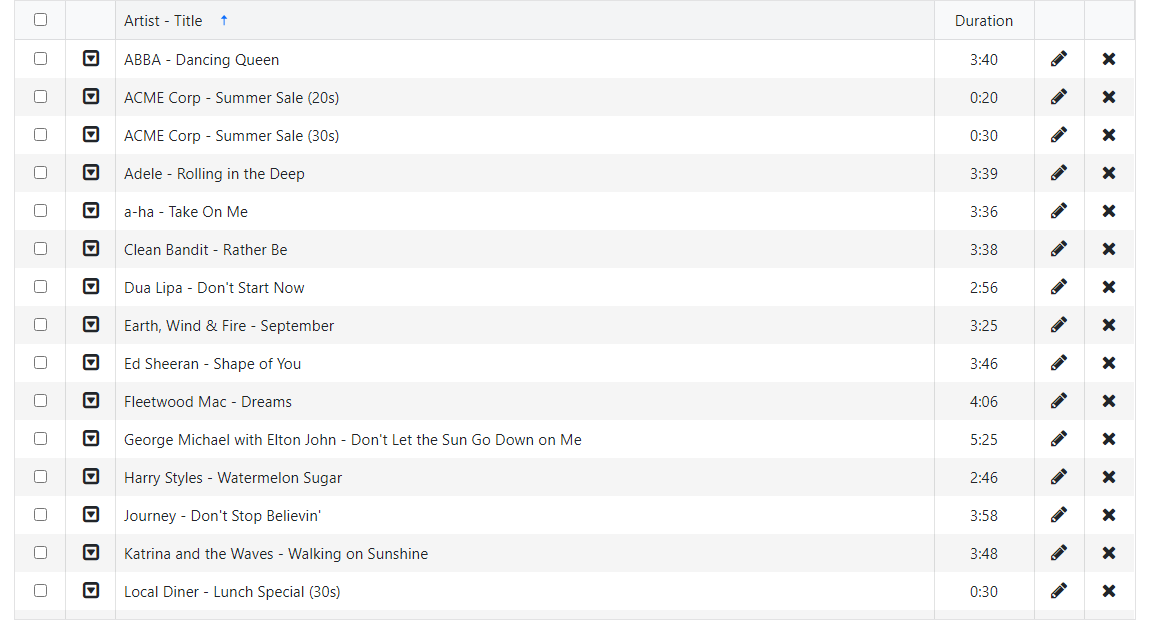
Lists tracks added to PlayIt Manager. The Artist and Title of each track is shown along with the following action buttons:
- A drop down with all available options for the track.
- An Edit button that opens the edit track page.
- A Delete button that prompts for confirmation before removing the track.
By default the track list shows the Artist - Title and Duration columns. You can add, remove and reorder columns to suit the way you work. For example, add the Track Groups column to see at a glance which categories a track belongs to, or show the Year and Genre columns when programming music.
Click the Select Track List Columns button  above the list (next to Export to CSV) to open the column picker.
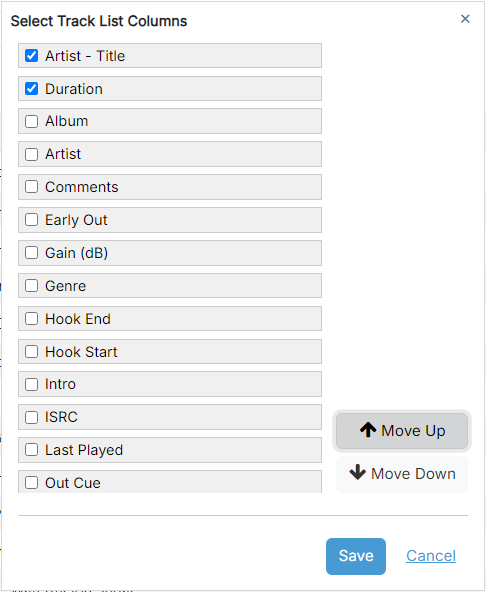
Column list
Tick or untick a column to show or hide it in the track list. Select a column by clicking its row to move it (see the reorder buttons). Columns are shown left to right in the order they are listed here.
The columns you can choose from include Artist - Title, Artist, Title, Duration, Album, Intro, Early Out, Year, Path, Type, Out Cue, Genre, Tags, Comments, Sweeper, ISRC, Record Label, Gain (dB), Last Played, Hook Start, Hook End, Track Groups and Track ID.
Reorder buttons
The Move Up and Move Down buttons change the position of the selected column. Select a column in the list, then use these buttons to change where it appears.
Save and Cancel

Click Save to apply your changes, or Cancel to discard them.
Your column choices, their order and any widths you set by dragging a column border are remembered in your browser, so the list looks the same the next time you open it on the same computer. Because the settings are stored per browser, a different computer or browser starts from the default columns.