Priority Streams
Priority Streams requires the Advanced Scheduling module.
Priority Streams is a feature allowing you to bring in an external stream such as a remote presenter/DJ or outside broadcast. When a priority stream is live, normal live-assist playout stops and the priority stream takes over. If a priority stream is not connected, or if it is too quiet or silent, it will not go live and will not take over normal live-assist playout. The highest priority, open, active priority stream takes priority over normal live-assist playout.
Priority streams are managed centrally in PlayIt Manager and synchronised to your connected PlayIt Live instances, where they take effect against live-assist playout.
How it works
When a priority stream is open, PlayIt Live continuously tries to connect to a live URL (for Live URL streams) or checks for an incoming connection (for Direct Stream Connection streams). If a connection is made and the audio is loud enough (above the silence threshold), the priority stream is considered active. Normal live-assist playout fades and stops, or waits until the currently playing track finishes (depending on the live-assist settings), and then the priority stream goes live. If there are multiple active priority streams, the one with the highest priority goes live. If the priority is the same, the one that became active first goes live.
When the priority stream is no longer active, live-assist playout resumes its previous state.
To control the open state of a priority stream automatically, add a Change Priority Stream Open State scheduled event action to a clock or the playout log.
Managing priority streams
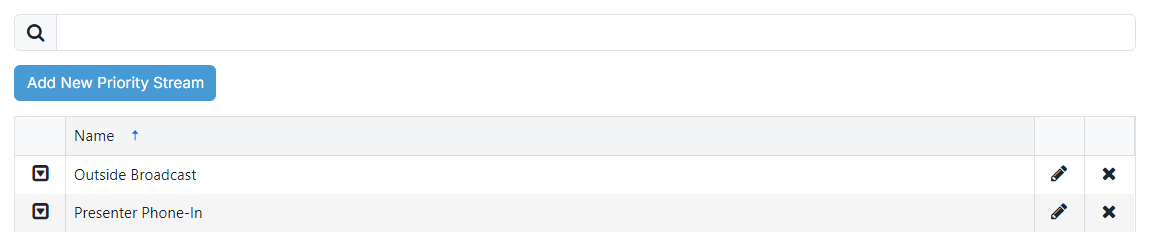
The Priority Streams page lists the priority streams you have configured and lets you add, edit and delete them. Open it from the Priority Streams item in the menu.
Add new

Click Add New Priority Stream to create a priority stream. This opens the Edit Priority Stream page.
Priority stream list

Lists the priority streams stored in PlayIt Manager. Each row shows the stream's name and its connection and open-state details. Click a row to edit that priority stream on the Edit Priority Stream page.
Terminology
Active: An active priority stream is one that is open, is connected and has a volume level above the silence threshold. If a stream disconnects or falls below the silence threshold for a period of time, it is considered inactive.
Go Live: The priority stream with the highest priority that is active is faded up. Depending on the live-assist settings, normal playout fades and stops, or the current track finishes before the priority stream is faded up.
Open: PlayIt Live tries to connect to the live URL or checks for an incoming connection. Open streams can go live.
Pre-Open: As Open, but the stream will not go live. Use this to pre-buffer a stream before opening and going live.
Closed: PlayIt Live does not check for a connection for the priority stream and it will not go live.