Editing Tracks
The Edit Track page lets you view and edit every property of a track stored in PlayIt Manager. Open it from the track list by clicking Edit next to a track. Changes you make here are saved back to PlayIt Manager and synchronised to any connected PlayIt Live installations.
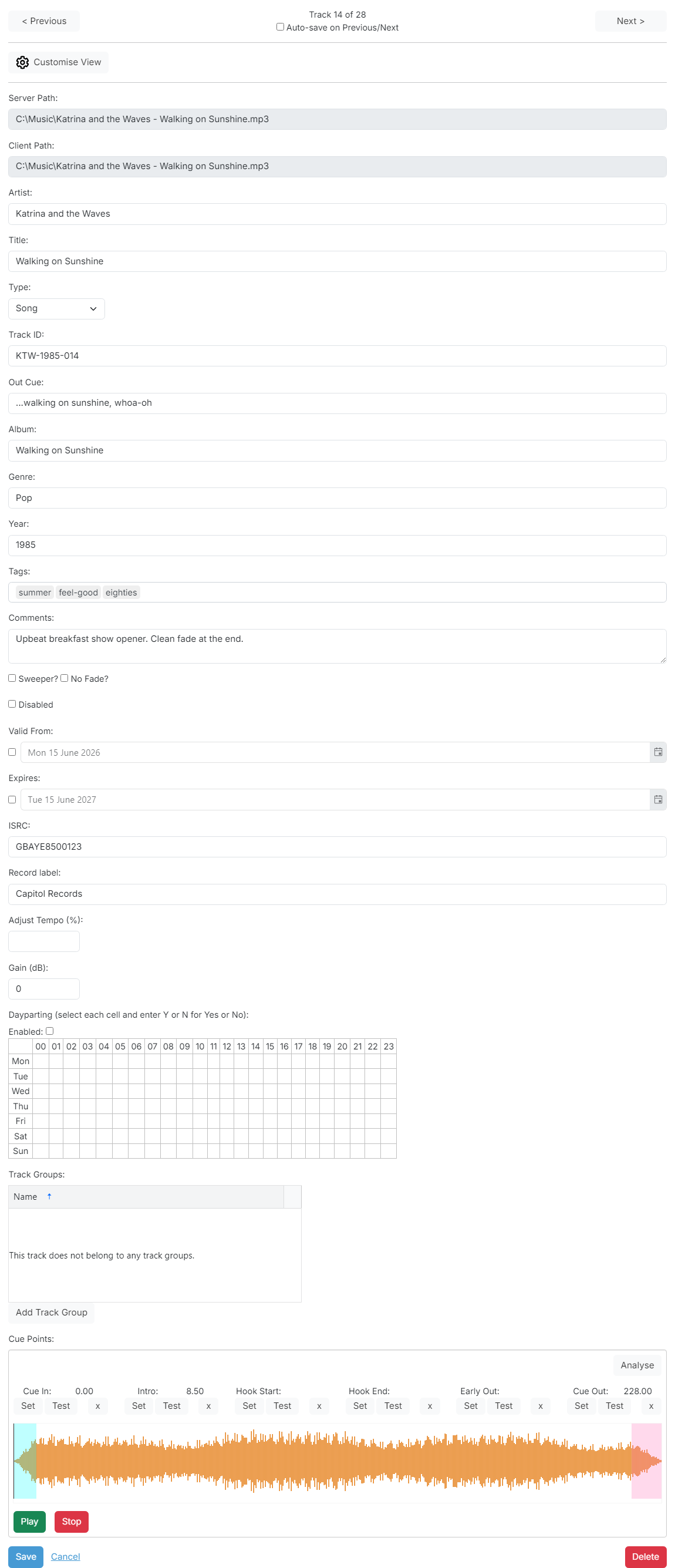
Track navigation

The < and > buttons step backwards and forwards through the current track list without leaving the page, so you can edit several tracks in a row. The buttons respect the search and track group filter that was active when you opened the editor.
Customise view

Click Customise View to choose which fields are shown on this page. Tick the fields you want visible and untick the ones you don't use. The choice is remembered for your user.
Server Path

The full path to the audio file on the PlayIt Manager server. This is set automatically when the track is uploaded and is read-only.
Client Path

The path that connected PlayIt Live installations will use to read the audio file. This is calculated automatically by applying the track path substitutions configured in Settings to the server path, so that each client reaches the file by the correct UNC or local path.
Artist

The performer of the track. This is typically read from the file's metadata tags when the track is first uploaded, but can be edited at any time.
Title

The title of the track, typically read from the file's metadata tags when uploaded.
Type

The track type: Song, Station ID, Promo, Commercial, News, Bed or Station ID + Bed. PlayIt Live uses the type to apply different scheduling and playback behaviour. Leave this set to -- Inferred -- to let PlayIt Live determine the type automatically from the track's tags, artist, title and duration.
Track ID

A unique identifier used when integrating with external music scheduling software or playout logging systems. Most stations can leave this blank.
Out Cue

The Out Cue can be the style of the track's ending, such as Fade Out or Sustain, or the last spoken words in the track, so presenters know when to talk over the end of the track.
Album

The album the track was released on. Read from the file's metadata tags when available.
Genre

The genre of the track. Type the genre into the text box.
Year

The four-digit release year of the track.
Tags

Free-form tags used for categorising the track. Tags can be used by filtered track groups and by the Inferred Type rules. Type a tag and press Enter to add it; click the × beside a tag to remove it.
Comments

Free-text notes about the track: usage instructions, presenter notes or background information.
Sweeper / No Fade flags

- Sweeper?: allows the playout system to play this track over the intro of the next song (before the Intro point), or over the end of the previous song (after the Early Out point). It is typically used for sweepers, which are short clips that identify the station or show, and are usually dry (no background music) so they do not clash with the track they are playing over.
- No Fade?: prevents the track from being faded out when the next track begins. Use it for tracks with a natural ending that should not be cut short.
Disabled

Tick Disabled to stop the track from being scheduled. Disabled tracks remain in your library but won't be scheduled automatically.
Valid From

Tick the box and choose a date to make the track available for scheduling only from that date onwards. Before the date the track is ignored by the scheduler.
Expires

Tick the box and choose a date after which the track should no longer be scheduled. After the expiry date the track is ignored by the scheduler.
When both Valid From and Expires are set, an Ignore year on dates option appears. Tick it to ignore the year part of both dates so the track recurs every year between the same day and month, for example a Christmas track that returns to the schedule each festive season without the dates needing to be updated.
ISRC

The 12-character International Standard Recording Code for the track. Included on music reports for royalty tracking.
Record label

The record label that released the track. Included on music reports.
Adjust Tempo (%)

Changes the playback speed of the track as a percentage. Use small positive or negative values to nudge a track a little faster or slower to fit a time slot. Leave blank for normal speed.
Gain (dB)

Adjusts the playback volume of the track in decibels. Use positive values to boost a quiet track or negative values to bring down a loud one.
Dayparting
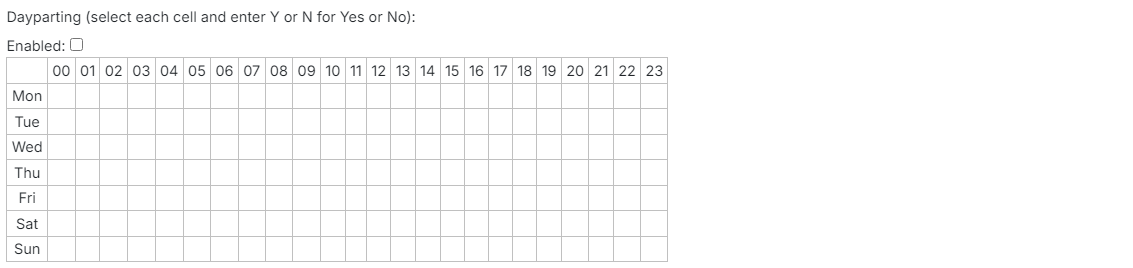
Restrict the track to specific days and hours of the week.
- Tick Enabled to switch on dayparting for this track.
- In the grid, click each hour-of-day / day-of-week cell and enter Y to allow the track during that hour or N to block it.
When dayparting is enabled the track will only be scheduled inside the cells you marked Y.
Track Groups
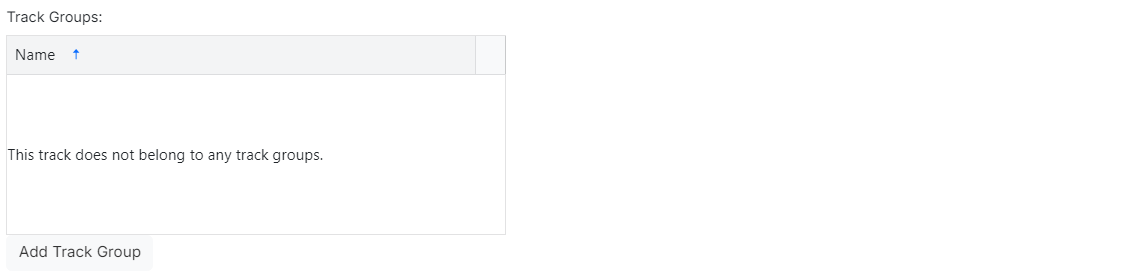
Shows the Listed Track Groups the track currently belongs to. Filtered and grouped track groups that automatically include this track aren't shown here: only the groups you've manually added it to.
Click Add Track Group to add the track to another listed group, or use the row actions to remove it from a group.
Cue Points

The cue points define key positions in the track. Each point has Set, Test and × buttons:
- Set captures the current waveform playback position as the cue point value.
- Test plays the track from the cue point.
- × clears the cue point back to its default.
| Cue point | Purpose |
|---|---|
| Cue In | The position at which the track is started by the player. |
| Intro | The position where the vocals start, so the previous track can run up to it. |
| Hook Start | The start of the track's hook, used by hook sequences. |
| Hook End | The end of the hook, used by hook sequences when the full hook is played. |
| Early Out | A point near the end of the track where the next track can be started or a sweeper can be inserted. |
| Cue Out | The position at which the track is considered finished. The player begins fading and starts the next track when this point is reached. |
Click Analyse to detect the Cue In and Cue Out automatically from the silence at each end of the track.
Waveform

The waveform shows the volume of the audio across the full duration of the track. Cue point markers are overlaid using the following colours:
| Cue point | Colour |
|---|---|
| Cue In | Green |
| Intro | Blue |
| Hook | Hot pink |
| Early Out | Orange |
| Cue Out | Red |
Click the waveform to jump playback to that position. Use the mouse wheel while hovering over the waveform to zoom in for fine cue point adjustment.
Playback buttons

Play starts playback from the current waveform position. Stop halts playback.
Save / Cancel / Delete

- Save saves all changes and returns to the track list.
- Cancel discards any unsaved changes and returns to the track list.
- Delete prompts for confirmation, then removes the track from PlayIt Manager.