Listed Track Groups
Listed track groups are used to group manually chosen tracks together. This is useful when you have simple categories of tracks you want to group, such as Power, Recurrents and Gold.
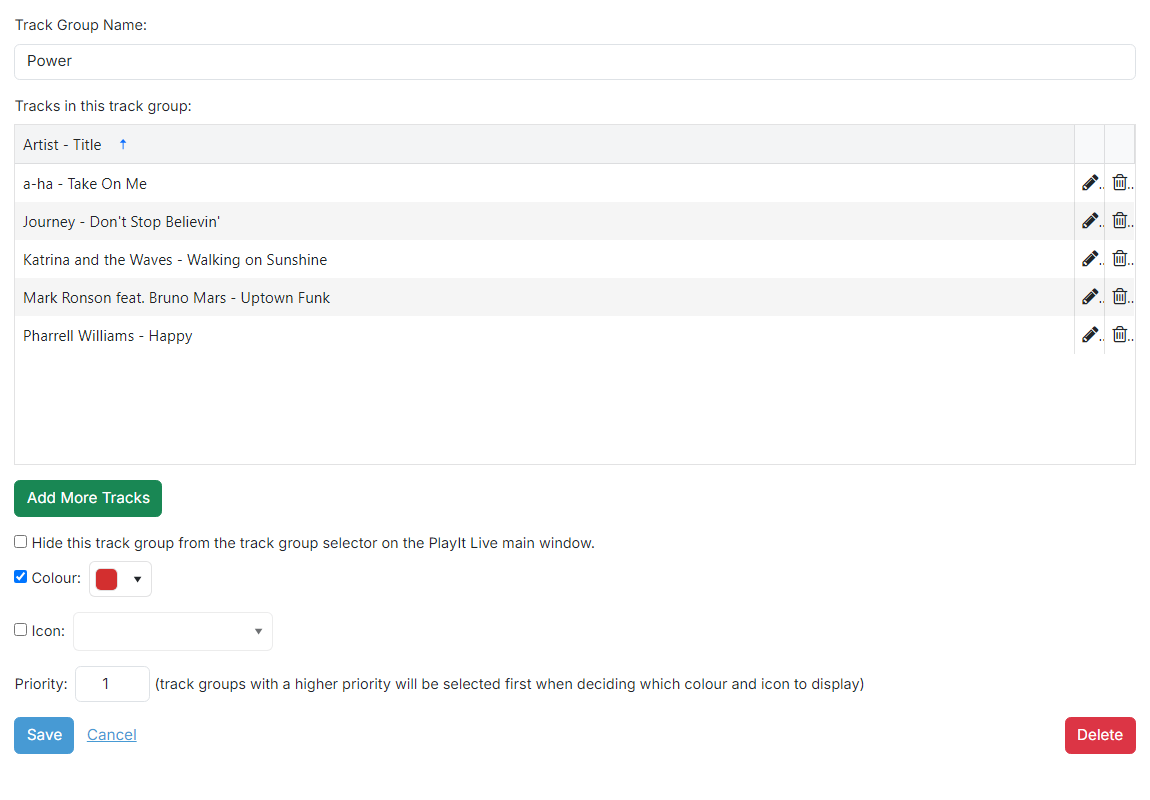
Track Group Name

The name of the track group. This is shown in the track group dropdown in PlayIt Live to filter by track group.
Tracks in this track group
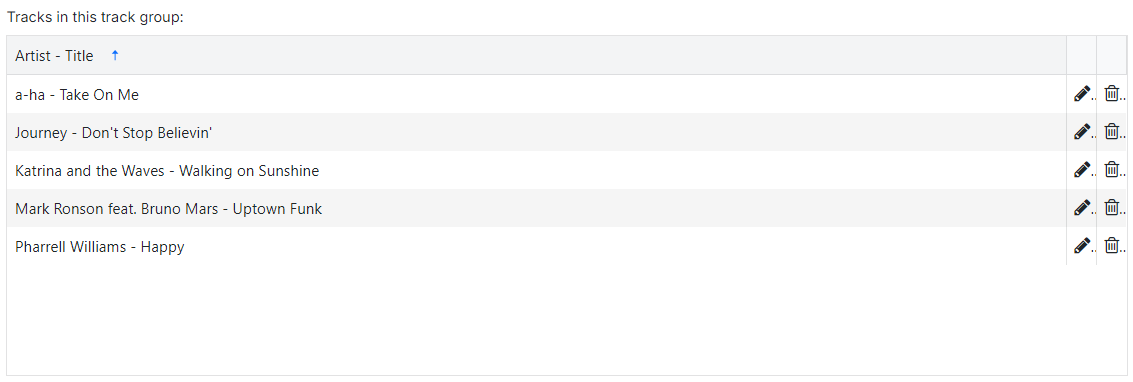
Shows the list of tracks chosen for this track group. Use the trash icon to remove a track from the track group.
Add More Tracks button

Opens a popup to choose more tracks. Select the tracks with the checkboxes and click Add Selected Tracks to add them to the group.
Hide this track group

Check this box to hide the track group from the track group selector on the PlayIt Live main window.
Colour

Tick the Colour checkbox to show a colour for any tracks in this track group when they appear on the playout log on the PlayIt Live main interface. Click the colour dropdown to change the colour.
Icon

Tick the Icon checkbox to show an icon for any tracks in this track group when they appear on the playout log on the PlayIt Live main interface. Click the icon dropdown to change the icon.
Priority

Priority is used to decide which track group is shown on the playout log when a track belongs to more than one group. The track group with the highest priority wins for displaying the colour or icon.
Track group operations

- Use the Save button to save the track group to the database.
- Use the Cancel button to discard all changes and return to the track group list.
- Use the Delete button to remove the track group from the database. A confirmation prompt is shown first.